
Extremly poor quality upon export, regardless of setting
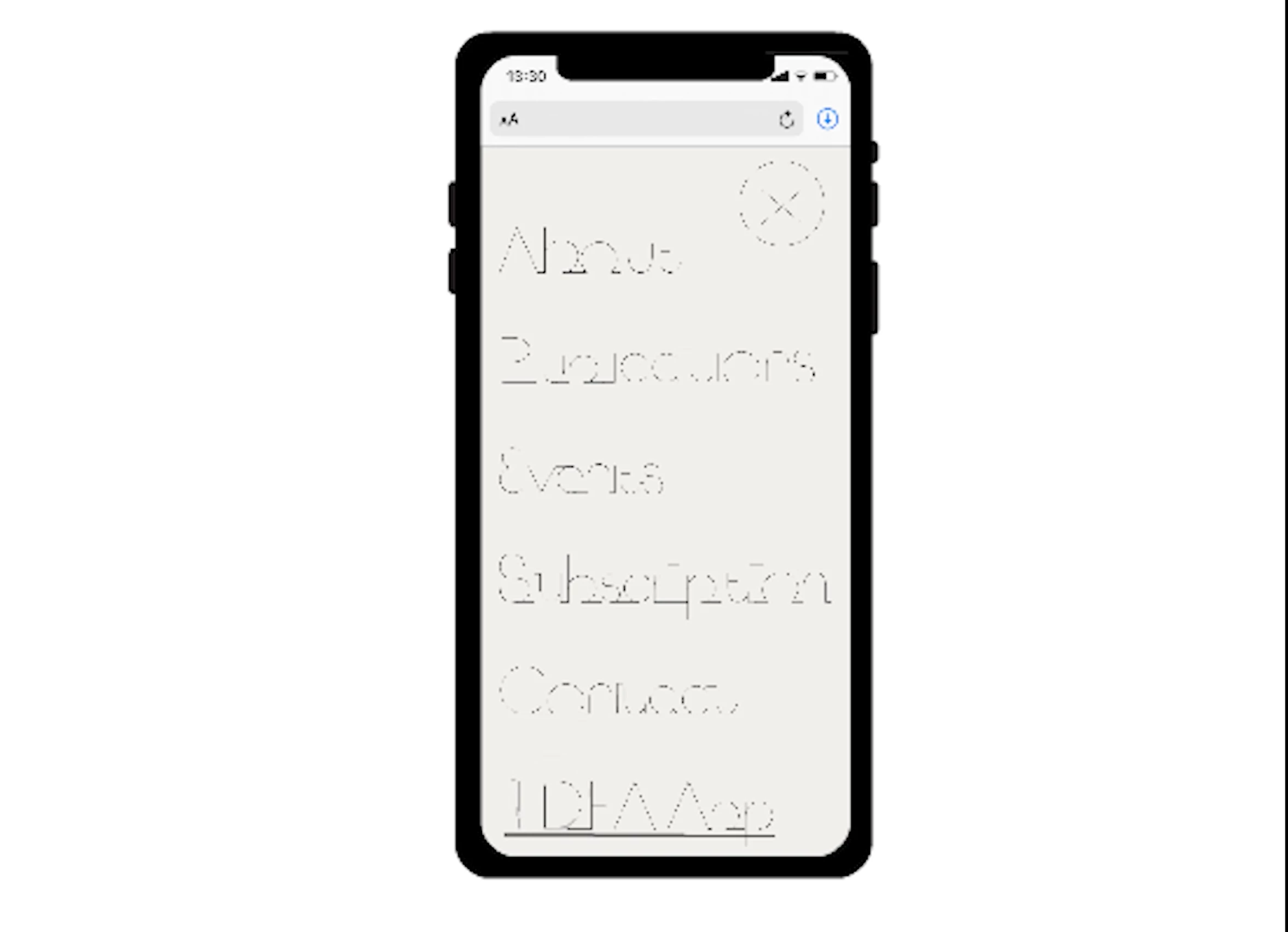
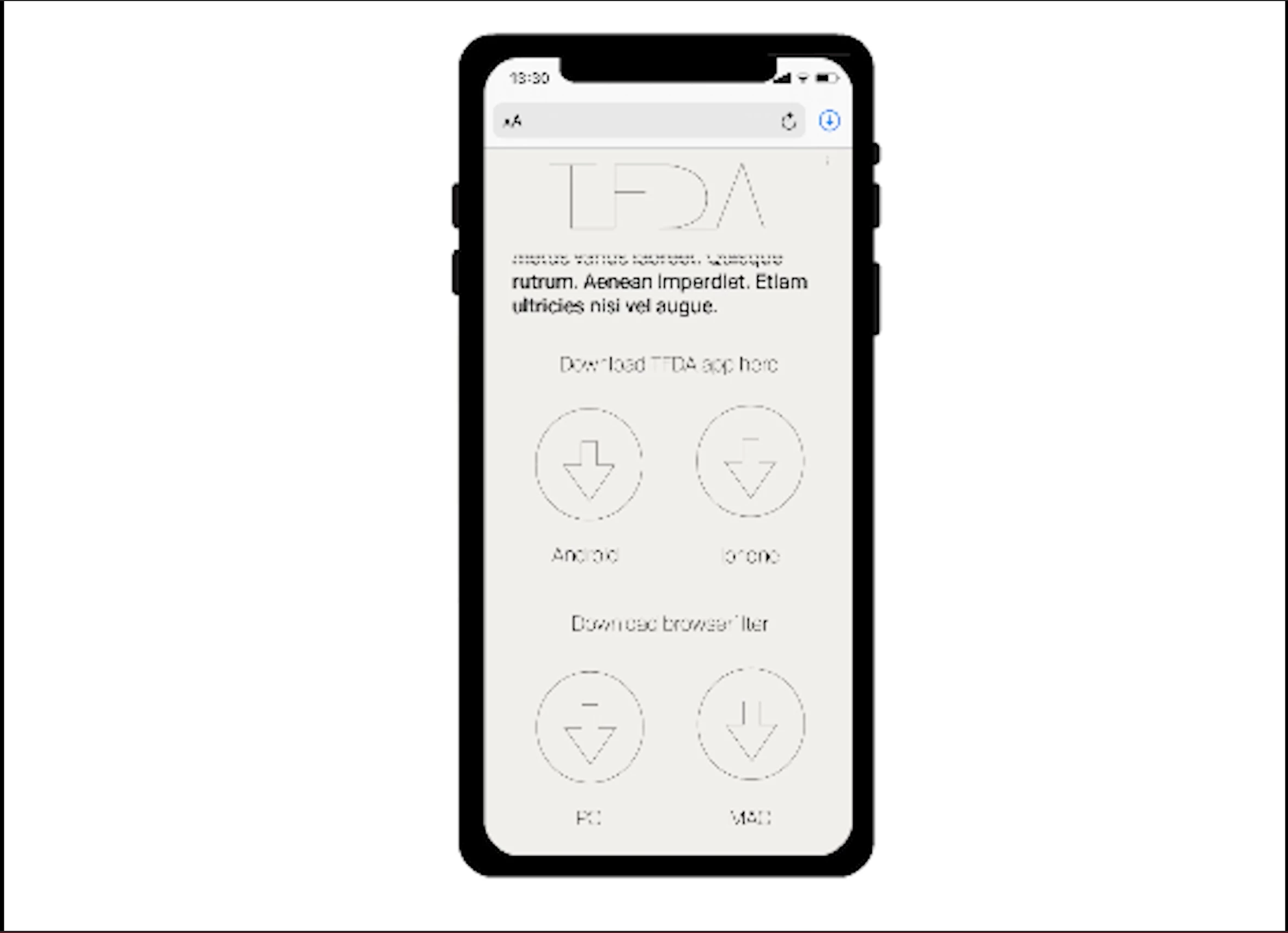
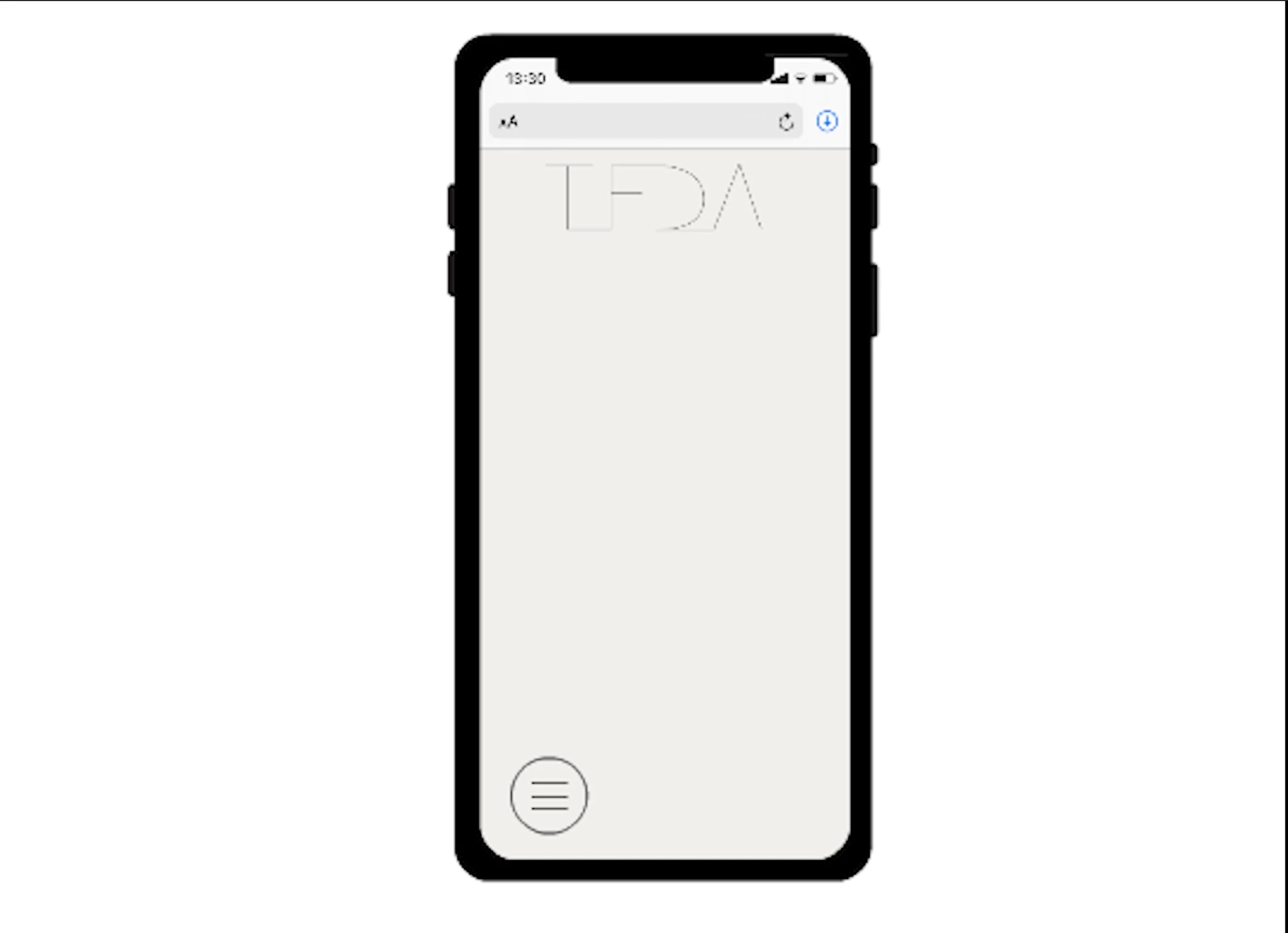
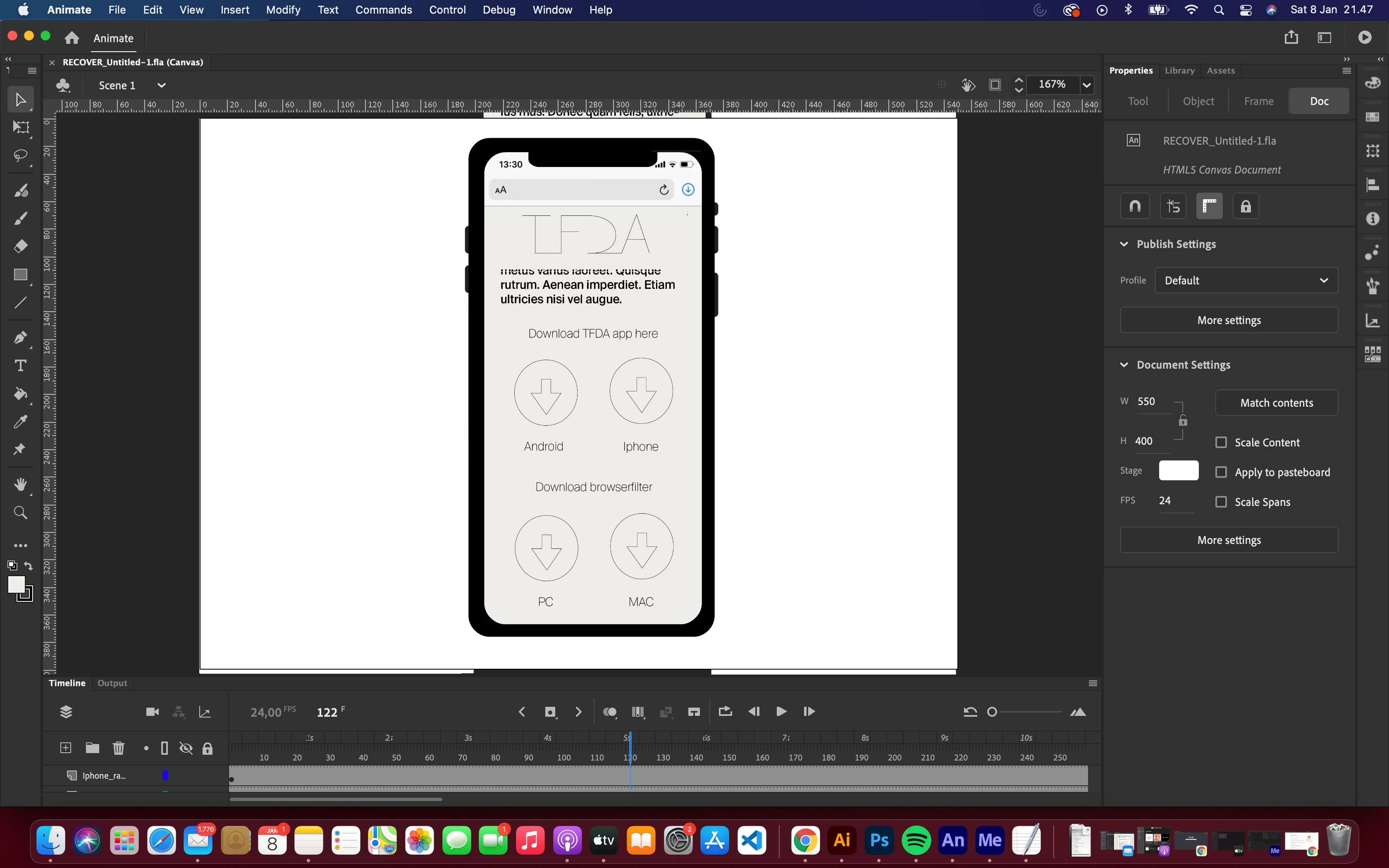
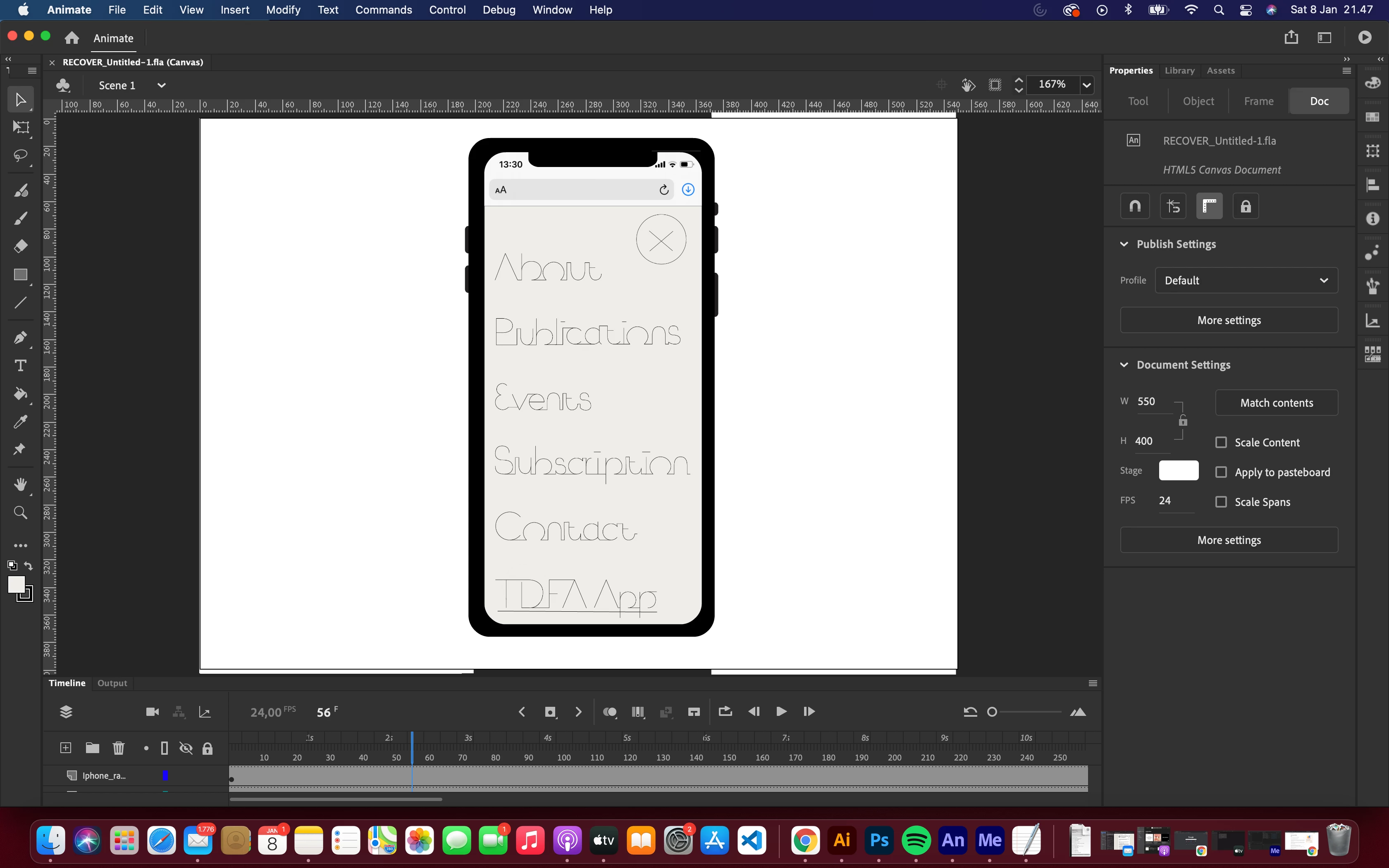
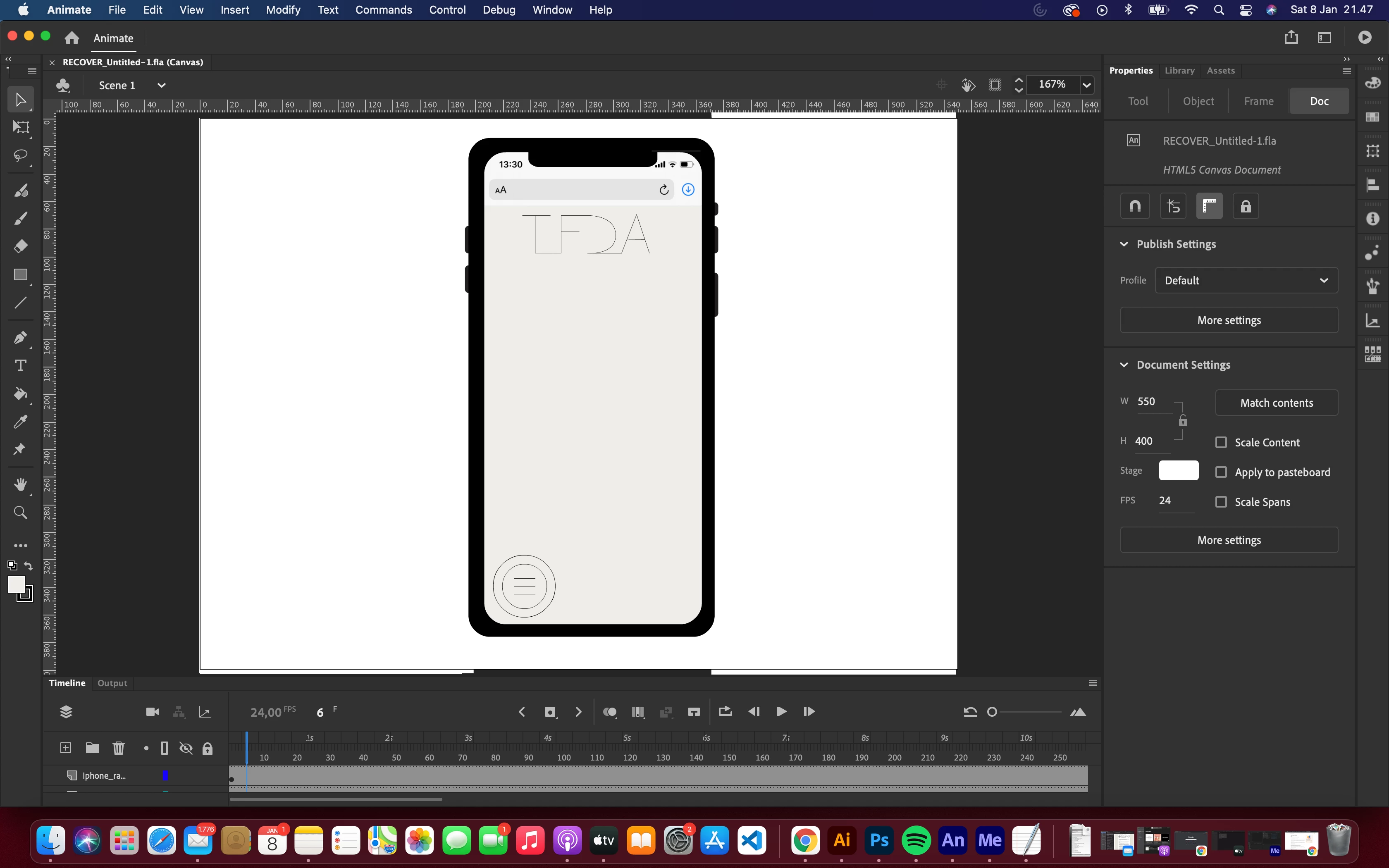
I´ve encountered a deeply frustrating situation, where I have created a project in Animate, which I wish to export as a .mp4 video file. However when I finally finished my projevct and it became time to export my project, the quality turned out extremely poor regardless of how i changed the settings. This is mindboggling to me, because in the programme my stage area appears perfectly fine, and every single asset/layer looks great.
I´ve tried exporting in setting for H.264 (High Quality 1080 HD), H.264 blue-ray, Quicktime, Apple Pro Res and Custom - all with the same dissapointing results
The only time I got a slightly better result is when I exported with the settings Animated (GIF) and Default (AME). However in this some of the layers still appeared very blurry, while others were fine, but this file is also extremely heavy.
I suspect, that the error might have something to do with broken or missing linkages, that I´ve imported into the library (similarly to how links work in indesign). Is this a thing in Animate? I tried to see whether I could restore any linkages, but I haven´t been able to find a way of doing so.
Please help, if you know anything about this.


 AdChoices