chenjil43641795
Legend
April 12, 2017
Answered

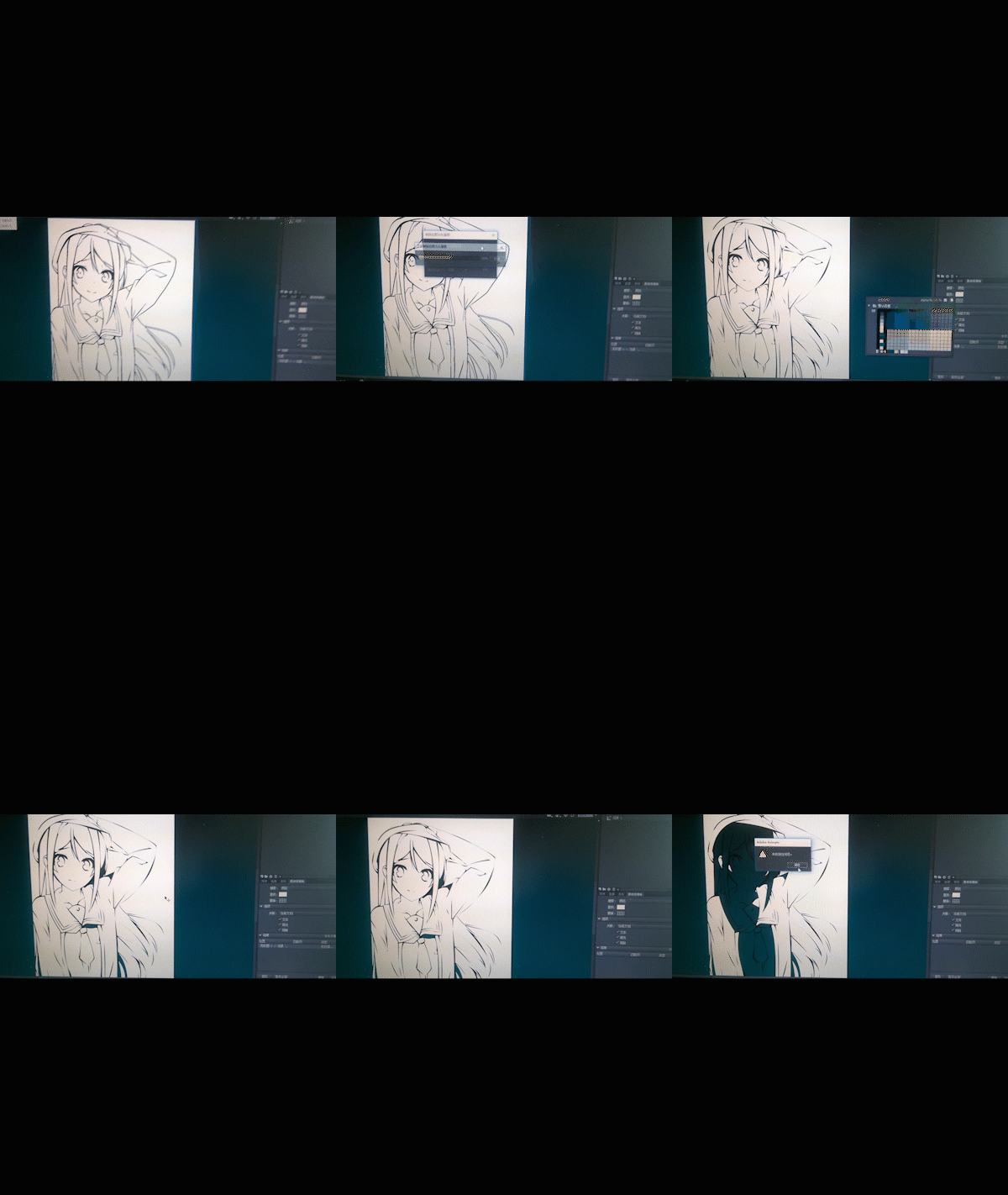
finding and replacing,color ,not found

  • April 12, 2017
  • 4 replies
  • 760 views

operation

1,bitmap transform vector

2,finding and replacing
    This topic has been closed for replies.
    Correct answer Myra Ferguson

    I think what has happened is that in the process of converting your image to a vector not all areas were filled in with white. You can check that by changing the Stage color in the Properties panel to something like gray so you can see. The next issue is that the shapes where you want to apply color are not closed. If you're using the Paint Bucket tool, you can set your options lower in the Tool panel to whichever applies:

    • Don't close gaps
    • Close small gaps
    • Close medium gaps
    • Close large gaps

    Then you can use the Eraser tool to remove any of the undesired overfill. You can set options for the Eraser, too, so that you can:

    • Erase Normal
    • Erase Fills
    • Erase Lines
    • Erase Selected Fills
    • Erase Inside

    You might also use the Brush Tool to apply your fills with similar options:

    • Paint Normal
    • Paint Fills
    • Paint Lines
    • Paint Selected Fills
    • Paint Inside

    Hope that helps!

    4 replies

    chenjil43641795
    Legend
    April 13, 2017

    I can't use YouTube in my area.(National blockade)

    No items found。

    No longer replace color。

    Can no longer be replaced

    Myra Ferguson
    Community Expert
    Myra FergusonCommunity ExpertCorrect answer
    Community Expert
    April 13, 2017

    I think what has happened is that in the process of converting your image to a vector not all areas were filled in with white. You can check that by changing the Stage color in the Properties panel to something like gray so you can see. The next issue is that the shapes where you want to apply color are not closed. If you're using the Paint Bucket tool, you can set your options lower in the Tool panel to whichever applies:

    • Don't close gaps
    • Close small gaps
    • Close medium gaps
    • Close large gaps

    Then you can use the Eraser tool to remove any of the undesired overfill. You can set options for the Eraser, too, so that you can:

    • Erase Normal
    • Erase Fills
    • Erase Lines
    • Erase Selected Fills
    • Erase Inside

    You might also use the Brush Tool to apply your fills with similar options:

    • Paint Normal
    • Paint Fills
    • Paint Lines
    • Paint Selected Fills
    • Paint Inside

    Hope that helps!

    chenjil43641795
    Legend
    April 13, 2017

    Thank you for your answer。

    The problem has been found。

    The eyedropper tool does not match the color and the true color。

    I think this is a problem with software.

    Myra Ferguson
    Community Expert
    Community Expert
    April 12, 2017

    It's really hard to see what you're doing in the video, so here is a link to more information on color in Animate CC Color Panel in Animate CC.

    If you want to do a find and replace with color, I'd recommend looking into Tagged Swatches. Select the color you want to use. Make that color a swatch if it isn't already. Then make that swatch a Tagged Swatch by clicking the Convert to Tagged Swatch button in the Color Panel. Use that Tagged Swatch to assign color in your graphic. When you want to change that color, edit the Tagged Swatch. Everywhere that Tagged Swatch is in your graphic will be updated to the new color.

    Known Participant
    October 9, 2022

    Thank you for the work-around solution.  It appears that Tagged Swatches are "protected" from being changed with Find and Replace.  You have to Edit your tagged swatch and enter the hex code for your new color (you can't even use the Eyedropper).  Then all instances of that tagged swatch will change.  Pretty damned clunky if you ask me, but this kind of thing is to be expected from Adobe.

    Legend
    April 12, 2017

    Vertical video syndrome strikes again.

    kglad
    Community Expert
    Community Expert
    April 12, 2017
    kglad
    Community Expert
    Community Expert
    April 12, 2017

    i can't see what's not working.
