
Answered
Help: How to Save a Custom Interface Layout?
Dear Members of the Adobe Animate Community,
Hello! I am new to Adobe Animate and I am currently customizing the software interface to better suit my workflow. Below are the steps I have taken during the setup process:
- Upon first launching Adobe Animate, I accessed the "Edit" menu, selected "Preferences," and then chose the "Expert Preferences" option.
- Next, using the Ctrl+U shortcut, I opened the "Preferences" dialog box and, under the "Drawing" settings, I unchecked the "Asset Warp Tool" option.
- In the Timeline panel, I unchecked the "Auto KeyFrame" option (i.e., it is not selected).
- On the stage, I right-clicked and from the submenu, I unchecked the "Snap Align," "Snap to Grid," "Snap to Guides," and "Snap to Objects" options (i.e., they are not selected).
- Lastly, I closed the "Assets" panel in the properties panel on the right side, as well as the "Layer Depth," "Info," "Brush Library," and "Motion Presets" panels in the toolbar on the far right.
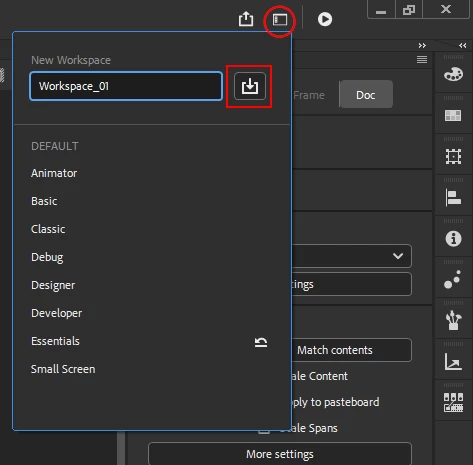
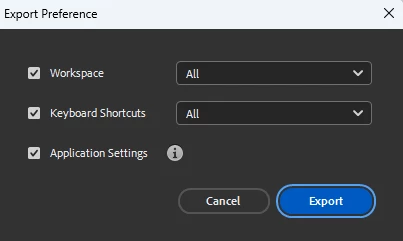
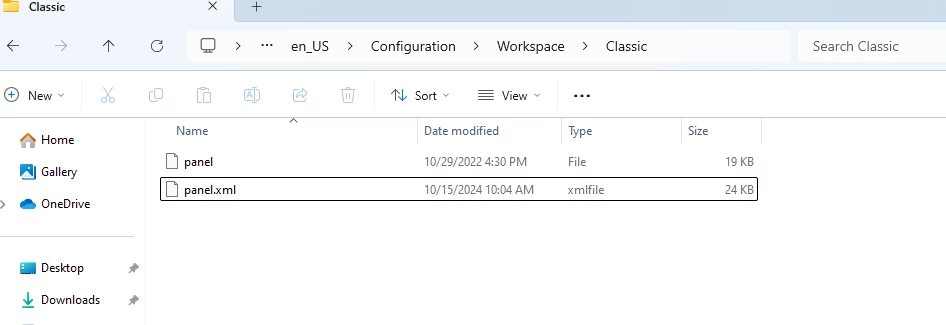
Having completed these personalized settings, I am seeking guidance on how to save this customized interface layout. Specifically, where can I find the local configuration file that stores the layout information? My goal is to easily restore my working environment after reinstalling the operating system or Adobe Animate, thus avoiding the need to readjust everything manually.
Thank you very much for your help and support! Any advice or solutions you could provide would be greatly appreciated. Looking forward to your response!


 AdChoices