
mop52187053
Participating Frequently
March 6, 2018
Answered

How do I have the stage faded when I enter a symbol?

  • March 6, 2018
  • 6 replies
  • 2547 views

I don't know what happened but suddenly when I enter a symbol, everything is white behind it and I don't see the faded stage behind it like how I used to when animating symbols.

How do I animate inside a symbol, where the stage is faded behind it so I can see where I'm animating?!

:,( What am I not seeing here?
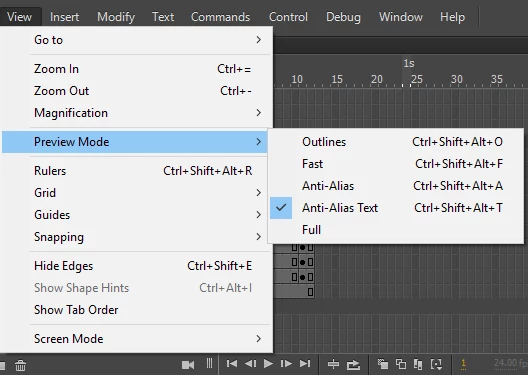
Correct answer ErikaSylphrena

I think it's the Preview Mode setting.

When I'm on full, it lets me see all the layers fully.

Anti-alias text mode fades the stage whenever I enter symbols, etc.

Hope this helps!

6 replies

spderweb
Known Participant
June 5, 2018

Found the answer, after looking for an answer to the same problem and finding this thread.     Solution is to hit this new camera icon just under the timeline.  Looks like it's default as on, when you turn it off, Flash acts normal. 

Legend
June 5, 2018

No, the default is off. If it's on, you turned it on.

spderweb
Known Participant
June 5, 2018

You're right.  i clicked the camera on theleft hand toolbar because it was new.  Didn't notice it did anything.   anyways, hopefully that fixes the original guys issue.

ErikaSylphrena
ErikaSylphrenaCorrect answer
Participant
May 22, 2018

I think it's the Preview Mode setting.

When I'm on full, it lets me see all the layers fully.

Anti-alias text mode fades the stage whenever I enter symbols, etc.

Hope this helps!

Participant
July 7, 2025

Yoooo thankyou!!! this one fixed it for me

mop52187053
Participating Frequently
March 12, 2018

Is there any word on when there may be some kind of fix for this? I feel like there should be some way to implement edit in place without having to turn off camera, because despite that I still need to view where I'm animating, and I've I've already moved symbols all around all over the place from the original position once I turn the camera off, then I can't accurately animate where things SHOULD be in reference to the rest of the animation.

In this way, it's just better to not have a camera at all and just animate using one large symbol composition that pretends to be a camera!

UDESCO
Adobe Employee
Adobe Employee
March 9, 2018

The mode that you're describing is called Edit-in-place mode for Symbol editing.

This mode is disabled if either Camera or Advanced Layers or Layer Depth is enabled. You can turn off those functionalities temporarily to use edit-in-place mode.

Legend
March 6, 2018

At the top of the stage, when you go into a symbol, does it say "Scene 1 > your symbol name"? Or does it only say your symbol name?

mop52187053
Participating Frequently
March 6, 2018

It looks like this:

Legend
March 6, 2018

Well, so much for my theory.

kglad
Community Expert
Community Expert
March 6, 2018

from the main timeline, double click the symbol you want to edit.

mop52187053
Participating Frequently
March 6, 2018

That's what I've been doing this whole time, my dude. I'm in the main timeline, double clicking these symbols at all various points, but when I enter the symbol there's no faded stage behind it. Its ALL WHITE.

kglad
Community Expert
Community Expert
March 6, 2018

restart your computer and retry.

if that fails, reset your preferences - 

http://helpx.adobe.com/flash/kb/re-create-preferences-flash-professional.html

    (or remove Win:  C:\Users\<username>\AppData\Local\Adobe\Animate CC 2017\ and

                                  C\Users\<username>\AppData\Roaming\Adobe\Animate\2017\

                        Mac:   /Users/<username>/Library/Application Support/Adobe/Animate CC 2017/ and

                                    /Users/<username>/Library/Preferences/Adobe/Animate/2017/)