calebj10729
Participant
April 1, 2019
Answered

How to get a shade change while drawing

  • April 1, 2019
  • 2 replies
  • 615 views

Lets say I am using the color brown. Is it possible for me to just draw and use pressure to make it darker or lighter. Because I need to do that to make something realistic instead of being all just one solid color. If there is another way to do this without using pressure still also tell me. Is there a way to draw and keep drawing and it could get darker and lighter. Instead of having it to be one solid color.

    This topic has been closed for replies.
    Correct answer mark@headTrix

    Hi Caleb,

    Unfortunately there is no quick key or pressure to help you do that.

    But you can certainly change the color and make it darker and lighter.

    To do that

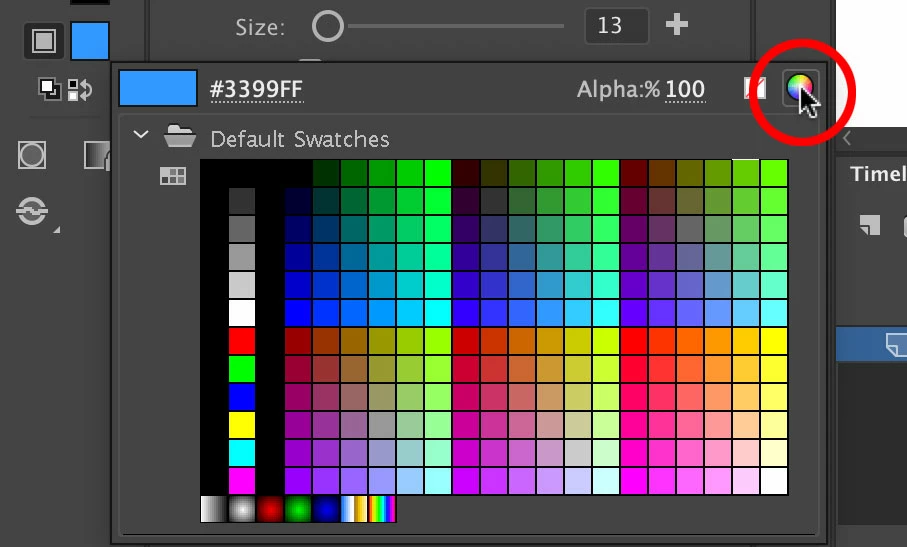
    1. CLICK on the swatch and click on the little color wheel icon
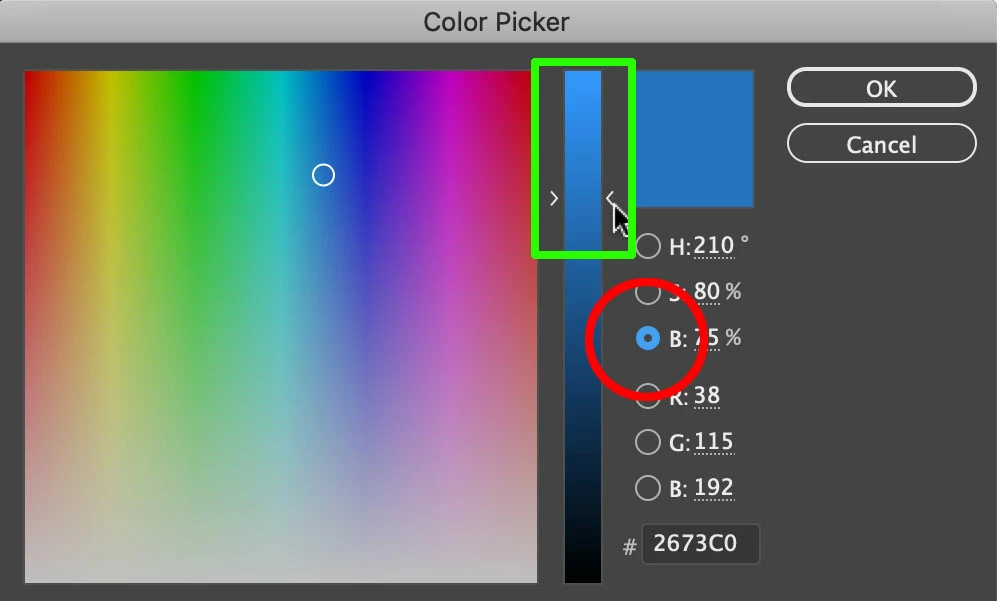
    2. Click on "B" for Brightness(highlighted in Red) within the "HSB" (Hue, Saturation, Brightness) color and drag the slider to your color to a darker or lighter hue (highlighted in green).
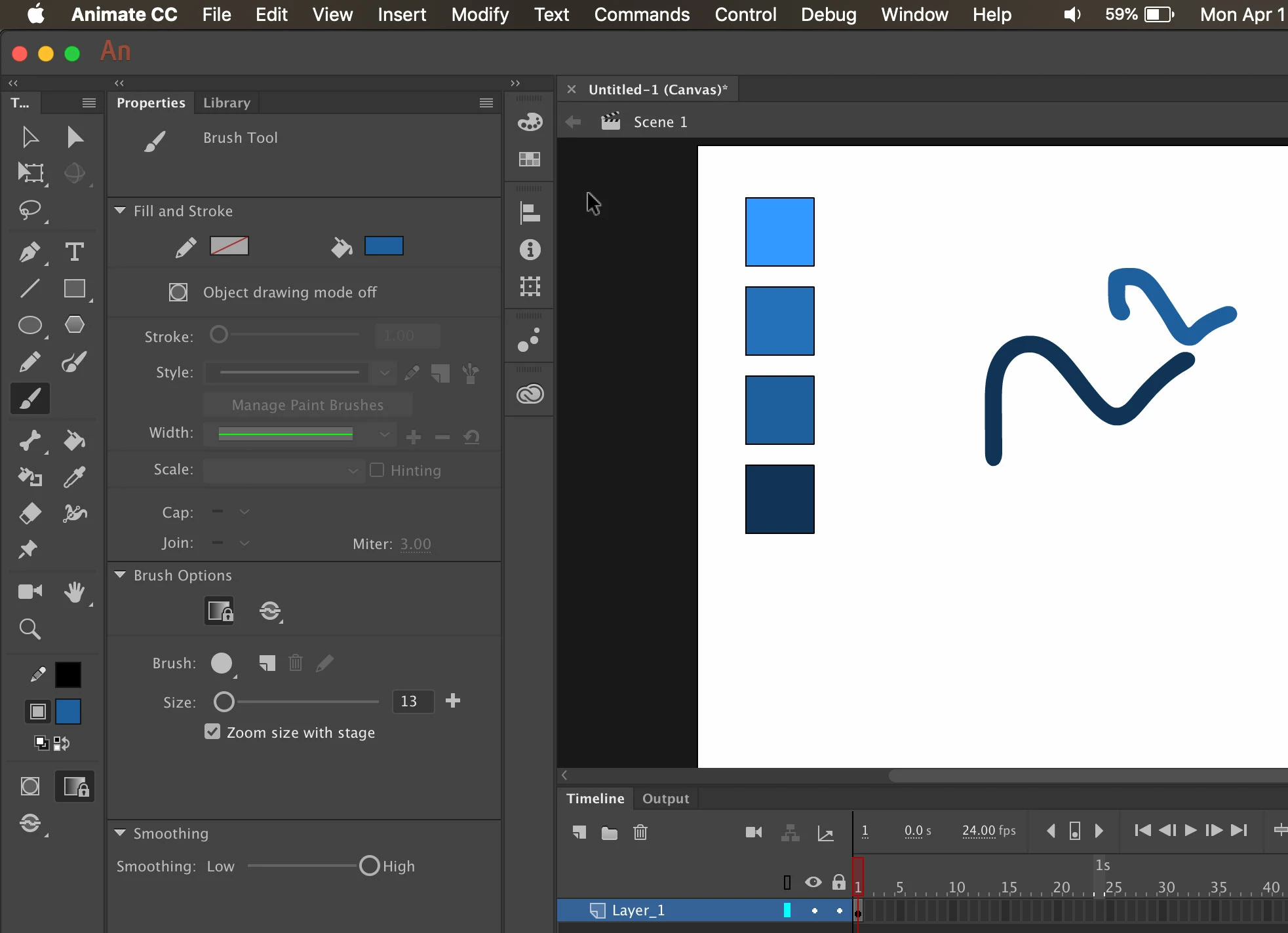
    To speed it up a little.. I'd recommend you suggest to Adobe that they add a quick key to quickly sample colors (like pressing the Option key in Photoshop). But you can choose your colors and create little swatches like an artist's palette. Then you can press "I" on keyboard to get the eyedropper, select the color swatch you want on your stage (see image below) and then switch back to the brush tool by pressing the "B" key on keyboard. Not the best, but I think it should make it pretty quick.
    Hope that helps!

    Cheers,

    mark

    2 replies

    Asymetrical
    Inspiring
    April 2, 2019

    You can also use the gradation tool after the fact to make it appear as though you go from light to dark. Again probably not really what I think you want but then Animate really isn't a painting tool.

    mark@headTrixCommunity ExpertCorrect answer
    Community Expert
    April 2, 2019

    Hi Caleb,

    Unfortunately there is no quick key or pressure to help you do that.

    But you can certainly change the color and make it darker and lighter.

    To do that

    1. CLICK on the swatch and click on the little color wheel icon

    2. Click on "B" for Brightness(highlighted in Red) within the "HSB" (Hue, Saturation, Brightness) color and drag the slider to your color to a darker or lighter hue (highlighted in green).

    To speed it up a little.. I'd recommend you suggest to Adobe that they add a quick key to quickly sample colors (like pressing the Option key in Photoshop). But you can choose your colors and create little swatches like an artist's palette. Then you can press "I" on keyboard to get the eyedropper, select the color swatch you want on your stage (see image below) and then switch back to the brush tool by pressing the "B" key on keyboard. Not the best, but I think it should make it pretty quick.

    Hope that helps!

    Cheers,

    mark

    headTrix, Inc. | Adobe Certified Training & Consulting