
gurmeets39816897
Participant
July 28, 2019
Answered

How to give constant blank frames between multiple keyframes.

  • July 28, 2019
  • 3 replies
  • 1120 views

I have made a animation in multiple keyframes. Now I want to give 5 blank frames between each keyframes.

I am clicking on each keyframe and pressing F5 five times. Doing this on each keyframe. This is lengthy process.

Kindly help me with any shortcut.

Kindly refer attachment as screenshot.
This topic has been closed for replies.
Correct answer JoãoCésar17023019

Hi.

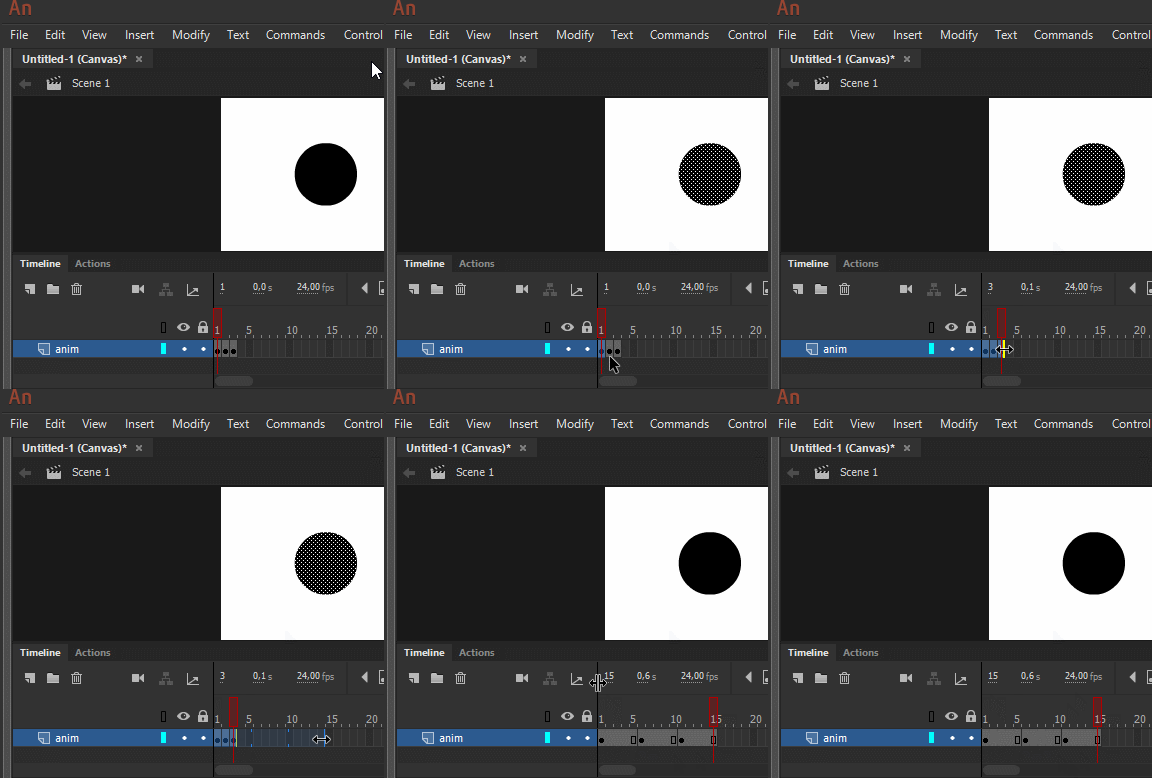
You can also extend or compress animations using timeline controls.

How to use the Timeline in Animate CC

You can extend or reduce time for the selected span on the timeline. Select the frame span and drag the right-side edge of the selected span on timeline, forward or backward. The frames within the timeline are adjusted automatically.


You can replicate your animations multiple times (x2, x3, and so on) by dragging the spans in timeline. You can also compress the frames to their normal position, after extending them.

Select the frames in timeline, click, and drag the highlighted right-side edge of the selection.

frameselection_rightborder

Frame selection and border

While dragging, as shown in the following screenshot, you can view the animation in multiples such as x2, x3, and so on.

stretchselectedframes  

Display of stretched frames while dragging.

In the following screenshot, you can view the extended span in multiple of x2. x2 is double the size of a selected span. x3 is three times the original size of a span.

stretchedspans  

Extended spans after dragging.

Regards,

JC

3 replies

JoãoCésar17023019
Community Expert
JoãoCésar17023019Community ExpertCorrect answer
Community Expert
July 28, 2019

Hi.

You can also extend or compress animations using timeline controls.

How to use the Timeline in Animate CC

You can extend or reduce time for the selected span on the timeline. Select the frame span and drag the right-side edge of the selected span on timeline, forward or backward. The frames within the timeline are adjusted automatically.


You can replicate your animations multiple times (x2, x3, and so on) by dragging the spans in timeline. You can also compress the frames to their normal position, after extending them.

Select the frames in timeline, click, and drag the highlighted right-side edge of the selection.

frameselection_rightborder

Frame selection and border

While dragging, as shown in the following screenshot, you can view the animation in multiples such as x2, x3, and so on.

stretchselectedframes  

Display of stretched frames while dragging.

In the following screenshot, you can view the extended span in multiple of x2. x2 is double the size of a selected span. x3 is three times the original size of a span.

stretchedspans  

Extended spans after dragging.

Regards,

JC

Myra Ferguson
Community Expert
Community Expert
July 28, 2019

Instead of pressing F5 to insert 5 blank frames, take your frames per second, presumably 24 fps, and multiply it by 6, which would be your current keyframe plus 5 extras (in this case, to get 144 fps). In the Properties panel, enter that new FPS and check Scale Frame Spans. Animate to have Animate expand your Timeline accordingly. Then uncheck Scale Frame Spans and change your FPS back to 24 fps (or whatever fps it was originally).

kglad
Community Expert
Community Expert
July 28, 2019

using jsfl is the only shortcut that i know.