
Participant
December 2, 2024
Answered

how to keep smooth line editing

  • December 2, 2024
  • 1 reply
  • 298 views

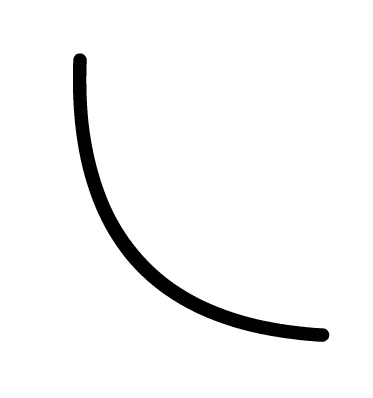
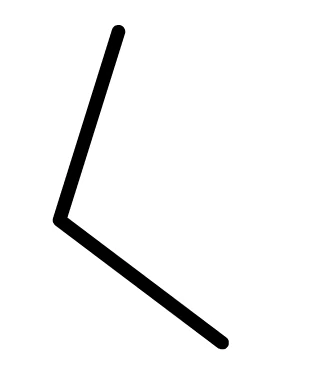
when you draw something with a line (tool), at first you can press Ctrl and edit the line, and it will remain smooth, but after some time (for example, if you copy and paste the line or something like that) it will stop editing so smoothly and will become more crooked if you try to do this( how can I make it so that it is always edited smoothly?
This topic has been closed for replies.
Correct answer Mario_CR

Thank you, ok the reason is that holding Ctrl with the Line Tool selected has a rubberband function that switches the cursor to the Selection Tool (V) temporarily.


However, after copy-pasting the line, you changed the tool to the Selection Tool and no longer have the Line Tool selected and so the rubberband function is different because the tool is now different.


Pressing Ctrl with the Selection Tool allows you to pinch the line to make sharp corners; in order to smoothly bend the line just click and drag the line without pressing Ctrl.

1 reply

Mario_CR
Community Expert
Community Expert
December 3, 2024

Hi, could you kindly post a screen recording of this?

Participant
December 4, 2024

Well, here I drew a line, then copied and pasted it and what I was talking about happened.

Mario_CR
Community Expert
Mario_CRCommunity ExpertCorrect answer
Community Expert
December 4, 2024

Thank you, ok the reason is that holding Ctrl with the Line Tool selected has a rubberband function that switches the cursor to the Selection Tool (V) temporarily.


However, after copy-pasting the line, you changed the tool to the Selection Tool and no longer have the Line Tool selected and so the rubberband function is different because the tool is now different.


Pressing Ctrl with the Selection Tool allows you to pinch the line to make sharp corners; in order to smoothly bend the line just click and drag the line without pressing Ctrl.