
Inspiring
April 24, 2023
Answered

How to set comboBox borderThickness

  • April 24, 2023
  • 1 reply
  • 2760 views

I can set most of the parameters of a comboBox, cb, by setting the attribute directly on the object, such as:
cb.rowHeight = 30;

cb.alpha = 100;

for row height and alpha respectively. But for other attributes such as bordercolor and thickness, it seems to use a setStyle function. So it compiles with:

cb.setStyle("borderColor", 0x75aa75);
cb.setStyle("borderThickness", 10);

but it doesn't seem to cause any change. Does it need some other method?
    This topic has been closed for replies.
    Correct answer hclmed0

    yes that looks applicable to the flex combobox.


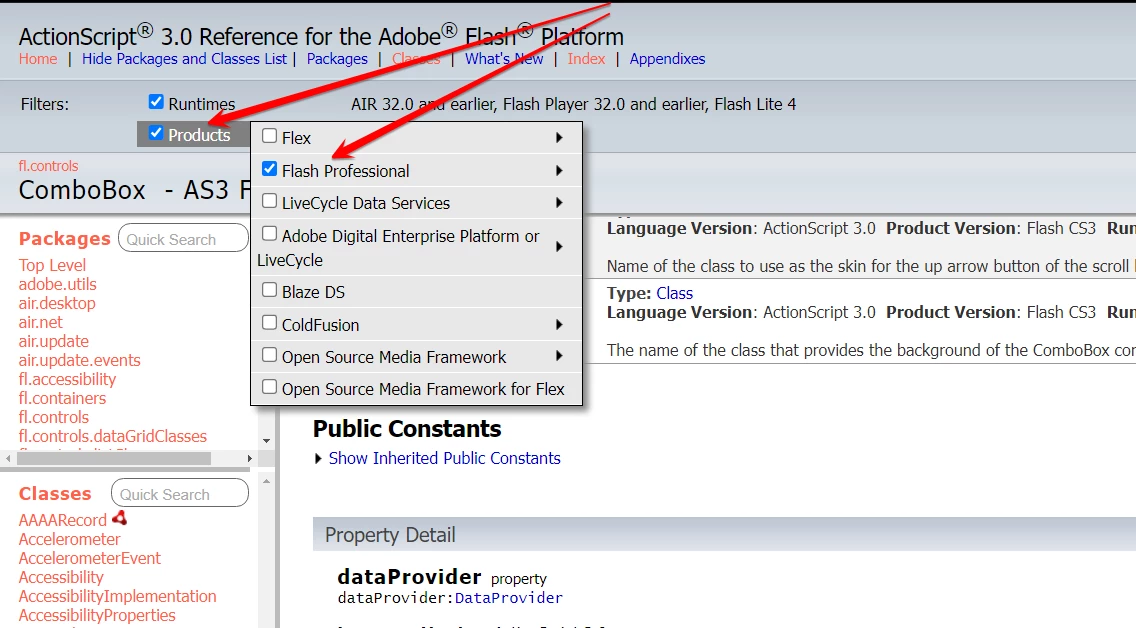
    mouseover products and check flash pro only.  i don't think you'll see mx stuff anymore.


    Ok. Not sure why that useful control of a comboBox appearance isn't available in AS3, but that will help avoid future confusion. Thanks.

    1 reply

    kglad
    Community Expert
    Community Expert
    April 24, 2023

    that looks like you're trying to style the list component part of the combobox.  is that correct?

    hclmed0Author
    Inspiring
    April 24, 2023

    It's the actual button I'm trying to style, the idle state before the drop down appears. Is there a path to that border, button width and color?

    kglad
    Community Expert
    Community Expert
    April 24, 2023

    then you may want to edit the combobox skins (up, over, down):


    from, https://help.adobe.com/en_US/as3/components/WS5b3ccc516d4fbf351e63e3d118a9c65b32-7f1c.html


    ComboBox skins

    You can change the color of the Up skin to change the color of the component in its inactive state on the Stage.

    1. Create a new Flash file (ActionScript 3.0) document.

    2. Drag the ComboBox component to the Stage.

    3. Double-click it to open its palette of skins.

    4. Double-click the Up skin until it is selected and open for editing.

    5. Set the zoom control to 400%.

    6. Click the center area of the skin until its color appears in the Fill color picker in the Property inspector.

    7. Select color #33FF99 using the Fill color picker to apply it to the Up skin.

    8. Click the Back button at the left side of the edit bar above the Stage to return to document-editing mode.

    9. Select Control > Test Movie.

      The ComboBox should appear on the Stage as shown in the following illustration.