manuelb19820178
Known Participant
March 15, 2019
Answered

Import SVG so that each path is on a different layer

  • March 15, 2019
  • 3 replies
  • 1080 views

I keep selecting "import each path to a different layer" when importing SVGs but it does nothing. All paths appear in the same layer

    This topic is closed to new replies. Start a new post to keep the conversation going.
    Correct answer kdmemory

    Hi Manuel

    You are right, it always seem to import all paths in one layer. When you import an Illustrator *.ai vector graphic file, the different layer thing seems to work. Not so for SVG.

    But you can help yourself by opening the imported graphic symbol and do this:
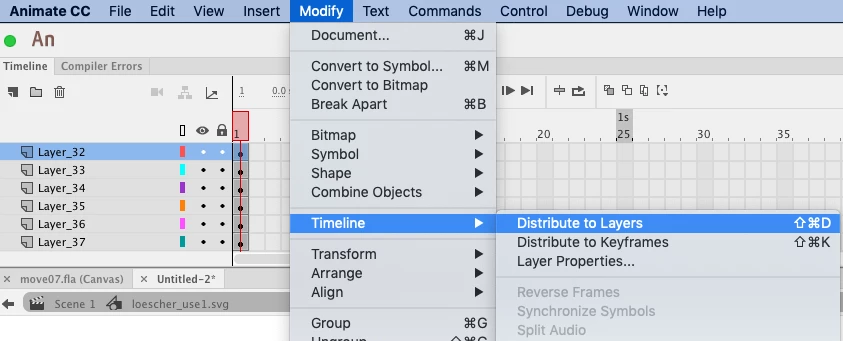
    That puts each path in a different layer.

    Klaus

    3 replies

    kdmemory
    kdmemoryCorrect answer
    Inspiring
    March 15, 2019

    Hi Manuel

    You are right, it always seem to import all paths in one layer. When you import an Illustrator *.ai vector graphic file, the different layer thing seems to work. Not so for SVG.

    But you can help yourself by opening the imported graphic symbol and do this:

    That puts each path in a different layer.

    Klaus

    manuelb19820178
    Known Participant
    March 15, 2019

    Thanks, I was already aware of that. The point is, why do I get to do a selection that does nothing when I import? If it's a bug it would be as simple as removing that menu on import...

    avid_body16B8
    Legend
    March 15, 2019

    I feel your pain as sometimes things are unpredictable but as Klaus mentioned and you acknowledged, one can use the "distribute to layers" option.

    Have you tried the copy/paste option from AI and see if you get a better result? I usually get several movie clips.