Inspiring
May 30, 2018
Answered

iOS Simulator build invalid input

  • May 30, 2018
  • 1 reply
  • 1829 views

I am trying to create an iOS simulator build. I need this as part of a submission to Facebook to get my app approved for certain things related to signing in and getting users' friends (a recent new requirement from Facebook - it had previously been approved but must soon be re-approved to stay valid).  The simulation build is now required to get the game submitted for approval).  The game is already live for testing in New Zealand but not globally and I don't want to have to release globally just to get past this.

I have tried and failed through Terminal to package a build for simulation (I'm not very conversant with Terminal so the problem is probably with me there but unless there is a much fuller tutorial somewhere I'm not hopeful I can get that to work) but in any case Animate CC now offers the option to create a simulator build.  It creates the swf and starts to publish the build but then comes up with the following error:

Invalid input.

Id: unexpected token: !tapi-tbd-v3 file 'Applications/Xcode.app/Contents/Developer/Platforms/iPhoneSimulator.platform/Developer/SDKs/iPhoneSimulator11.3.sdk/usr/lib/libc++.tbd' for architecture x86-64

Everything on my set up should be up to date.  I am using AIR 30.0.0.96 which I believe is the latest Beta issued just a few days ago but also tried a version of AIR 28.  My Mac is running High Sierra 10.13.4 and Xcode is 9.4 (it was the same result with Xcode 9.3.1 but I have updated to the very latest released yesterday and the problem persists).

The error message suggests its the way in which Animate CC interrelates with Xcode, but I can't be certain.

Any ideas or has anyone got round this problem?

Thanks

Stephen
This topic has been closed for replies.
Correct answer Colin Holgate

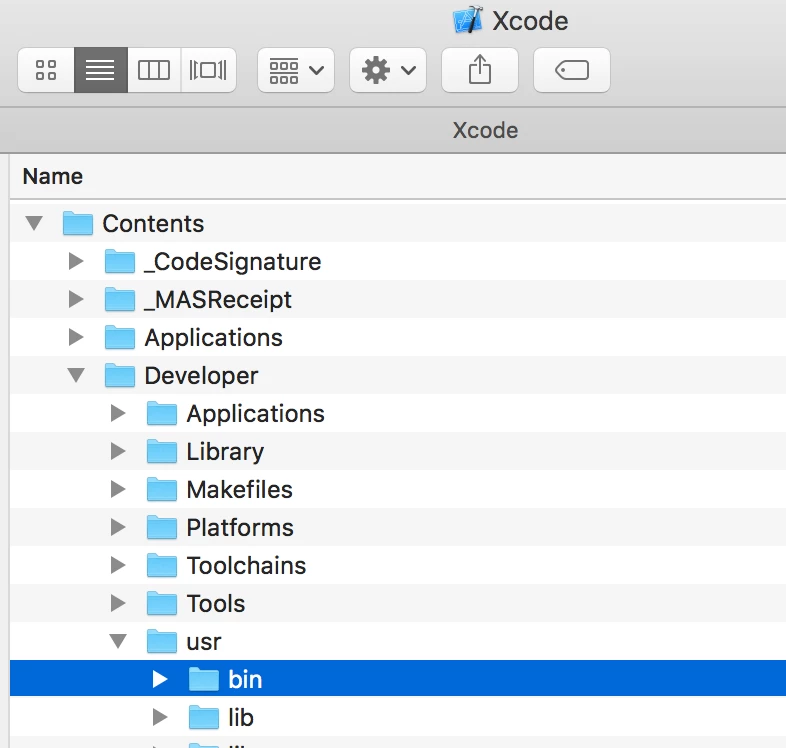
Inside this folder, which is inside Xcode itself (you have to right-click on Xcode in Applications, and select Show Package Contents):

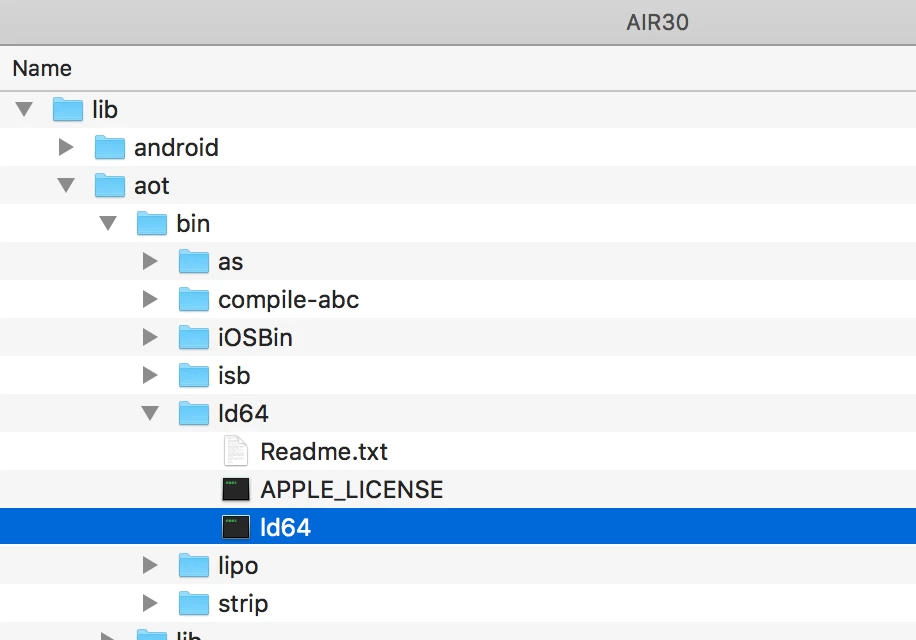
is a file named 'ld', it has no file extension. You would copy it (Option-drag) to this folder, which is where you have AIR 30 located:

Once it's there, rename ld64 as oldld64, or just delete it, and rename the copied ld to be ld64. Then restart Animate.

For the getting the Simulator build, here is a guide on how you can transfer a simulator app from one iPhone simulator to a different model:

xcode - Is there a way to move my iOS Simulator app data from one simulator (iPhone 7) to another (iPad Pro 12.9)? - Sta…

Animate seems to just build for iPhone 6, if you do the first part of the answer that was given, you should find your way to the .app file that was made. Or just look at this screenshot of the path to an app I tested in Simulator, hopefully that will help you find your one:

You could even just go into ~/Library/Developer/CoreSimulator/ and do a Find for your app. PhotoTool.app in my example.


I just saw two errors when testing on Simulator. One was to do with the minimum iOS version, I guess my Xcode doesn't have older SDKs installed. That was fixed by just telling the app descriptor XML to have a minimum version of 11.0:

    <iPhone>

        <requestedDisplayResolution>high</requestedDisplayResolution>

        <InfoAdditions><![CDATA[<key>MinimumOSVersion</key><string>11.0</string><key>UIPrerenderedIcon</key><true/><key>UIDeviceFamily</key><array><string>1</string><string>2</string></array>]]></InfoAdditions>

    </iPhone>

Will need to remember to set that to 9.0 before sending a new build to the client!

The other error was about 64 bit support, and it was because I had downloaded a later AIR 30 beta. Once I did the ld copy, rename to ld64, that error went away.

1 reply

Colin Holgate
Inspiring
May 30, 2018

You can directly test in the simulator from Adobe Animate, but currently you might get an error doing it that way too. I asked the Animate team for ideas, and they gave me this work around:

"The workaround is to replace the Runtime LD located at the path /lib/aot/bin/ld64/ld64 with the one which comes with Xcode 9.3. You can find it at location: <Xcode9.3InstallDir>/Xcode.app/Contents/Developer/usr/bin/ld. Please ensure that ld renamed to ld64 after pasting."

That worked for me. The other part of the process is to set the right simulator path in your iOS settings in the FLA. This is the normal path that should be in there:

/Applications/Xcode.app/Contents/Developer/Platforms/iPhoneSimulator.platform/Developer/SDKs/iPhoneSimulator.sdk

Here's the dialog where that goes:

Colin Holgate
Inspiring
May 30, 2018

Note that there shouldn't be a space in /SDKs/. That's just an oddity in the Adobe forum.

StephenPSAuthor
Inspiring
May 30, 2018

Hi Colin,

Thanks for the reply. 

Could you please explain that workaround a little more fully as I am not quite understanding what I need to do. I originally experienced this problem when using Xcode 9.3.1 but then tried Xcode 9.4 this morning to test the latest version, but this did not make a difference.  I can download 9.3 again and find that file I'm sure but am I simply being asked to replace the 9.4 version of the file with the 9.3 one and then re-name it?

I'm not clear on why that might work as it didn't when I was using 9.3 in any case or am I not understanding what I need to do?  Is perhaps the solution that's really working simply changing the name of the file that's already there to ld64?  I can try that but reluctant to break things I may not be understanding. Or did they mean get the file from Xcode 9.2 or earlier?

I can confirm that I'm already using that path for the simulator.

Thanks for your help.

Stephen