
alexbenn1991
Participating Frequently
March 8, 2017
Answered

Motion Editor Graph area size.

  • March 8, 2017
  • 2 replies
  • 1180 views

Is there a way to adjust the size of the motion editor graph area? I've somehow managed to decrease the size to a point where it isn't really useable and I can't work out how to fix it!
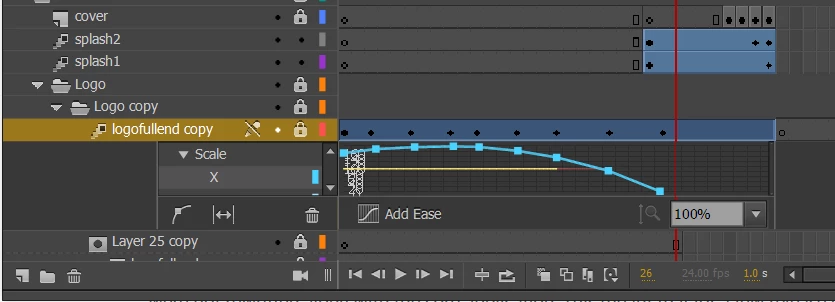
As you can see, it's minimised to a point where I have to scroll through the options on the left to be able to change what I'm working on, and to make changes on the graph I either zoom in and can only see one point or work inaccurately like this.

Is there a way to restore it to default size?

Thanks

This topic has been closed for replies.
Correct answer Myra Ferguson

I've tried as you've suggested and again I've had no luck, it still won't expand beyond that tiny window size.

I'm tempted to pull everything into another file that I know is working to see if I can just bypass the problem.


I was able to reproduce what you're seeing, too, by expanding the Timeline to the size of my screen and adding layers until it was filled completely. When I collapse then expand the graph, it won't go back to the original size. When I put layers in a folder like Colin suggested and then try collapsing and expanding the graph, it does go back to regular size for me. Does that work for you?

2 replies

Myra Ferguson
Community Expert
Community Expert
March 8, 2017

If you hover your cursor between where the Timeline is docked and the Stage, the cursor will change where it has an arrow at both ends. When the cursor looks like that, you can drag the Timeline up to expand it, and the graph will also expand.

alexbenn1991
Participating Frequently
March 8, 2017

That allowed me to increase the size of the timeline window, but even If I make it the size of the entire screen, the size of the motion editor doesn't change.

kglad
Community Expert
Community Expert
March 8, 2017

are you trying to increase the size of the timeline frames?  if so click the hamburger menu at the upper right of the timeline panel.

or drag down at the red arrow to change from this:

to this:

kglad
Community Expert
Community Expert
March 8, 2017

you can reset or change your workspace (window>workspace).

alexbenn1991
Participating Frequently
March 8, 2017

Unfortunately, that didn't fix it. It's the same regardless of the workspace I use and resetting them doesn't seem to make a difference. I've opened other files I've been working on and none of them have this issue.