christineavatar
Legend
October 31, 2020
Answered

my .png file has 120 frames - HELP

  • October 31, 2020
  • 1 reply
  • 510 views

I need to upload a series of .png files made in Character Animator and put them into an Animate sequence as a piece of the finshed product. How can I do that to have the sequence look right. The most I've figured out is to put them in one at a time. There has got to be an easier way! Any suggestions?

This topic has been closed for replies.
Correct answer n. tilcheff

Christine,


1. Draw a box on stage. Convert to a Graphic symbol. This will be your container for images.

2. Enter the symbol in place by double-clicking it.

3. Delete the box, it was only a place holder. Click on the Blank Keyframe where the box was and press Ctrl+R (Import to Stage).

4. Browse and select your first PNG of the sequence - it should be ending with a number, something like 0001. Click Open.

5. This dialog box appears:
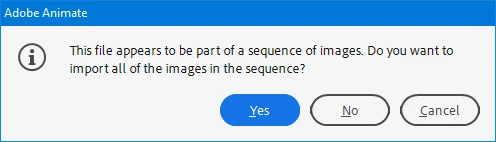
Click Yes.

6. The sequence of images is imported each on its own frame.
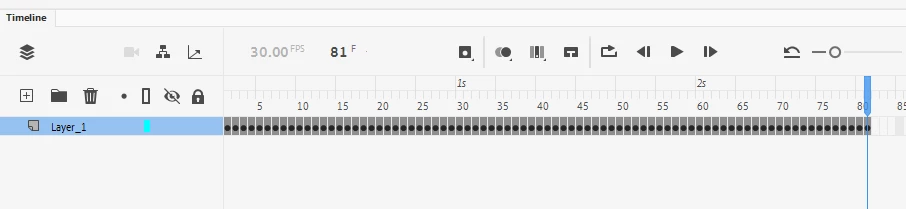
7. Go outside to adjust position and set the Graphic container to Play Once, if you need.


That's all.


1 reply

kglad
Community Expert
Community Expert
October 31, 2020

import your images to stage

select them all (click frame)

distribute to keyframes (right click over selected images>distribute...)

set your framerate

test.

christineavatar
Legend
October 31, 2020

Thanks for getting back to me but your method didn't work either. First, I tried putting all the the frames in at the same time and once again the Program shut down due to 'an unknown error'. So, then I tried to just due 10 at a time but that resulted in all ten going into the same frame. I am getting the job done (ever so slowly) inputting them one by one.

kglad
Community Expert
Community Expert
October 31, 2020

you import them into one layer/one frame, then use distribute to keyframes.


if your computer is too weak to handle all 120 at one import, try 60.  if that fails, try 30.

once you import a group distribute to keyframes and create a new layer into which to import the next group.

you can select a span of frames and drag it to the first groups layer just beyond the last keyframe