Hi Charlie
It will work okay. Though it's okay like in okayish. What is important is that you evolve with your work, find out with the time what works really fine and what is better to avoid.
There are some issues and pitfalls, and believe me, I am still finding out after creating HTML5/Canvas projects since the beginning of 2016. When Flash Pro became Animate CC. I'll try to list some important points here but they are by no means complete:
Make responsive
Care for and try out the Responsive section in Animate's Publish Settings to adapt your presentation to different viewport sizes.
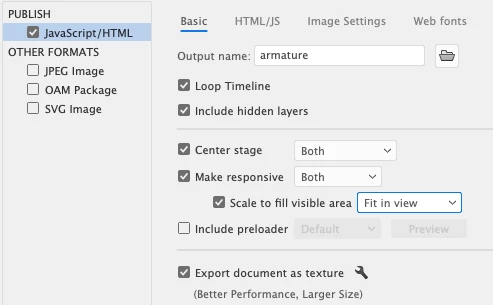
Learn more: Publishing animations to HTML5
Image Settings
In this context consider also your image settings. If you use a lot of complex vector graphics (maybe coming from Adobe Illustrator), then it can be wise, to Export your document as texture. This is since Animate 2019 the default in Publish Settings. What it does is it splits your vector components into basic shapes, rasterizes them and exports them as spritesheets. Adobe states that Choosing a vector or raster file is like a choice between file sizes and performance. HTML5 platforms are optimized for raster content.
Learn more: Texture publishing
Dynamic Text and Webfonts
Try not to use Static Text where ever that is possible. Only for purposes of precise placing (e.g. "Start Here" on a start touch/button) Static makes sense. Otherwise use Dynamic Textfields in combination with web fonts, either Adobe or Google fonts. If you use Static text and Export document as texture is off, all static text is converted to shapes and coded into the export JS file. If Export as texture is on static textfile will be rasterized and added to your spritesheets. However learn more about web fonts Using Google Fonts and Working with Adobe Fonts.
Tween classic
When making tween animations Classic Tween is the prefered method. Motion Tweens in HTML5 will be converted to Frame-by-Frame animations.
Think Canvas
Javascript/HTML5 creations are drawn into a <Canvas> element. A Canvas is a rectangular area defined by width and height within a HTML document in which raster 2D shapes can be drawn and manipulated with Javascript (Canvas API). Although it works mostly quite fine in web browsers on mobile devices, it isn't so fast and crispy as Native Apps. And because it's a kind of indirect way to display a presentation (through the browser and through the canvas), some say it's quite expensive in terms of CPU power. Learn more: Canvas API
CreateJS modular Suite
Under the hood in Animate CC for exporting to HTML5/Canvas lies the CreateJS Library which consists of 4 modules EaselJS, TweenJS, SoundJS and PreloadJS. Hence the APIs of CreateJS are something to be aware of and to consult for learning about the basic structure of what we are dealing with.
Learne more: CreateJS and the essential module EaselJS API and here in particular EaselJS Mouse Interaction. See in this context also this entire manual: Create and publish HTML5 Canvas documents in Animate CC.
Consider Viewport Orientation
Because it's a canvas which displays a HTML5 creation out of Animate, we are bound to a Stage and stage coordinates where everything happens. This is good and bad. On one hand it allows a relative free and careless placing of our visual elements across the stage. On the other hand it doesn't make our contents fluid or responsive in the sense as responsive or fluid web design does (e.g. Flexbox, CSS Grid, Media Queries, Breakpoints etc). When we have a stage with Landscape orientation, say an aspect ratio of 16:9, on a mobile phone with Portrait orientation (1:2) the stage proportions remain the same and everything looks very small and isn't filling this viewport optimally.
Like this:
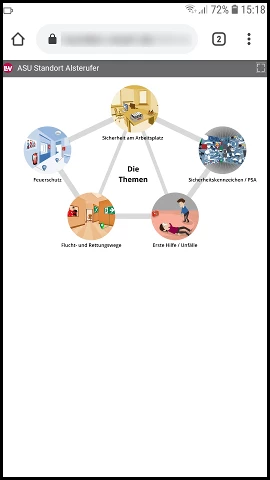
A display like this can only be improved by basically creating two Animate versions and layouts, one landscape and one portrait, and using Javascript to detect the viewport proportions and serving an appropriate version accordingly.
Mouse vs Touch
As kglad already pointed out, mobile devices aren't good in detecting events like mouseover or mouseout, because these are no real touch events. These events should be avoided for essential functionality when you are worried about touch devices. Regarding click they are actually good enough when you make sure that the interactive area to click is large enough even on small viewports. When Click (Touch) happens on a mobile viewport, a number of events happen simultaneously: touchstart -> touchmove -> touchmove -> mouseover -> mousemove -> mousedown -> mouseup -> CLICK -> and possibly mouseout. Learn more: Touch and Mouse
In EaselJS are special mouse (touch) events like pressmove and pressup. They become important in touch-intense applications like e.g. Drag&Drop. Also important is createjs.Touch.enable(stage); See here.
Heartbeat Tick
In EaselJS the Ticker provides a centralized tick or heartbeat broadcast at a set interval. Listeners can subscribe to the tick event to be notified when a set time interval has elapsed. Learn more: Ticker Class
In the end I like to add some essentials written by a clever guy here in the Forum.
-> Re: Keep button state (by JoãoCésar, starting with "Excellent!".)
Klaus



 AdChoices