
Participating Frequently
January 2, 2019
Answered

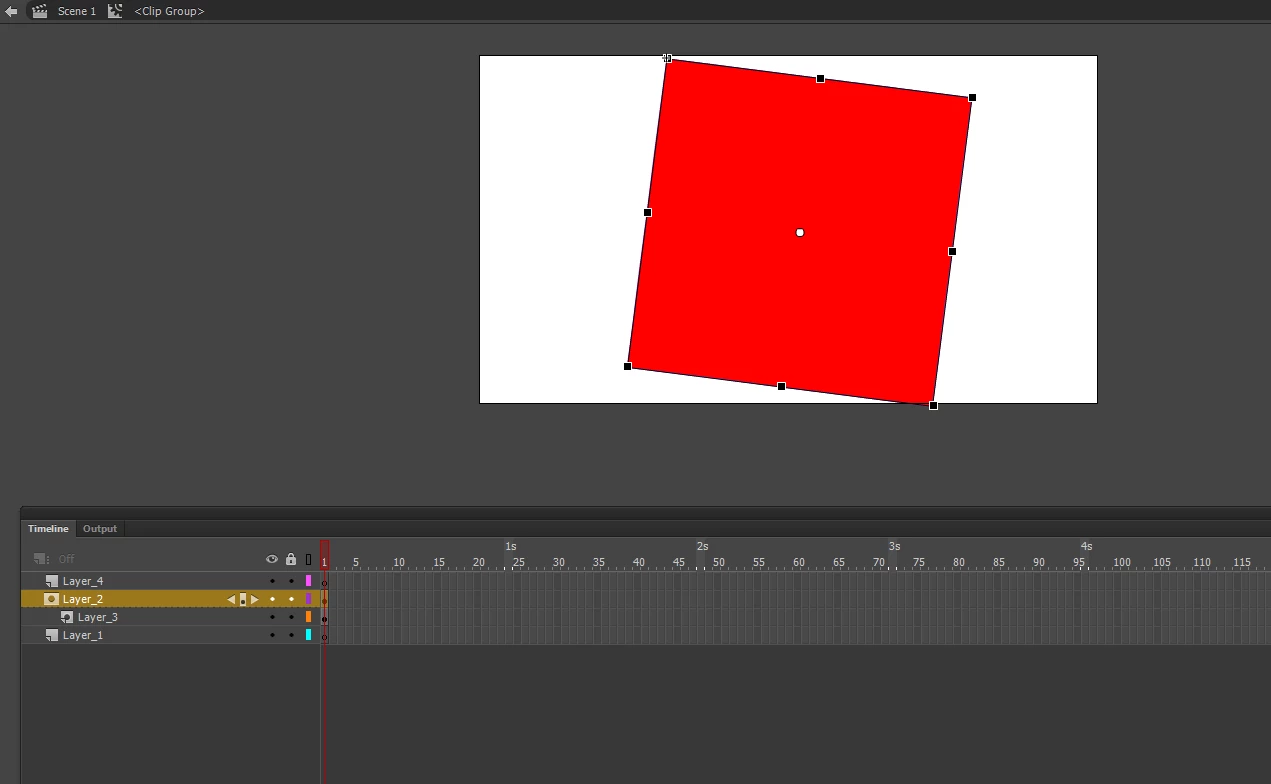
Red box on every symbol imported from illustrator in Animate 2019

  • January 2, 2019
  • 4 replies
  • 2871 views

Every time I import artwork from illustrator into animate I have to now delete this annoying red box, any idea how to stop these red rectriangle layers? never had this problem in 2018 animate..
    This topic has been closed for replies.
    Correct answer Virtual5EDB

    Its incredibly late for this discussion board. But if you have the same problem now with the same or newer versions of Adobe Animate. You can save the Adobe Illistrator file to how you want it, then "File" "Import to stage" in Animate. All Symbols will be placed in there spots as is in there full glory. No red Squares. Or buggy Symbols.


    Saves a lot of head ache for the more Intense or complicated Character puppets.

    4 replies

    Virtual5EDBCorrect answer
    Participant
    February 29, 2024

    Its incredibly late for this discussion board. But if you have the same problem now with the same or newer versions of Adobe Animate. You can save the Adobe Illistrator file to how you want it, then "File" "Import to stage" in Animate. All Symbols will be placed in there spots as is in there full glory. No red Squares. Or buggy Symbols.


    Saves a lot of head ache for the more Intense or complicated Character puppets.

    kglad
    Community Expert
    Community Expert
    February 29, 2024

    thanks for that suggestion @Virtual5EDB 

    Mohanaraj
    Adobe Employee
    Adobe Employee
    January 22, 2019

    Hi,

    Could you please let us know the following

    1. Are you facing this issue on Windows or Mac?

    2. Animate and Illustrator build number

    3. Sample .ai file importing which in Animate leads to this issue

    Thanks!

    Mohan

    Participating Frequently
    January 30, 2019

    Ive given up on this.. sorry just going to use 2018

    JoãoCésar17023019
    Community Expert
    Community Expert
    January 30, 2019

    Hi.

    While the Animate team doesn't come up with a solution for this, I have a script here that can - or at least should - delete all layers from all selected symbols in the Library.

    So all you have to do is:

    - To import your Illustrator file;

    - Select all symbols (movie clips) from the folder that Animate CC creates for the imported Illustrator artwork in the Library;

    - Run the JSFL script below by double clicking it or by dragging and dropping it over the Animate IDE or by going to Commands > Run Command....

    Figure showing the Library panel with selected symbols imported from Illustrator

    It should remove all mask layers.

    JSFL Script Remove All Maks Layers:

    animate_cc_jsfl_remove_mask_layers.zip - Google Drive

    JSFL script code for reference only:

    function deleteAllMasks()
    {
        var doc;
        var lib;

        doc = fl.getDocumentDOM();

        if (!doc)
        {
            alert("Please open an FLA first.");
            return;
        }

        lib = doc.library;

        lib.getSelectedItems().forEach(function(item)
        {
            if (item.itemType == "movie clip")
            {
                var layers = item.timeline.layers;
               
                layers.forEach(function(layer, index)
                {
                    if (layer.layerType == "mask")
                        item.timeline.deleteLayer(index);
                });
            }
        });
    }

    deleteAllMasks();

    Please let us know if it works.

    Regards,

    JC

    Community Expert
    January 2, 2019

    You should be able to just copy your artwork from illustrator and past right into Animate now. That should stop the red box. Are you doing masks in illustrator? If so you just expand everything in illustrator first then that should also stop the red box.

    These are just some solution I could come up with.

    Good luck!

    Participating Frequently
    January 2, 2019

    It even happens with artwork that doesnt use clipping masks

    _keyframer
    Community Expert
    Community Expert
    January 3, 2019

    What if you try deselecting "Apply recommended import settings..."?

    Animator and content creator for Animate CC
    _keyframer
    Community Expert
    Community Expert
    January 2, 2019

    These are masks that are created in an attempt to keep the original integrity of the AI artwork I believe. The only way to delete them is to double-click until you get to where it is nested with the symbols and then simply delete the mask layers they reside in. You might be able to avoid them if you import as a flattened image but you need to test that.

    Animator and content creator for Animate CC
    Participating Frequently
    January 2, 2019

    Thanks but I know how to delete them. What im wondering is is there an option to stop these masks appearing in the first place. I deal with hundreds of symbols and it slows down my work flow