
Participant
May 3, 2018
Answered

Remove white outline on transparent gif

  • May 3, 2018
  • 4 replies
  • 45365 views

Hi

I imported an svg file into Animate CC and after animating it, exported it as animated gif. I set the background as transparent.

However, the image shows an unintended faint white outline when viewed on the browser!

After going through the forum, i also added the following code in the 'Actions' panel on the first frame of the first layer.

               canvas.style.backgroundColor="rgba(0,0,0,0)";

               document.body.style.backgroundColor = "rgba(0,0,0,0)";

But in vain.

Here's the link:

http://wizdreamz.com/TrialWebsite/images/trial.gif

Any help is appreciated.

Thanks and Regards

Jayashree
    Correct answer Grey_Crows

    Hey!! I realize that this question is now solved, however, as I was having this issue I had ended up solving it in a different way on newer versions of photoshop (adobe photoshop 2021). 


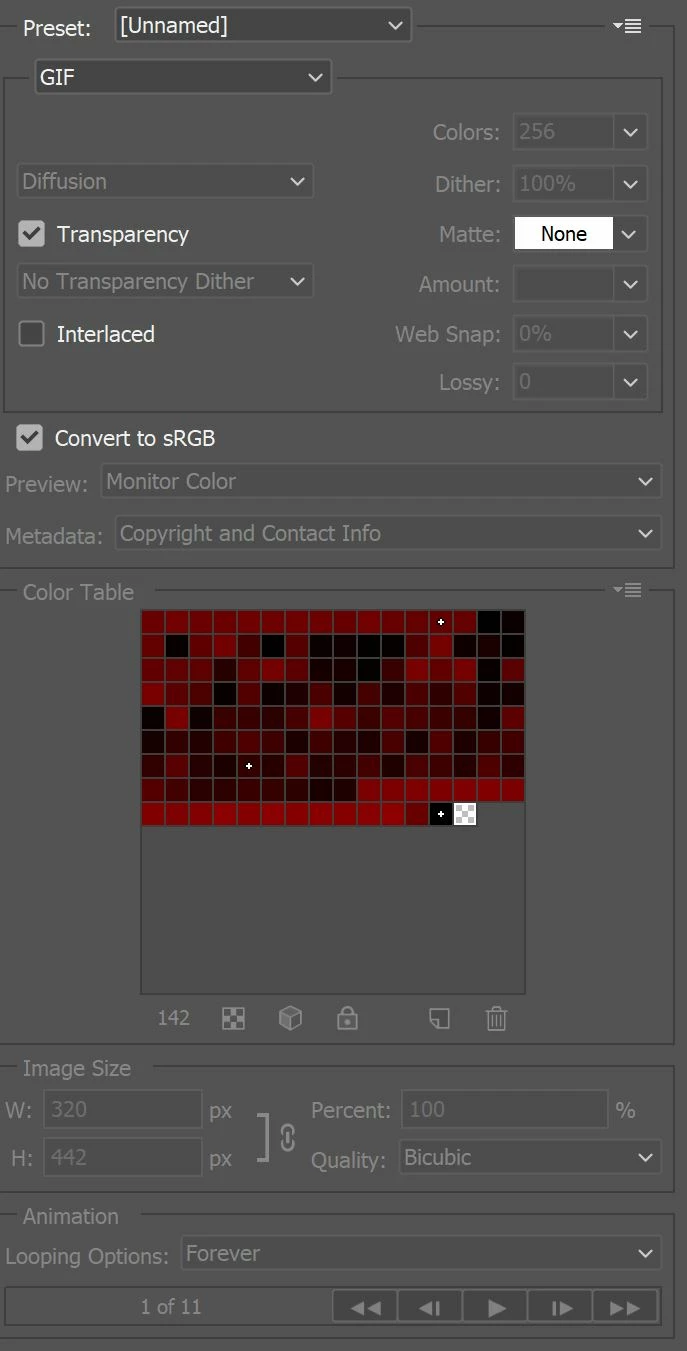
    When you go to file > export > save for web (legacy) there will be numerous options to the right. I selected the "none" option for Matte, and that removed the white outline on my transparent gif. Hopefully this helps for present viewers of this thread!

    4 replies

    Grey_CrowsCorrect answer
    Participant
    December 29, 2021

    Hey!! I realize that this question is now solved, however, as I was having this issue I had ended up solving it in a different way on newer versions of photoshop (adobe photoshop 2021). 


    When you go to file > export > save for web (legacy) there will be numerous options to the right. I selected the "none" option for Matte, and that removed the white outline on my transparent gif. Hopefully this helps for present viewers of this thread!

    ilikenomo
    Participant
    May 12, 2022

    This is what worked for me! Thanks Grey_Crows!

    ripu damanr28292400
    Participant
    October 30, 2018

    no option visible

    chenjil43641795
    Legend
    May 3, 2018

    You can remove the extra color directly.

    Delete:

    '

    Not deleted:

    Participant
    May 7, 2018

    Hi

    Thanks to all for taking the time to reply! I truly appreciate the effort.

    Actually i used 'Map/unmap selected colors from/to transparent' option, under File > Export > Export Animated Gif, which reduced the appearance of the outline to a great extent.

    Even then, the final result was not satisfactory. As the image had to be used on a multicolored background, it required total transparency. So, I ended up publishing it as an html file instead and inserted the html code in my original html file. That worked for me.

    Below is the screenshot for 'Map/unmap selected colors....'

    _keyframer
    Community Expert
    Community Expert
    May 3, 2018

    Try playing around with the color reduction algorithm and dithering. For some reason the GIF you posted won't load for me so i can't see what you are describing exactly. Also how may colors are you exporting to GIF format with?

    Animator and content creator for Animate CC
    Colin Holgate
    Inspiring
    May 3, 2018

    If you had opened the link in a new window it would have worked. Something odd about the forum. But it wouldn't have helped, because the page background is white, and so you wouldn't see the issue.

    Opening the gif in Preview makes it easier to see the problem:

    It seems to be premultiplying the transparency against white. It does the same for me, it's antialiasing against the stage color.

    If the background of the page is going to be black, setting the stage color to black will make the effect less noticeable.