Hi.
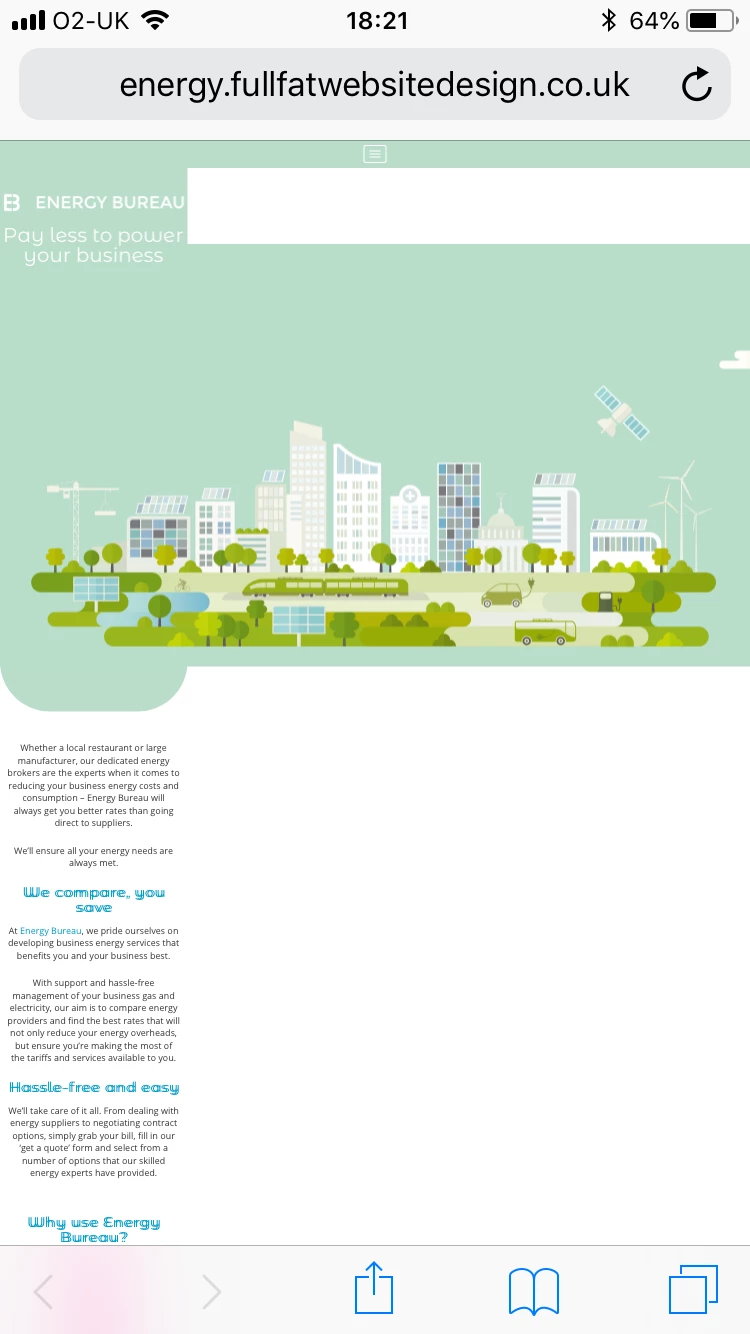
This is because the scale type you chose is more geared toward animations or games like it used to be before when te content was scaled keeping the aspect ratio and borders were added if needed. The same way that happens with video on TVs.
In your case, as you are building a website, it is best to set the 'Scale to fill visible area' to 'Stretch to fit'. In this way, the content will scale but there will be no borders.
More info about this subject:
"Center Stage
Allows users to select if the stage should be centered Horizontally, Vertically or Both. The HTML canvas/stage is displayed at the center of the browser window by default.
Make Responsive
Allows users to select if the animation should be responsive with reference to Width, Height, or both and resizes the published output based on various form factors. The result is a responsive, sharper and a crisper HiDPI compliant output.
The output also stretches to cover the entire screen area with no borders, and yet maintains the original aspect ratio, though some part of the canvas may not fit in view.
- Width, Height or Both options ensures that the entire content is scaled down to the canvas size and is visible even when you view on a small screen (such as mobile devices or tablets). If the screen size is larger than the authored stage size, canvas is displayed in the original size.
Enable Scale to Fill Visible Area
Allows users to select if the animation should fit to view the output in full screen mode or should stretch to fit. By default, this option is disabled.
Fit in view: Displays the output in Full screen mode with the entire screen space and yet maintains the aspect ratio.
Stretch to fit: Stretches such that there are no border spaces in the output."
Create HTML5 Canvas documents in Animate CC
Regards,
JC
 AdChoices