Okahiko sako
Participant
April 1, 2022
Answered

White marks problem?

  • April 1, 2022
  • 2 replies
  • 1117 views

ok so I'm a bit new to Adobe I used this app for about 6 months but I have a problem, 


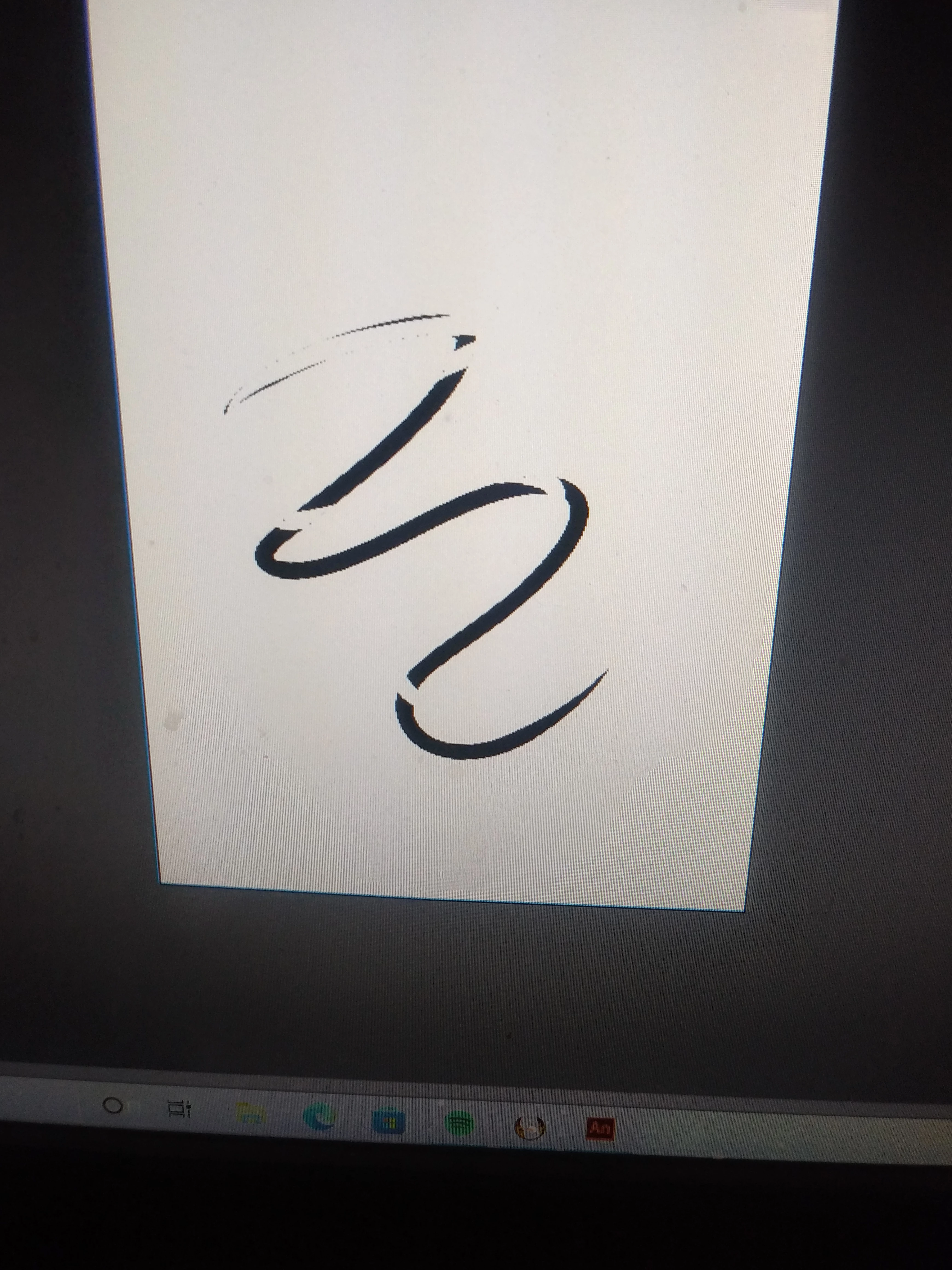
The animation I import to the stage or time line the first frame is fine but then when it gets to the second and third and continuing the lines get thinner as if something is spreading 

Note: I use fire alpaca to animate
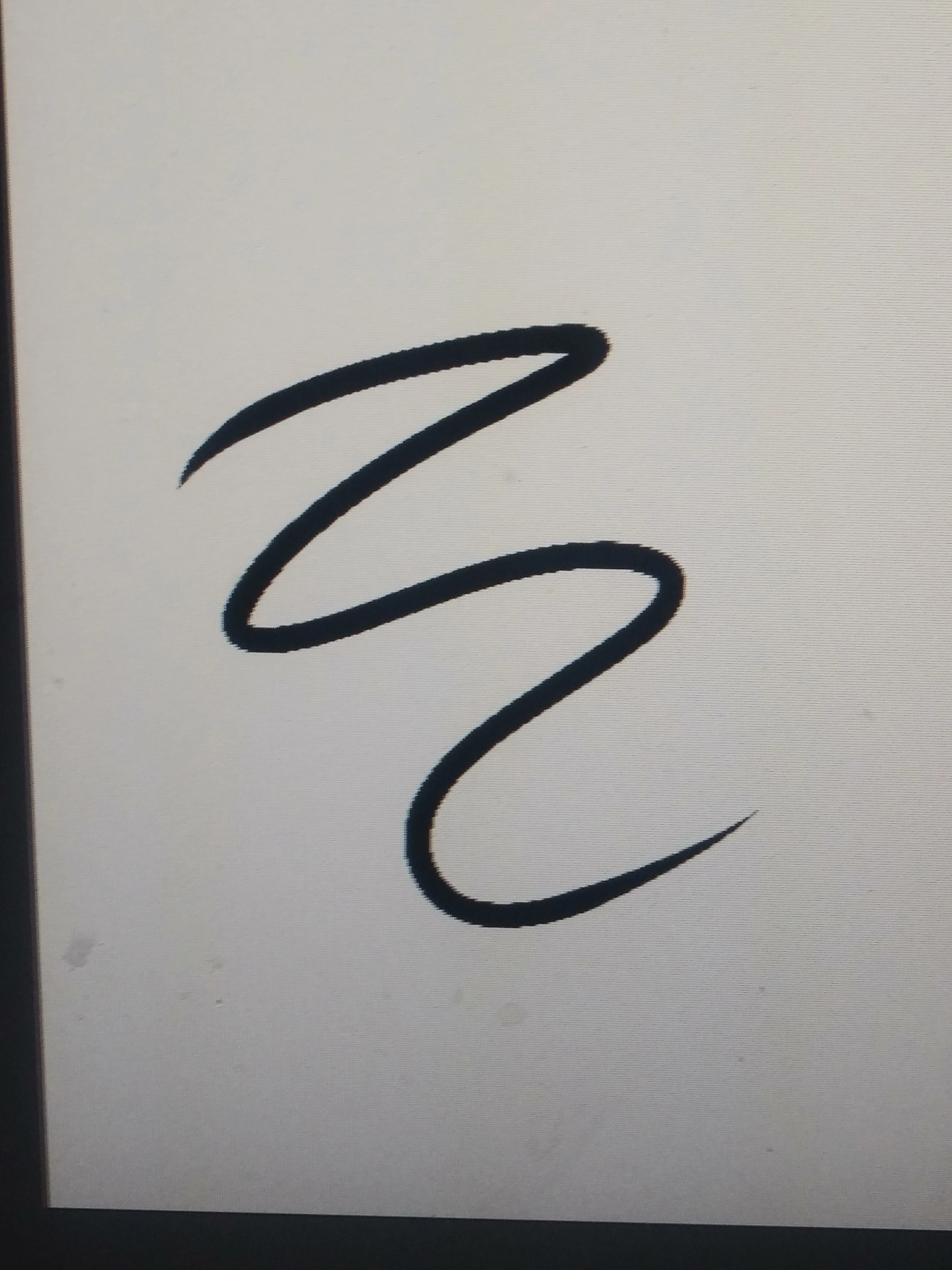


Idk what the problem could be the file type or the app?? 


The first pic is the start of the animation  but the second one is like the first pic left marks behind

    This topic has been closed for replies.
    Correct answer _keyframer

    Sorry for the late reply but im still confused like hell i hope im not to annoying with this 😭


    I noticed you are using a Canvas type document - is your final output for HTML5? This may be the issue. I never use Canvas type and just created a new document and imported an image sequence but it didn't populate the timeline. ActionScript type documents will however place each image in a sequence in it's own keyframe. I suspect it's either a bug or at least an inconsistency with document types in Animate.

    2 replies

    _keyframer
    Community Expert
    Community Expert
    April 1, 2022

    After googling "fire alpaca" it would seem you are importing whatever you create in that application as bitmaps to Animate correct? 
    So frame 1 is fine but then this issue starts in frame 2, 3, etc... correct?
    Have you inserted frames to extend the duration on this layer?
    Or have you inserted keyframes in each frame on this layer?
    Or have you created additional layers and drawen anything on top of the original layer?
    Can we get a screenshot of your timeline?

    Animator and content creator for Animate CC
    Okahiko sako
    Participant
    April 2, 2022

    If your talking about my adobe timeline its down there if im correct


    Usually when i import an animation from what i draw on its all on 1 layer but not sure if its normal


    _keyframer
    Community Expert
    Community Expert
    April 2, 2022

    Whenever an image sequence is imported into Animate, it gets imported with each image in its own keyframe on a single layer. 

    If you are then drawing over these images, it's really a very good idea to create a new layer (above) the image sequence layer to then draw inside. You never really want to draw over bitmaps all on the same layer - for editing purposes and general file mangement purposes.

    Animator and content creator for Animate CC
    kglad
    Community Expert
    Community Expert
    April 1, 2022

    do you see any problems with animate when you draw with the mouse in animate, or you draw in ai and import into animate?