

DISCUSS: (Ripple) Insert Recording
The latest Public Beta version of Audition introduces INSERT RECORDING (aka Ripple Insert Recording.). This is a Waveform Editor recording mode that, instead of overwriting existing audio data, inserts new recordings, pushing any existing audio data forward. Previously, you may have needed to clumsily record at the end of a file then cut and paste it where you wanted, or inserted silence, recorded into the silent region, then deleted any unused silence in order to drop a word, phrase, or more into an existing recording in Waveform view. This new recording mode lets you set it as a default option for all recordings.
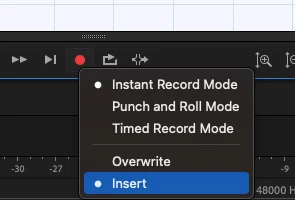
To try out Insert Recording mode, download the latest update to Audition (Beta) in the Creative Cloud Desktop application and launch Audition. Right-click on the Record button and toggle from Overwrite to Insert mode:
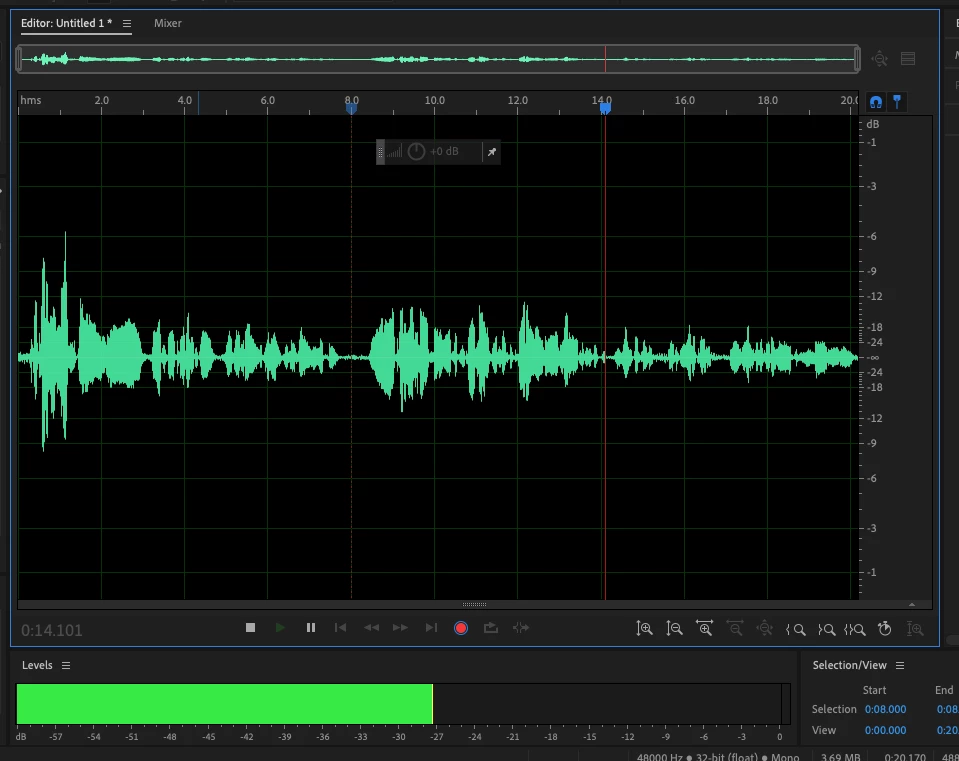
Open a recording, or create a new one, then place the playhead where. you want to insert additional recorded audio. Click Record and you'll see your new recorded waveform inserted at this location, pushing the previous audio signal forward:
Insert Recording works with the default Instant Record mode, as well as Punch and Roll and Timed Recording modes. With Punch and Roll mode, you'll be able to read along with several seconds of previous audio before inserting new audio to keep your performance consistent and smooth.
This workflow improvement comes directly from user requests, on our UserVoice site as well as online forums and groups. We're very excited to add this valuable tool to Audition's arsenal, and look forward to your feedback.


 AdChoices