
Inspiring
March 9, 2026
Answered

ACR - all Non-adaptive profiles set to "auto" frequently produce blue artifacts

  • March 9, 2026
  • 2 replies
  • 87 views

Windows 11 laptop – latest Photoshop and Camera Raw versions (rolling back three versions did not resolve the issue).

I open Nikon NRW files produced by a Nikon P1100. The problem began roughly a week ago. I have been using the same profiles for years without encountering this issue.

The behavior occurs with some, but not all, RAW files. When I select Adobe Color, Adobe Standard, or Adobe Vivid and apply Auto, parts of the subject develop blue artifacts. In the attached example, the artifact appears on part of a bird. In other cases, the entire bird may turn blue. Sometimes the artifacts appear along small tree branches or outlines of foliage.

The artifacts are always blue.

Notably, this issue does not occur when using the Adaptive Color profile.

Troubleshooting performed:

  • In Photoshop → Edit → Preferences → Performance, I disabled “Use Graphics Processor.” This did not resolve the issue.

  • I toggled between the Photos and Web UI design workspace settings.

  • I rolled back several versions of Photoshop/Camera Raw. The issue persists.

Has anyone encountered similar behavior or found a solution?
    Correct answer davescm

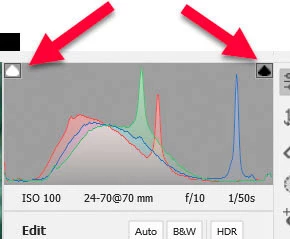
    Check whether you have the clipping warnings set in camera raw. That blue on the bird in your screenshot looks like a dark clipping warning.


    Dave

    2 replies

    Conrad_C
    Community Expert
    Community Expert
    March 9, 2026

    Notably, this issue does not occur when using the Adaptive Color profile


    That sounds consistent with what the Adaptive profiles are designed to do.


    One of the goals of Adaptive profiles is to make better use of dynamic range. When extreme highlights and shadow values in the image might have been clipped with a conventional profile, Adaptive profiles bring them in to better preserve highlight and shadow detail.


    In the bird shot, under the default profile and settings the darkest part of the bird clips to black, causing the blue indicator for shadow clipping to appear over the pixels with clipped shadow values. When the Adaptive Color profile is applied, it analyzes the image and generates a Profile Gain Table Map (PGTM), using it to (among other things) move clipped shadow values back up to restore shadow detail, so the blue clipping indicator goes away.

    davescm
    Community Expert
    davescmCommunity ExpertCorrect answer
    Community Expert
    March 9, 2026

    Check whether you have the clipping warnings set in camera raw. That blue on the bird in your screenshot looks like a dark clipping warning.


    Dave

    Inspiring
    March 9, 2026

    Ty - I also just realized that exporting to PS does not leave what I thought was an artifact.  Good to know - maybe I’ll leave the warnings enabled.

    davescm
    Community Expert
    Community Expert
    March 9, 2026

    They are useful. Another way, even with those warnings off, is to hold down Alt whilst you move the sliders in the Light panel,. By doing that you can see exactly which areas go into clipping by channel.                    .

    Dave