Participant
May 1, 2019
Answered

Batch Process Camera RAW Auto Correct

  • May 1, 2019
  • 4 replies
  • 14755 views

So I have a folder where I have lots of raw images. I want to open them and apply the auto settings and save as jpeg. Is that possible with photoshop?

Correct answer gary_sc

Hi Sanjuc,

OK, I've got it.

The main way to do this is using Adobe Bridge. They have a feature within Tools -> Photoshop -> Image processor that can take the selected images (2 - 1000s) and process them according to your wishes. The catch here is to get ACR to run ACR's Auto.

Here's what you want to do:

Take one of the images and open it up.

Now turn on a new Actions from from the Actions Panel, give it a name (I chose "Auto Auto"). Clever I am!

1st step, Click on the lock of the Background layer

2nd step, Turn Layer 1 into a Convert into a Smart Object

3rd step. Go to the Filters menu and select "Camera Raw Filter..."

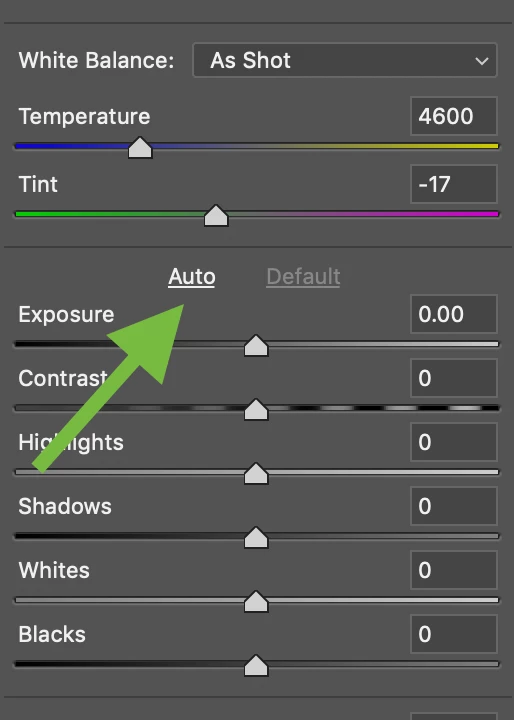
4th step. Click on "Auto" and click OK

5th step, "Save as..." -> JPG image into the same folder.

Now close that Action.

Now from Bridge, Select all of the images you want this to be done (they all have to be in the same folder)

Go to Tools -> Photoshop -> Image Processor

Tab 1: You should be seeing that all images are selected

Tab 2: Probably save in same location?

Tab 3: File Type: Save as JPG (if you select resize to fit, you can do that, but do not worry about the W & H, it does not make the images square. Rather if you have both Portrait and Landscape images, this covers the widest width of the two types and sets the maximum number of pixels.

Tab 4: now select the action you just made with Run Action.

Now click Run, sit back and you'll get it all done for you.

Let me know if this works and/or if you have any questions.

4 replies

johnt55407627
Participant
January 13, 2020

Hi Gary SC,  I am new to Adobe Photoshop and Bridge. I am using the CC versions. I have tried doing batch processing to a number of images and have managed to modify and save them successfully. However, like the original question, I would like to do it by applying the 'Auto' in Camera Raw and save them all as JPEG's. I have read your response to Sanjuc but don't fully understand the response. Where is the Actions Panel you talk about? Is this in Photoshop, CRaw or Bridge? Can you explain how to get started with this in a little more detail. Sorry to ask again but I think I am nearly there. Thank you. John

ssprengel
Inspiring
January 15, 2020

Do the steps in FloraMC's answer from May 2nd.


From the discussion between then and now, it appears that one or more of the ACR 11.x versions didn't correctly apply Auto to all the photos selected on the filmstrip and instead just did the first one.


I just tested in ACR 12.1 in Photoshop and Auto is being applied correctly, again.


As far as Gary's answer, it has you applying Auto in the camera raw filter from within Photoshop after the image has already been converted from raw to rgb using ACR default settings and then opened into photoshop.  This is not the same thing as applying Auto to the raw files and saving all within camera raw which is what the original post was about and the problem was due to a bug that seems to have been fixed.


dfranzen_camera_raw
Adobe Employee
Adobe Employee
August 20, 2019

We are aware of this bug in 11.4. Using the Auto button does not apply auto adjustments to all the photos selected in the filmstrip. We are working on a fix. For now, you can revert to 11.3, or wait for a fix.

Thanks for your patience,

David

Participant
August 20, 2019

Thanks

On Tue, Aug 20, 2019 at 2:41 AM dfranzen_camera_raw <

floramc
Community Expert
Community Expert
May 2, 2019

Hi,

you probably already had the right answer, but here I understand you are asking something differently. I might be wrong, but I give you my answer.

What I understand:

- you have a huge amount of pictures.

- you want to open them in ACR and apply the "auto" setting that you see on the basic list.

The easiest way to do it is again starting from Bridge.

- select all the pictures that you want to apply the Auto setting onto

- use file>open in camera raw...

At this point all pictures are listed on the left side of ACR

Notice a film strip and a sandwich menu on the left

Click on the menu and you are given the option select all

when they are all selected, they are framed lthis way

At this point you can click on the Auto above the exposure and ACR will apply the auto setting to all of them. You will know because they will likely look different and because there is this sign on the bottom of them all. At this point you can hit save images... on the bottom left of ACR

I trust you know what you are doing, as applying the Auto setting to group pictures can be a risky business. But if it is a sequence with similar values, just go for it.

Hope any of us answered your question.

Participating Frequently
August 15, 2019

floramc Hi there, thank you so much for your detailed description. This is how I processed my images for years. Today I tried it and only the first image will auto-correct...nothing happens to the rest. I am looking all over for an answer because I have galleries due and I can't imagine going through each image and hitting auto-correct, but that seems to be what I now need to do. I've updated the program and rebooted my computer - no luck. I did see a notice that Camera Raw has had a major update. I'm hopeful this means a setting was toggled off and I can turn it back on, but fearful there is a bug in the update, as my deadline is tomorrow Any chance you know what I can do to batch-auto-correct my images?

gary_sc
Community Expert
Community Expert
August 15, 2019

Hi FetchPhotog,

Forgive me for sliding in here but since you are looking for a fast answer, I'm just trying to help.

It sounds like you either skipped over the "Select All" step or inadvertently selected one image after selecting all. Could that be the case? Please try again and make sure you do the Select All step.

Best,

gary_sc
Community Expert
gary_scCommunity ExpertCorrect answer
Community Expert
May 1, 2019

Hi Sanjuc,

OK, I've got it.

The main way to do this is using Adobe Bridge. They have a feature within Tools -> Photoshop -> Image processor that can take the selected images (2 - 1000s) and process them according to your wishes. The catch here is to get ACR to run ACR's Auto.

Here's what you want to do:

Take one of the images and open it up.

Now turn on a new Actions from from the Actions Panel, give it a name (I chose "Auto Auto"). Clever I am!

1st step, Click on the lock of the Background layer

2nd step, Turn Layer 1 into a Convert into a Smart Object

3rd step. Go to the Filters menu and select "Camera Raw Filter..."

4th step. Click on "Auto" and click OK

5th step, "Save as..." -> JPG image into the same folder.

Now close that Action.

Now from Bridge, Select all of the images you want this to be done (they all have to be in the same folder)

Go to Tools -> Photoshop -> Image Processor

Tab 1: You should be seeing that all images are selected

Tab 2: Probably save in same location?

Tab 3: File Type: Save as JPG (if you select resize to fit, you can do that, but do not worry about the W & H, it does not make the images square. Rather if you have both Portrait and Landscape images, this covers the widest width of the two types and sets the maximum number of pixels.

Tab 4: now select the action you just made with Run Action.

Now click Run, sit back and you'll get it all done for you.

Let me know if this works and/or if you have any questions.

Participant
May 21, 2022

I don't think this works in camera raw photoshop cc 2022 - it seems to take the first application of the Auto setting and apply it to all the images, so it the first image was dark, auto lighten it, but if the 2nd image was too light it made it lighter not darker. at any rate, it did not work for me

TheDigitalDog
Inspiring
May 21, 2022

"I don't think this works in camera raw photoshop cc 2022"


Works on multiple images selected in the filmstrip for me. 

Author “Color Management for Photographers" &amp; "Photoshop CC Color Management/pluralsight"