


swrutherford
Inspiring
September 28, 2017
Answered

Camera Raw 9.12.1 Issue [Blue overlay in preview window and histogram]

  • September 28, 2017
  • 3 replies
  • 2978 views

My co-worker is having trouble after upgrading his Camera Raw to 9.12.1. Prior to this, it worked fine, but now the histogram and preview window colors are overlayed with an odd blue color and the image preview is completely messed up.
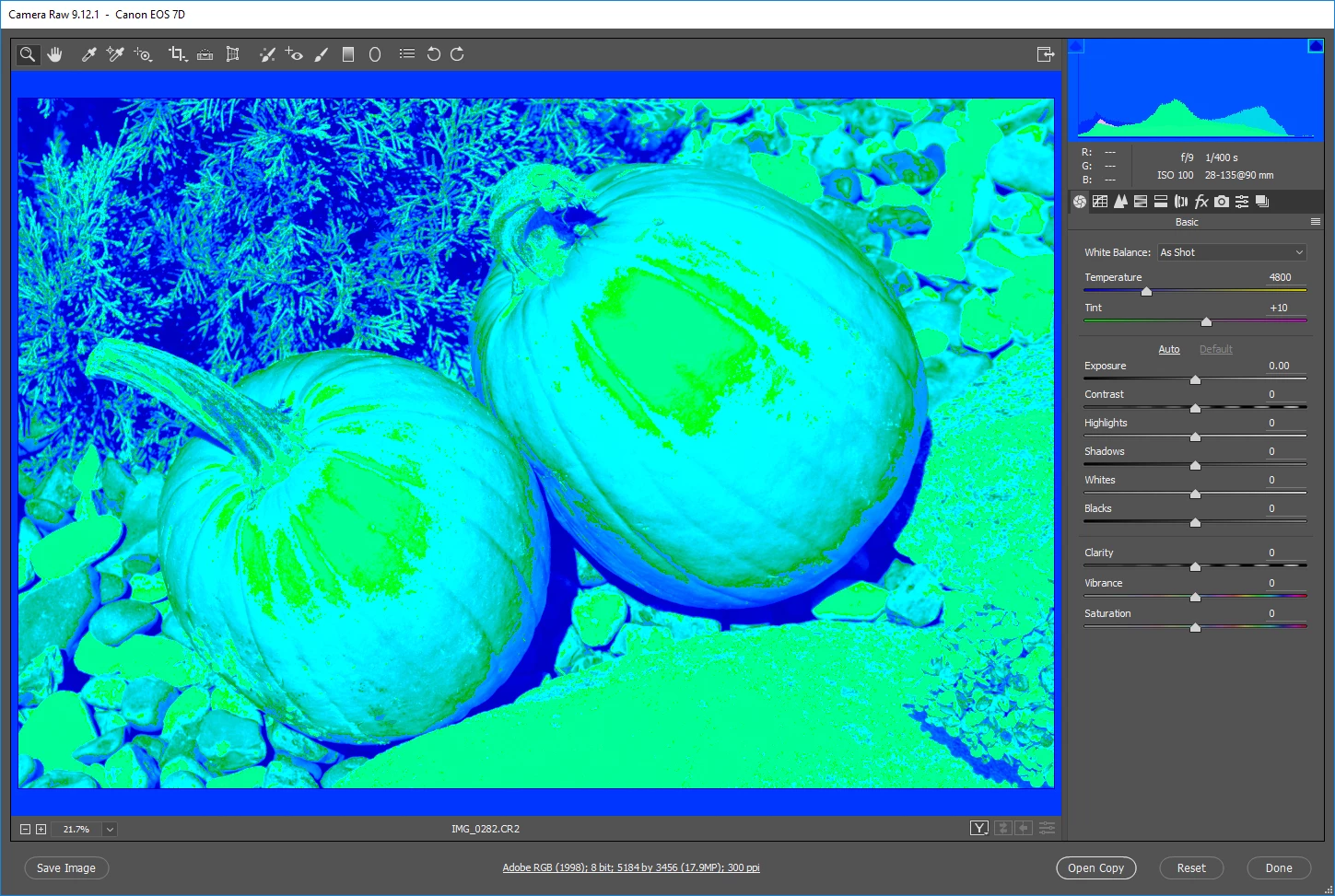
Yes, those are orange pumpkins....

Here is the RAW editor zoomed out to better see the blue "overlay"
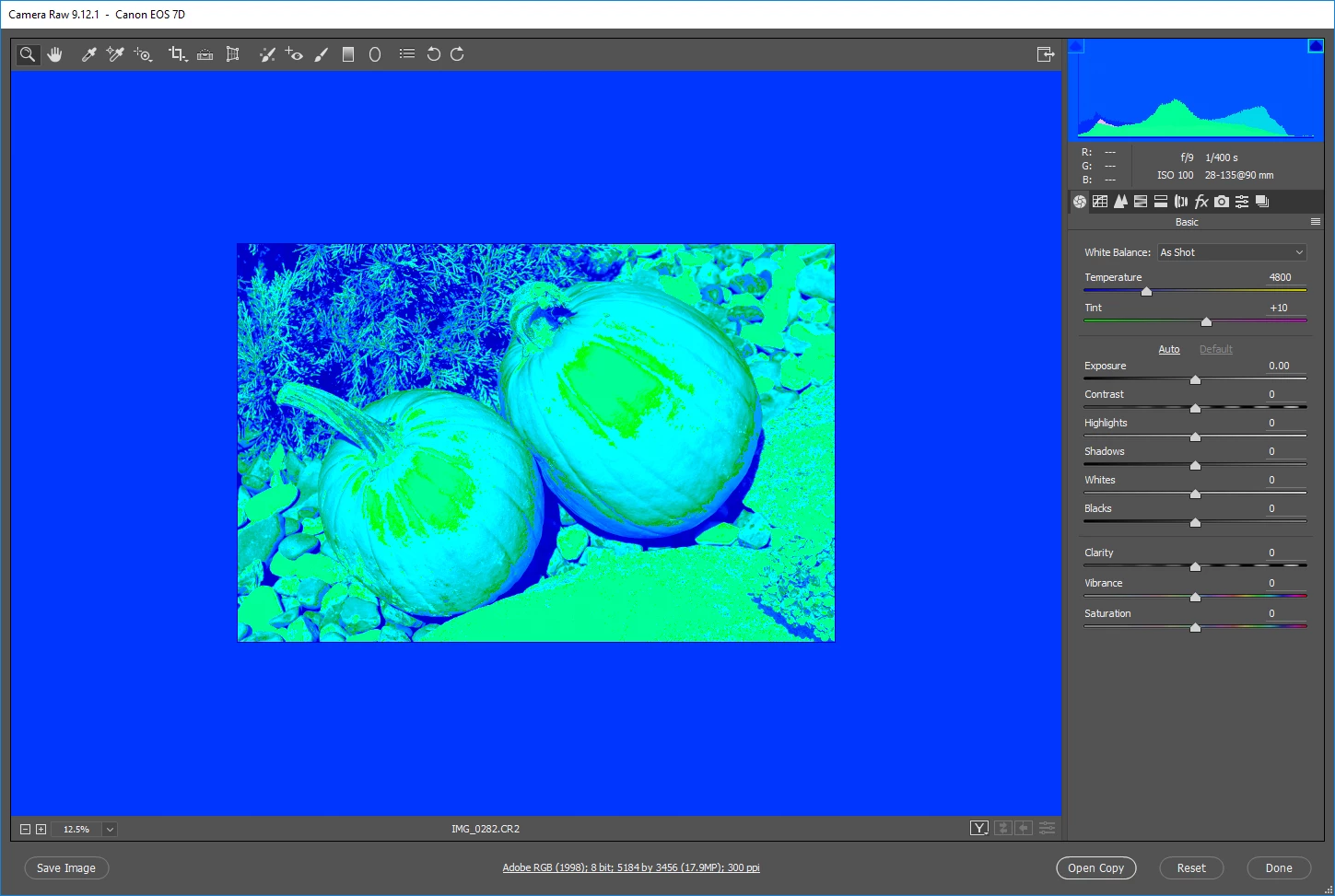
When you "Open Copy", it opens in PhotoShop with the correct colors:
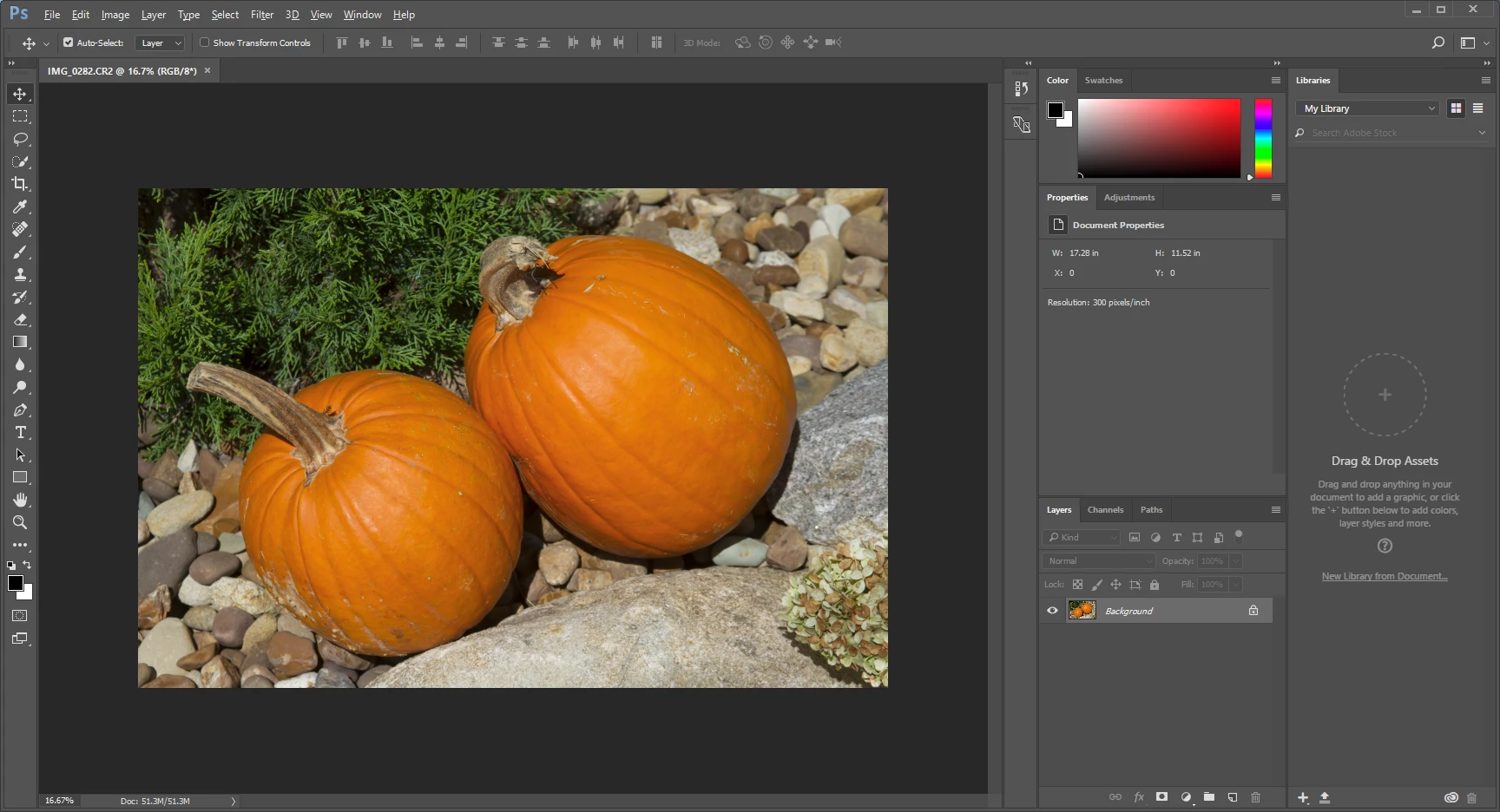
Particulars on his machine:
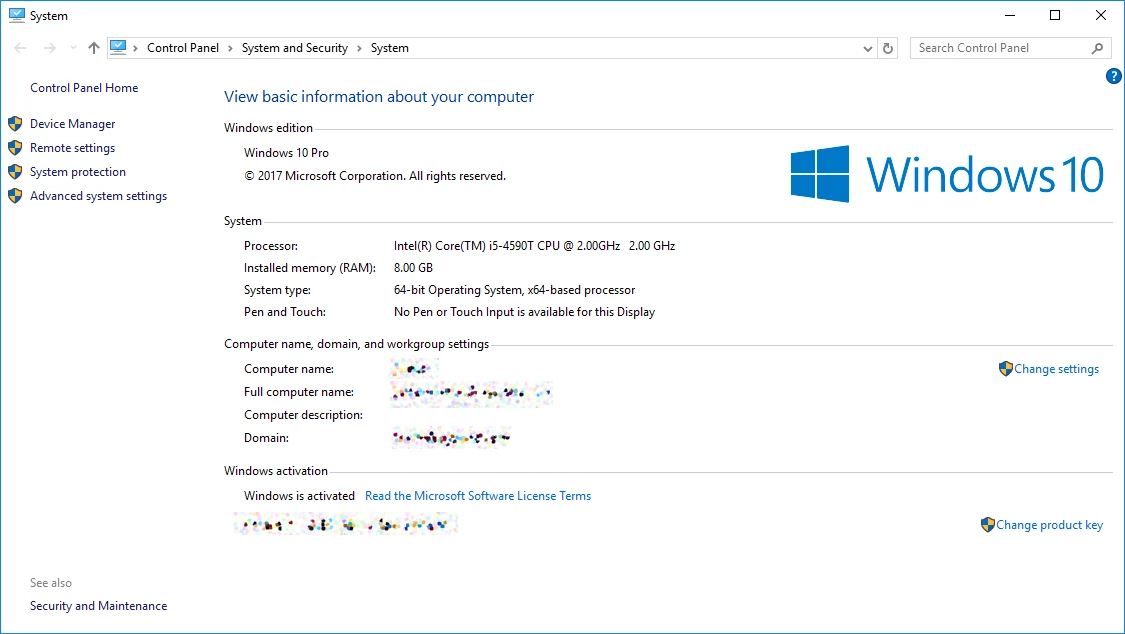
Any insight or assistance is appreciated. Thanks!

This topic has been closed for replies.
Correct answer Per Berntsen

Try disabling the GPU in Camera Raw.

In the Camera Raw window, press Ctrl+K to open preferences, then uncheck Use Graphics Processor at the bottom.

3 replies

swrutherford
Inspiring
October 4, 2017

Disabling the GPU worked! Thank you to you all for your assistance!

We had just installed the "latest" version (at the time) about two months ago from the CC app. It wasn't until after the update that we checked the version.

Stephen
csgstudio
Participant
October 1, 2019
Hello, bring this topic back, it is 10/1/19 and I am having this same issue, sometimes blue sometimes another color. I am on a Mac most recent Mojave and Bridge 2019. Any one else having this issue? I have tried all the basic stuff re install, bump the prefs, shut off GPU. I appreciate any help. Thanks, Chris
Per Berntsen
Community Expert
Per BerntsenCommunity ExpertCorrect answer
Community Expert
September 28, 2017

Try disabling the GPU in Camera Raw.

In the Camera Raw window, press Ctrl+K to open preferences, then uncheck Use Graphics Processor at the bottom.

ccastleb
Adobe Employee
Adobe Employee
September 28, 2017

In addition to disabling GPU acceleration as suggested, please post the model information for the display adapter on this machine.

Also, which version of Camera Raw was in use prior to updating to 9.12.1?

mangomito
Participant
October 19, 2017

so is this likely to ever be fixed instead of having to use a bodged workaround? the update to ACR 10.0 with LR Classic still results in this blue/cyan overlay. Sure disabling GPU works but that's dumb as the benefits of improved performance and UI fluidity are lost and completely defeats it's purpose. It doesn't just screw up LR either, the ACR filter in PS is also displaying as blue/cyan. versions up to 9.12 work without issue btw.

Legend
September 28, 2017

Could you please go to preferences and reset to default settings?

In Adobe Bridge, choose Edit > Camera Raw Preferences (Windows) or Bridge > Camera Raw Preferences (Mac OS). Or, in the Camera Raw dialogue box, click the Open Preferences Dialog button. Or, in Photoshop, choose Edit > Preferences > Camera Raw (Windows) or Photoshop > Preferences > Camera Raw (Mac OS).

Alternatively, go Edit>Preferances in any of the above programs.