Participant
August 17, 2012
Answered

Camera Raw editing is not enabled

  • August 17, 2012
  • 30 replies
  • 312186 views

The Camera Raw option in Bridge 6 is dimmed and not available when I wont to edit a picture file in Camera Raw.

I got this message:
Camera Raw editing is not enabled

Camera Raw editing requires that a qualifying product has been launched at least once to enable this feature"

Any help will be highly appreciated

Best regards

Frank

This topic has been closed for replies.
Correct answer Rob_Cullen

Or, is the question from @Terry Carroll about opening TIFF and JPGs Through ACR?

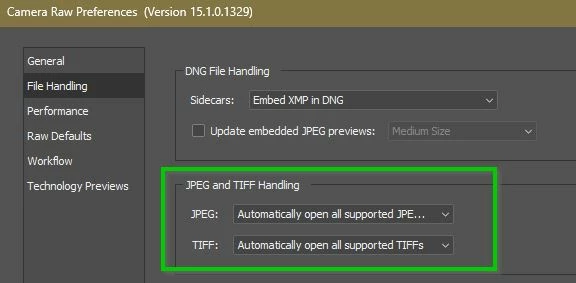
This would be a Camera Raw Preference setting in Photoshop for TIF & JPG to appear in ACR..

30 replies

Participant
July 12, 2015

I was having the same problem that the original poster was having (Camera Raw editing is not enabled.)  After tinkering around with some of the suggestions that were provided by some of the users on this form, I figured out what my problem was.  How I got it to work was simple.  I open a picture in Photoshop, doesn't what type, png, jpg, tiff. Then File>Browse in Bridge. Once Bridge is opened.  All I had to do is, highlight the image you want to open in Camera Raw, and a second image, doesn't matter which one, then double click the image you want to open in camera raw, and voila, camera raw opens right up.  After all  the suggestions mentioned, this one works easier than the other recommendations made so far, every time.

Hope this  helps.

kolbob
Participant
June 17, 2015

For Mac... (PS CS6, Adobe Bridge CS6, Camera Raw 9.x) Mac Os 10.x

Open Photoshop, browse in Bridge or mini Bridge, select .jpg or .dng, right click photo file, select open in Camera Raw.

There will be a little "crunching", then seems like nothing is happening.

Press control, option, and return together......selected photo will open in PS Camera Raw.

Enjoy

TopgunB
Participating Frequently
May 9, 2015

The solution for Windows CS6:   Find the amtlib.dll file in the Photoshop file and copy it to replace the amtlib.dll file in the Bridge folder. Probably safer to first rename the Bridge amtlib.dll to something like amtlib.dll.old just in case something goes wrong and you have to revert! This worked on my Windows version but copying the amtlib.framework from the Photoshop folder to the Bridge one did not work for Mac so if anyone can help with a Mac fix I would appreciate it!

Participant
June 11, 2014

I found the answer in the comments of a youtube video and it worked great for me!

FutileGrief

3 months ago

This didn't work for me, but I found another solution!!! Well it worked for me at least! I'm using CS6 64 bits. On Photoshop, go to Edit>Preferences>General>File Handling>Camera Raw Preferences. Under "JPEG and TIFF Handling" change JPEG to "Automatically open all supported JPEGs". Voilá! Every JPG you open from now on will open in camera raw. I know it's not a definite solution, and depending on what you'd like, it's probably best to open JPEGs in photoshop and not in camera raw. BUT if for example you need to edit a batch of images, this will work. Mind you, this WILL OPEN ALL JPGs IN PHOTOSHOP IN CAMERA RAW. It can be easily reversed however to act normally.

Reply

·

4

Participant
May 26, 2014

Yep, just did this, all is back to normal.

I posted in 'Bridge General Discussion' yesterday and received a message from a member with the following link with full instruction how to fix it  Camera Raw 8.4 | No metadata or Camera Raw edit

Participant
May 25, 2014

On Macintosh:

What I found to work is to download a new copy of the Camera Raw plugin and replace the old one. You can get it from the Adobe site. The version is 8.4.


The path to the folder it sits in is: /Library/Application Support/Adobe/Plug-Ins/CS6/File Formats/Camera Raw.plugin

Inspiring
April 5, 2014

Uninstall all adobe CS ? or CC, run the adobe cleaning tool. Install photoshop CS? or CC whatever, open Photoshop (you don't need to do anything just open it) then close Photoshop, if on a MAC click cmd+Q. Now install Bridge, Bridge now sees that an application (Photoshop) has been launched and cmd + R now works,  Seemples

sidneydavenport
Inspiring
February 25, 2014

My solution to same problem:

Bridge / Edit menu / Camera Raw Preferences / JPEG and TIFF Handling (last section in dialog box)

Check Automatically open JPEGs / TIFFs with settings

I had turned this off. Now my keyboard shortcut works again!

Inspiring
February 25, 2014

That worked for some people. But if you read this thread you'll see that it doesn't work for many. As in my case, Camera Raw Preferences are grayed out so that we cannot reset them. Adobe has chosen to ignore this problem and has offered no solution on this thread, which has been active for a long time now. If you're not using CC, they clearly couldn't care less. Not that Creative Cloud is a real solution. Plenty of people are having trouble with that as well. Adobe is more interrested in stopping piracy than making things work smoothly for their customers.

Some Adobe engineers contribute useful information here and there on these blogs, but their efforts are limited by company policies over which they have little or no control. Adobe management is the real problem, as it is with many mature businesses where their executives live in an hermetically sealed bubble, cut off from their clients and users. Microsoft is perhaps the prime example of this problem, but they're not alone.

DMFoto
Participant
March 27, 2014

Good News, if your just coming across this page now, then you can download a patch update which fixed this very issue. I'd suggest going through all the CS6 Programs and downloading all the updates from the products you have too. But for me, this was the biggest problem Cmd+R not working was a right pain. For me, with the update, it's fixed

http://www.adobe.com/support/downloads/product.jsp?product=108&platform=Macintosh

Complete list of updates so you don't have to go looking for them: http://www.adobe.com/uk/downloads/updates.html

Participant
February 16, 2014

Just in case this sheds any light on the issue ...

I'm on CC, but a friend required some help with a Premier Elements project. As this appears not to be available through the cloud, I installed it from my (legal) disks.

After working with Premier for a bit, I went back to my PS work, and encountered the problem described above.

Uninstalled Premier Elements.

reopened ps and was prompted to enter my account details

Now everything works as expected.

giulianogibi
Participant
June 1, 2014

That worked for me as well!

I had to open Premier CS6 and login into my account.

After that from Bridge CS6 I could open raw files using Command+R

Cheers!

December 28, 2013

I found the solution of this problem.

1 Open bridge cs 6

2 Go to Edit - Preferences - File Type Associations

3 Select Canon Camera Raw

4 In the dropdown menu browse for Photoshop CS 6

It appears that the default seeting is explorer settings.

That means in my case the exploroer settings was ACDsee

Please see the screen shot

Hope this helps

//Leif

Inspiring
December 28, 2013

@ LeifLeif: I think you have a separate problem, or a subset of the problem the rest of us are having. Because your solution doesn't work for me.

Two things: File Type Assosicaitons are in Preferences under the Application Menu (on a Mac), not the Edit menu. And in my preferences Canon Camera Raw is already set to Adobe Photoshop CS6, as is every other camera raw type. But I still cannot access Camera Raw Preferences in Bridge CS6. Nor can I use Open in Camera Raw... in the contextual menu.

However, if I select more than one Raw image in Bridge and double-click one of them, they all open in Camera Raw. So all that's really affected is the contextual menu. I can still tweak the Camera Raw Preferences in Photoshop, so not being able to get to them in Bridge is a minor annoyance. Double-clicking selected images in Bridge is the most direct way to use Bridge with Camera Raw. It should be noted, though, that this only applies to Raw images. If I select JPEGs and TIFFs along with a Raw image, the Raw image will open in Camera Raw and the others will open directly in Photoshop. So, if I want to open a JPEF of a TIFF in Camera Raw, I need to use the contextual menu in Mini Bridge in Photoshop.

So there seem to be some fairly simple work-arounds for this problem, though it has taken an inordenant amount of trial and error experimentation by a lot of users to figure them out. If Adobe knows of these solutions they haven't bothered to tell us about them. Apparently Adobe couldn't care less; they've moved on to the Creative Cloud and the devil take the hindmost.