


Participant
October 15, 2024
Question

Camera RAW is disabling GPU acceleration

  • October 15, 2024
  • 2 replies
  • 1179 views

Hi!


I've been dealing with this issue for a week and I can't find any solution. When I try to edit a CR3 picture and open it with Photoshop, it says that the GPU acceleration has been disabled for the rest of the sesion because a timeout execution error.
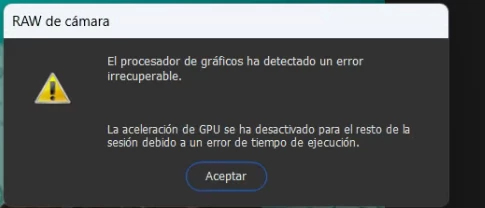


I have a Laptop with an internal GPU Intel Iris XE and a dedicated GPU Nvidia GTX 4060 Laptop.

I've tried this KB: https://helpx.adobe.com/es/camera-raw/kb/acr-gpu-faq.html

Also reinstalled GPU drivers, force apps to use Nvidia Graphics Card and none of that worked.

I've tried to downgrade the Graphics Card drivers, Photoshop, Bridge... Nothing worked.

The only thing that worked was disabling Intel Iris XE but the entire system started to go slow.

The Graphics card is compatible with both Apps, I did the checking.

Any help will be appreciate it. 


My OS is a Windows 11 Pro with these specs:

CPU: Intel 13th i7-13700H

RAM: 32GB

B.R


2 replies

Doodleshak
Participant
January 24, 2025

I have a similar issue. When I open Photoshop and check Preferences>Camera Raw>Performance, it says "Auto" next to "Use Graphics Processor". The box is clickable (ie not greyed out) and I could change it to Custom if I wanted. I've been told "Auto" is the way to go. However, as soon as I have an image open (ie jpeg) and go to Filter>Camera Raw Filter and click on it, nothing happens. I don't get an error message, Camera Raw just doesn't open. When I then go back to Preferences>Camera Raw>Performance, the "Use Graphics Processor" box is greyed out and below it is the message, "Graphics acceleration is disabled due to an error". If I exit out of Photoshop and go back in, go to Preferences etc, the Processor box is back to "Auto". So whatever it is doing, it "corrects" itself once I exit Photoshop and go back in.

What have I tried?

Everything is up to date - my drivers, all computer updates, all Adobe programs.

I have installed/uninstalled programs multiple times, I have tried previous versions.

I have tried renaming the folders noted in this conversation with ".old".

I have been in contact with Adobe for an issue previously and my computer is more than adequate to run Adobe programs (it's only a year old).


Everything was working fine up until I had an Adobe tech try to address a problem I had with Premiere Pro. The problem started then (about two weeks ago). I did try and get help from Adobe a few days ago but we were cut off and they never got back to me.


Any help from the community would be helpful. I am almost to the point of packing in all my Adobe software and just trying something different. This is just not worth the effort...

Doodleshak
Participant
January 24, 2025

So, I finally got it to work. My computer has both an Intel Graphics card and an Nvidia graphics card. I disabled the Intel Graphics card and restarted my computer. I can now access Camera RAW. I have never had to do this on this computer and everything was working fine up until a couple weeks ago. I guess I'll use my computer this way for now but it's annoying. Anyway, as long as the problem is solved, I guess. 

Sameer K
Community Manager
Community Manager
October 16, 2024

Hey, @athletic_idealist4683. Welcome to the Photoshop Community. I'll help you figure this out.


Follow these steps to reset the GPU info & Logs location is %APPDATA%\Adobe\CameraRaw. A shortcut to get to this folder on Windows is:

  • Press the Windows + R
  • Enter %APPDATA%\Adobe\CameraRaw

    SameerK_0-1677098829015.png


  • Rename the GPU & Logs folder in this directory by adding .old at the end. (GPU.old & Logs.old)
  • Restart Photoshop, which should capture the updated driver & hardware capabilities.

Thanks!
Sameer K

(Use '@mention' to tag me when you reply)

Participant
October 17, 2024

Hi! @Sameer K 


Unfortunately, that didn't work..


Thank you for your comments.


B.R