Inspiring
January 28, 2025
Answered

cannot open tif in CR

  • January 28, 2025
  • 2 replies
  • 2017 views

I've converted jpg scans in the past to tif, and opened in CR but that is not happening now. Have checked all the settings. I opened directly in to CR not needing Bridge to do it, besides, there is no right click option to open in Camera Raw instead of PS in Bridge or anywhere.  I scanned to jpg, 1.2GB grayscale file converted to RGB (3x file size) 8bit saved as .tif. Not opening. I've done this before, it was not a problem before. What changed? What am I missing? None of the suggested shortcuts or myriad of ways suggested to open a file in CR work. 
Correct answer RAB123

The option to open in Camera Raw is there on Windows as well.

If the option to open Tiffs with settings/open all supported Tiffs is not enabled in the Camera Raw preferences, the Bridge menu item will still be visible, but greyed out.

If this menu item disappeared, resetting the Bridge preferences might have fixed it, or you may have a bad install.


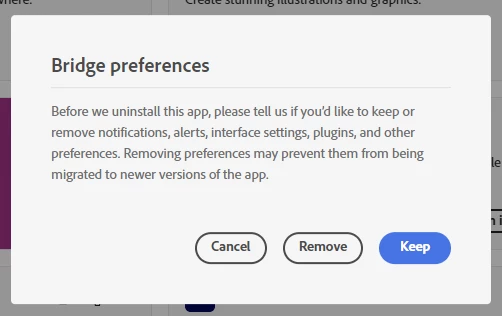
When uninstalling, you get the option to remove or keep preferences. If you chose to keep them, they will be re-used for the new installation, and if they were corrupted in the first place, they will still be corrupted after reinstalling.

Generally speaking, reinstalling doesn't often fix any problems.

The majority of issues are related to corrupted preferences or the GPU.


Thanks! The "open in Bridge" does not appear on some files becasue the files are too big. I did five scans, 4800 dpi, 3200, 2400, 1200, 800. Only the 2400dpi scans and smaller will open in CR.  Those image do have a right click Bridge option, the larger ones do not. I need 4800 for max resolution but 2400 will do for now. So it looks like CR will open a file larger than 320mb (20,401 x 16,093) but not as big as 570mb (27,202 x 21,457). see attachment. All files are 8bit grayscale.

2 replies

Conrad_C
Community Expert
Community Expert
January 29, 2025
quote

…there is no right click option to open in Camera Raw instead of PS in Bridge or anywhere.

By @RAB123


Camera Raw is never expected to appear in a context menu as an application option. Camera Raw is not a standalone application, it’s only a plug-in that needs a host application. The OS only lists full applications in a context menu, so the OS will never list Camera Raw there.


Because Camera Raw is only a plug-in and not a standalone application, if you want to open an image in Camera Raw, you must open it through any application that can host the Camera Raw plug-in. For example, all of these methods will open a TIFF in Camera Raw if it’s set up to open TIFF files:

  • Start in Photoshop, choose File > Open, select the TIFF image.
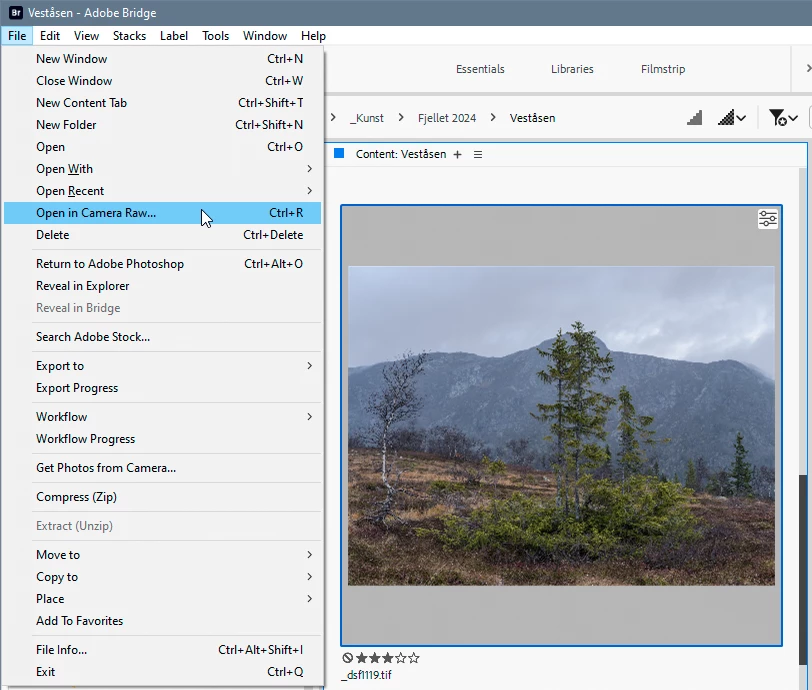
  • Start Adobe Bridge, select the TIFF image, and choose File > Open in Camera Raw. 
  • Start in Adobe After Effects, select the TIFF image, choose Edit > Edit Original. (This actually starts Photoshop which then starts Camera Raw.)


In your screen shot, what I would do is choose Adobe Photoshop from the context menu. That would go through the first workflow above: Photoshop will open, it will detect it’s a TIFF file, Camera Raw is set to open TIFF files, so Camera Raw will open with the TIFF file. I confirmed that it works that way on my computer (although it’s a Mac I think it should work the same way).  

RAB123Author
Inspiring
January 29, 2025

Not working. Yes, I agree, that is the way it should work. But that is not the way it is actually working. "Automatically open all supported tifs" is selected. Yet it always opens in PS.


Also can you send me a screen shot of "Start Adobe Bridge, select the TIFF image, and choose File > Open in Camera Raw. " is located becasue I'm not seeing it.

Conrad_C
Community Expert
Community Expert
January 29, 2025

It hasn’t changed in years, it’s still on the File menu. I use Open in Camera Raw so often that I usually just press the keyboard shortcut shown next to the Open in Camera Raw command.


Per Berntsen
Community Expert
Community Expert
January 28, 2025

Try resetting the ACR preferences.

In Photoshop, go to Edit > Preferences > Camera Raw, and click Camera Raw with the Control key pressed.

Click Yes in the dialog that follows.

ACR will now not open any Tiffs, so you have to enable that setting again.


quote

besides, there is no right click option to open in Camera Raw instead of PS in Bridge or anywhere.


By @RAB123


There is a right click option for opening tiffs in Camera Raw from Bridge (might come back once you have reset the preferences), but there has never been a shortcut for Camera Raw in the File Explorer, only for Photoshop.

This is because Camera Raw is a plugin (not a standalone application) for Bridge and Photoshop, and to use the plugin for Photoshop, PS has to be launched first, then the Camera Raw plugin will open with the file.


RAB123Author
Inspiring
January 29, 2025

thank you but still not working - might be that i am trying to open tif made from jpg rather than a tif straight from the scanner - which worked before

"There is a right click option for opening tiffs in Camera Raw from Bridge (might come back once you have reset the preferences)," I did not se that, only the usual windows right click drop down options which included PS but not CR


I'll do some new tif scans