Participant
September 23, 2018
Answered

Change Camera Raw Profile Default from Adobe Color?

  • September 23, 2018
  • 2 replies
  • 4044 views

Hello,

I did a search and haven't seen anyone else ask -- how can I change the Camera Raw setting "Profile" from "Adobe Color" to (anything really, but specifically) Adobe Standard as the default?

The Adobe Standard is much more in line with my workflow and how I process. I watched a video here on the new release of profiles: April Lightroom and Adobe Camera Raw Releases: New Profiles and More | Adobe Blog. The narrator mentions the default changed from Adobe Standard to Adobe Color. But she does not mention it's possible to reset the default. I've looked into all the settings I could find. I tried to keep Adobe Standard as the only favorite. But whatever I do, the default is Adobe Color.


I'm really hoping there is a solution. It doesn't seem quite right that Adobe would decide for people what their default setting would be. I am a high volume editor and adding in the step of changing the profile every single time is a bit of pain.

Thank you so much to anyone reading this and any advice you can give!

All the best,

Kate

    This topic has been closed for replies.
    Correct answer JP Hess

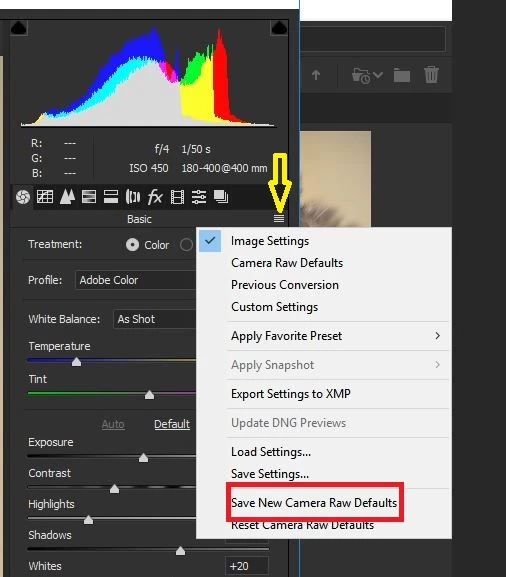
    Camera defaults are not set in Bridge, they are set in Camera Raw. Click on the little (tiny) icon indicated by the yellow arrow. Do this after you have adjusted an image to what you want it to be when it is first opened in Camera Raw. This would include the profile that you want used as well as any other adjustments that you want to be part of your default settings. Then you will see the option to set new camera defaults. When you choose that option, the settings you have made will become the default settings for that particular camera model. Those settings can be changed or reset to the Adobe default settings whenever you choose or find it necessary.

    2 replies

    D Fosse
    Community Expert
    Community Expert
    December 3, 2018

    FWIW, this is even easier in Lightroom. Press the Alt key in the Develop module, and the "Reset" button turns into "Set Default":

    JP Hess
    Inspiring
    December 3, 2018

    That's a good thing to point out. But the reason I didn't is because the original question was regarding how to set the default in Camera Raw using Bridge.

    D Fosse
    Community Expert
    Community Expert
    December 3, 2018

    I know - it was just additional bonus info

    JP Hess
    Inspiring
    September 24, 2018

    Set new camera defaults for your camera, choosing whatever profile you want. Then, whenever you import new images or reset images that you have worked on, that profile will be applied automatically.

    julie26484779
    Participant
    December 3, 2018

    How do you set defaults for a camera in Bridge?

    JP Hess
    JP HessCorrect answer
    Inspiring
    December 3, 2018

    Camera defaults are not set in Bridge, they are set in Camera Raw. Click on the little (tiny) icon indicated by the yellow arrow. Do this after you have adjusted an image to what you want it to be when it is first opened in Camera Raw. This would include the profile that you want used as well as any other adjustments that you want to be part of your default settings. Then you will see the option to set new camera defaults. When you choose that option, the settings you have made will become the default settings for that particular camera model. Those settings can be changed or reset to the Adobe default settings whenever you choose or find it necessary.