Participating Frequently
February 27, 2017
Answered

FILES MARKED AS 8 BIT IN RGB 1998 MODE

  • February 27, 2017
  • 1 reply
  • 1060 views

I am shooting uncompressed RAW in Adobe RGB 1998 space with a new Sony A7R mkii.   When viewed in CamRawCC or BridgeCC the files show an 8 bit attribute.  I certainly want the 16 bit information.  Is this an issue in the camera (although I see no issue regarding 8 vs 16 bit in any of the "capture" settings.

Why is this happening?

    This topic has been closed for replies.
    Correct answer JP Hess

    Camera Raw is a plug-in that is accessible from either Bridge or from Photoshop. I prefer to look at my raw images in Bridge and then open them directly from Bridge into Camera Raw. You can make that choice from  the Bridge preferences, general tab:
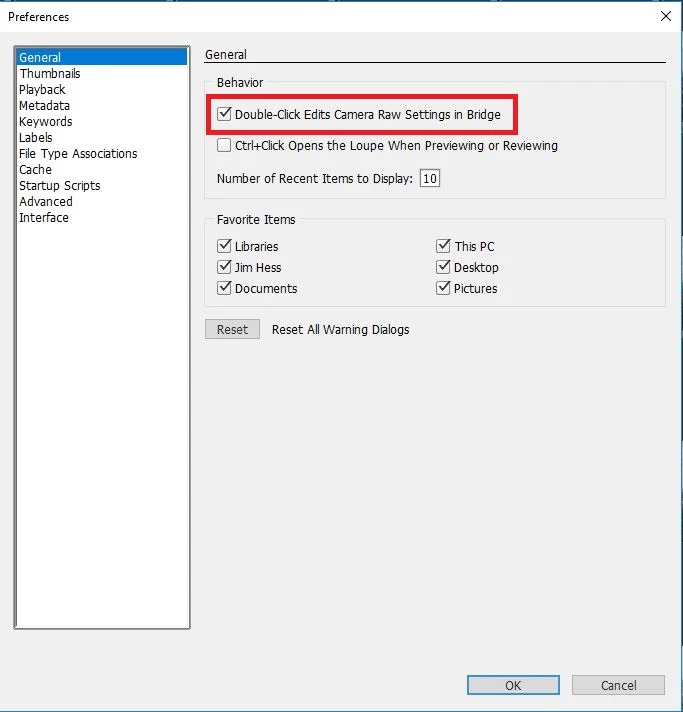
    After you make that choice and click OK to save the preferences, then all you have to do is double-click on one of your raw images. It will then open in Camera Raw. At the bottom of the Camera Raw screen you will see the following:

    When you click on that hyperlink you will see where you can change  from 8-bit editing to 16-bit. However, all of that isn't going to change the image to a  16-bit image. I just did some experimenting. Apparently there is an option in your camera settings where you can choose the bit depth for your  raw images.  You will have to find that setting and change it. More than likely it will be something like 12-bit or 14-bit. At least those are the choices I have with my Nikon D 7100. then you can open those images in Camera Raw and edit them in a 16-bit editing workspace.


    1 reply

    JP Hess
    Inspiring
    February 27, 2017

    Check your Camera Raw workflow options (the link at the bottom of the Camera Raw screen). You can change from 8-bit to 16-bit there.

    Participating Frequently
    February 27, 2017

    I do not know how to get to Camera Raw. 

    JP Hess
    JP HessCorrect answer
    Inspiring
    February 27, 2017

    Camera Raw is a plug-in that is accessible from either Bridge or from Photoshop. I prefer to look at my raw images in Bridge and then open them directly from Bridge into Camera Raw. You can make that choice from  the Bridge preferences, general tab:

    After you make that choice and click OK to save the preferences, then all you have to do is double-click on one of your raw images. It will then open in Camera Raw. At the bottom of the Camera Raw screen you will see the following:

    When you click on that hyperlink you will see where you can change  from 8-bit editing to 16-bit. However, all of that isn't going to change the image to a  16-bit image. I just did some experimenting. Apparently there is an option in your camera settings where you can choose the bit depth for your  raw images.  You will have to find that setting and change it. More than likely it will be something like 12-bit or 14-bit. At least those are the choices I have with my Nikon D 7100. then you can open those images in Camera Raw and edit them in a 16-bit editing workspace.