Participating Frequently
August 30, 2025
Answered

How to create a streak of light across background, behind my subject

  • August 30, 2025
  • 2 replies
  • 249 views

In Adobe Camera Raw, with a studio portrait, shot on clean grey background for example, I can easily mask the subject (or background).

How can I create a streak of "feathered" light across the background, to go BEHIND the subject?

(I know how to do radial and lineal gradients)

I'm sure I watched a tutorial earlier this year but can't remember how to.

Your help would be appreciated, thanks

Correct answer Conrad_C

Another super fast way to do it, as shown in the demo below:

(Edit: Sorry I showed Lightroom Classic, I later realized this is the Camera Raw forum. But they have the same controls anyway, just translate them.)


1. Set up a Brush mask with the appropriate Size, Feather, etc. values for your light beam.


2. To make a perfectly straight beam of light, click (don’t drag!) the Brush where the beam starts, and then Shift-click where the beam ends. Painting a straight line by Shift-clicking the Brush tool is an old Photoshop trick that also works in Lightroom Classic and Camera Raw.


3. To remove the beam of light from the subject, click Subtract and then choose Select Subject. (If the subject isn’t correctly masked by Select Subject, do it more precisely using Select Objects or Select People.)
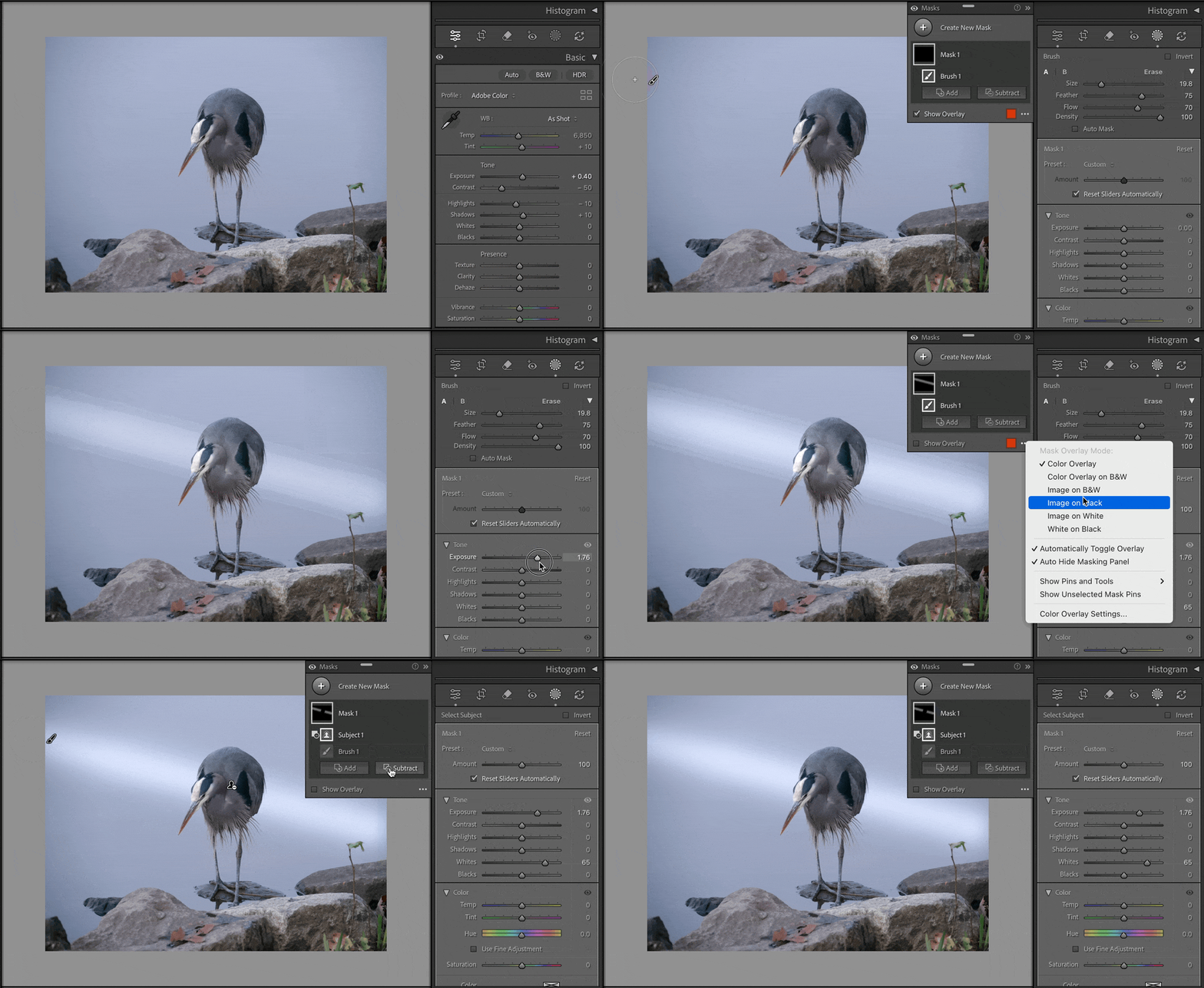


(Sorry about the image quality. The GIF animation I uploaded looks good, but the Adobe forum software degrades the colors for some reason. It didn’t need to be recompressed, what I uploaded is only 1.2MB.)


2 replies

Conrad_C
Community Expert
Conrad_CCommunity ExpertCorrect answer
Community Expert
August 31, 2025

Another super fast way to do it, as shown in the demo below:

(Edit: Sorry I showed Lightroom Classic, I later realized this is the Camera Raw forum. But they have the same controls anyway, just translate them.)


1. Set up a Brush mask with the appropriate Size, Feather, etc. values for your light beam.


2. To make a perfectly straight beam of light, click (don’t drag!) the Brush where the beam starts, and then Shift-click where the beam ends. Painting a straight line by Shift-clicking the Brush tool is an old Photoshop trick that also works in Lightroom Classic and Camera Raw.


3. To remove the beam of light from the subject, click Subtract and then choose Select Subject. (If the subject isn’t correctly masked by Select Subject, do it more precisely using Select Objects or Select People.)


(Sorry about the image quality. The GIF animation I uploaded looks good, but the Adobe forum software degrades the colors for some reason. It didn’t need to be recompressed, what I uploaded is only 1.2MB.)

Inspiring
August 31, 2025

Select background.  Intersect with gradient.

Participating Frequently
August 31, 2025

Thanks, but won't that JUST give me a gradient? I want something like 2 gradients I guess. (??)

Participating Frequently
August 31, 2025

After playing a little more I think I see what you mean. "Intersect Mask" with brush?
