Open the image in Photoshop, then duplicate it (Image > Duplicate), to avoid accidentally overwriting the original.
Display the rulers, Ctrl+R (Windows), Cmd+R (Mac).
Right click the ruler, and choose your preferred unit of measurements. (cm or inches)
Go to Image > Image size, and the image will most likely have wrong dimensions if it comes directly from a scanner or a camera.
The screenshot below shows the Image size dialog for the image I posted previously.
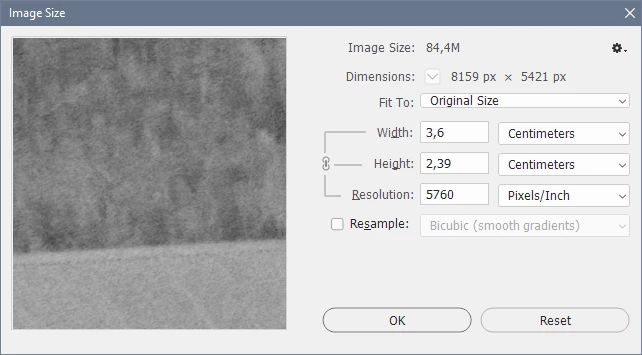
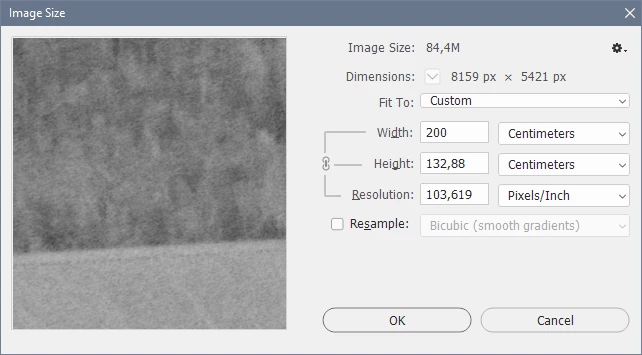
Change the width of the image to 200 cm, or whatever width you want.
The height and resolution will update once you press Tab.
Note that Resample must be unchecked.
Click OK.
With the crop tool, click and drag the area that you want to use for a test print.
Dimensions will show as a tooltip as you drag, and you want an area that is a little smaller than the max paper size of your printer. Press Enter to commit the crop, then print it.




 AdChoices