This is a user-to-user forum.
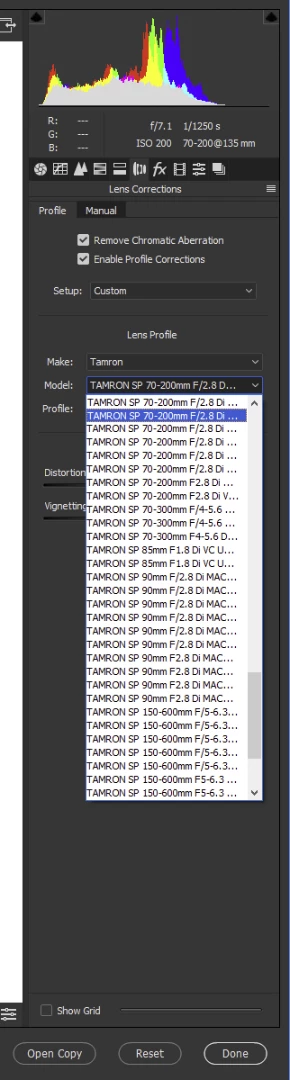
Have you looked in Lightroom where the list is wide enough to show all the particulars, and if the list is sorted the same then you know which ones they are? Notice how the last two items in each of your ACR and my LR lists have F2.8, below the red box, where the ones above those last two have F/2.8 with the / so maybe they are in the same order between ACR and LR. Also notice that profiles for various camera companies (Canon=E, Pentax, Sony, Nikon) are mixed together so they are not all Nikon.
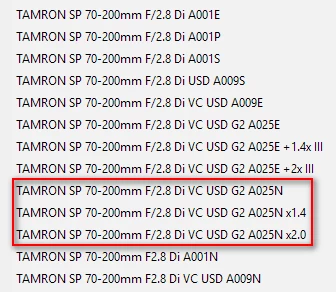
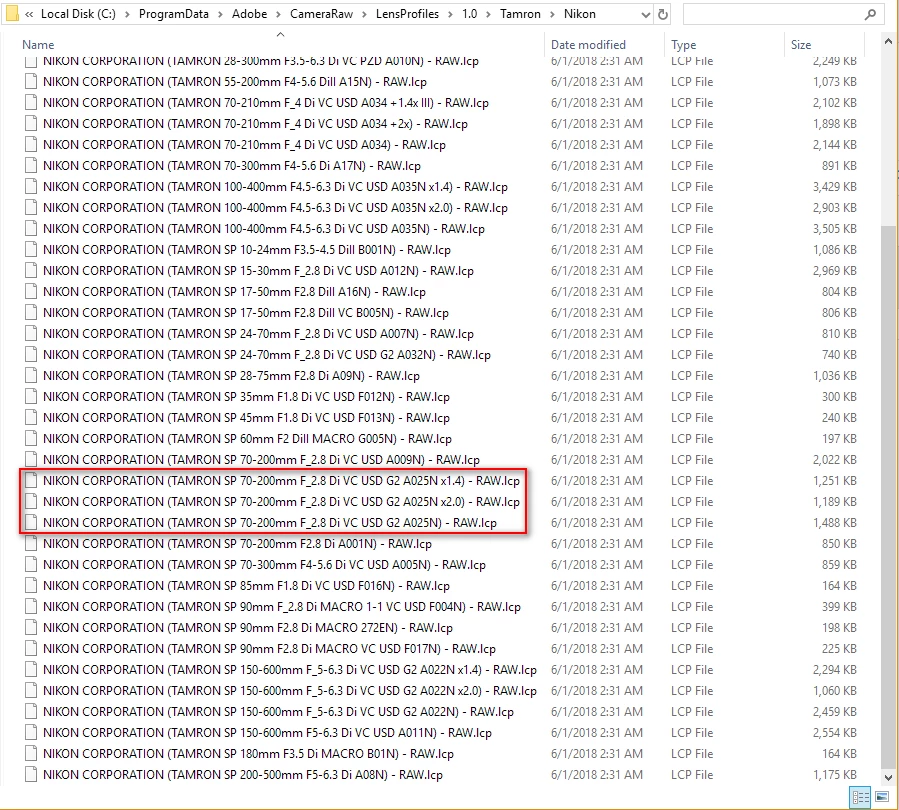
When I started researching this for you, I didn't see any A025N profiles in the Tamron Nikon folder for Camera Raw under the ProgramData location and had to install the DNG Converter 10.4 to get them. I had 7 items in my list that says SP 70-200 before installing the DNG Converter 10.4 and 13 afterwards which matches the 13 LR has. I see 7 in your list, above, but you may not be at the top so it's unclear. Check in the actual hard-drive folder to make sure you actually have them:
C:\ProgramData\Adobe\CameraRaw\LensProfiles\1.0\Tamron\Nikon
If you need to download and install the DNG Converter 10.4 it is here:
Adobe software and product updates
If you want to go a step further, once you find the .lcp files that work for your lens(es) either in the LR or CR folders, you can actually copy them over to the user profile area and edit the lens name inside using a text editor of your choice (WordPad, not Notepad) to make the initial part of the name be what's different: e.g. Tamron70-200F28VC, Tamron70-200F28VCx1.4, Tamron70-200F28VCx2.0, maybe with a few more spaces.
Copy them to here:
C:\Users\*yourusername*\AppData\Roaming\Adobe\CameraRaw\LensProfiles\1.0\DownloadedThe trailing part of that path may or may not exist so you can create the last folder or folders if need be.
AppData is hidden so you can get around that by enabling hidden files and folders in your Folder Options or you can just type in
%APPDATA%
and hit enter in the Window Explorer address bar and you'll be inside the Roaming folder, already.
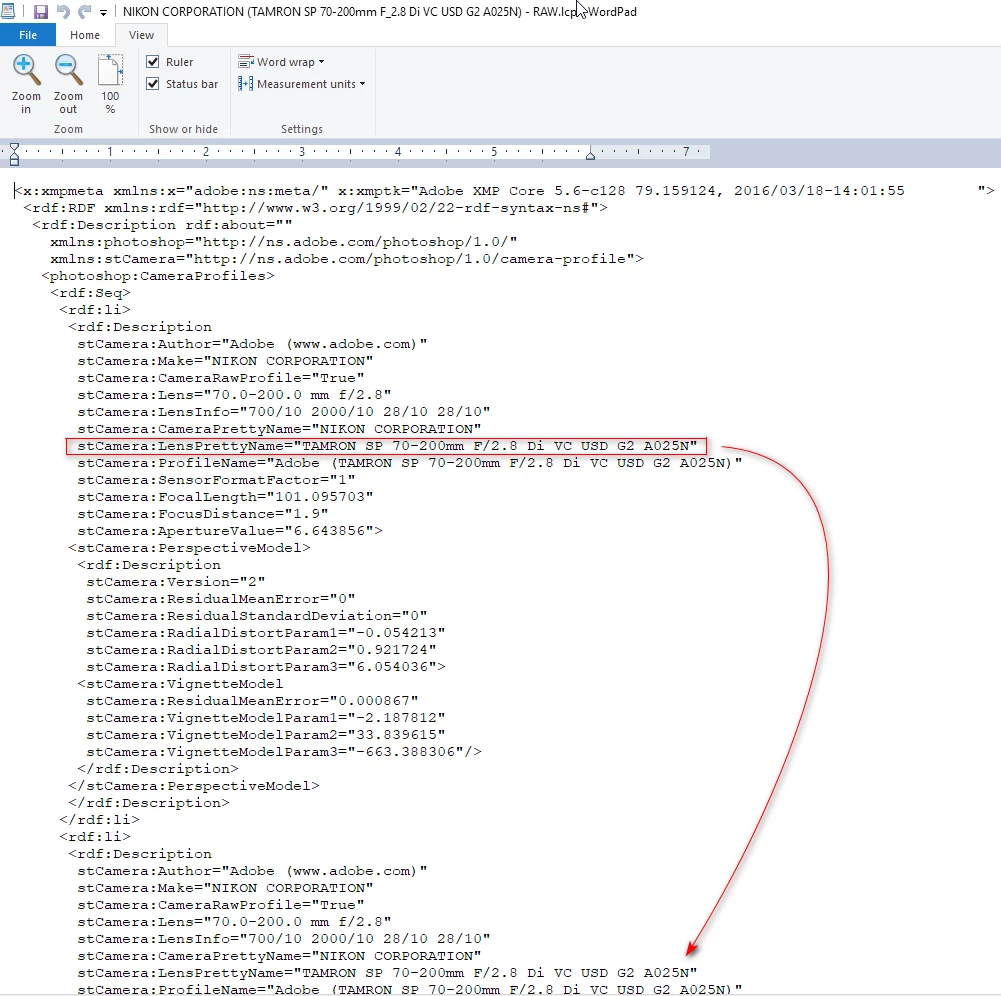
Here is what the LensPrettyName name/value attribute pair looks like in WordPad for the profile without the TC. Notice there are multiple instances of the pretty-name. I'm not sure if you need to change them all or if it'll just use the first one. I guess that's something to experiment with. Once you get it displaying short enough, then you can use a search/replace in the text editor to change the remaining lines. You can also change the first part of the next line down, ProfileName but put your name instead of Adobe at the front. I'd leave the rest of it the same for reference. Also it won't do too much good to change the one in the ProgramData folder because they can be overwritten by a subsequent install so it's safer to put them over in the Users area. Also make sure you don't use too fancy of an editor because you want just the plain text saved back out to the LCP file (i.e. as a .TXT file) not with RTF or DOCX formatting hints.




 AdChoices