


Inspiring
February 3, 2023
Answered

P: Image shows a horizontal line in CR/LrC rendering

  • February 3, 2023
  • 3 replies
  • 604 views

LR Classic 12.1 Camera RAW 15.1

Hassleblad H5D 40 CCD image

Phocus shows the image fine. When imported into LR it is adding a line through the image. 

Just below mid image. Looks like a thin horizontal yellow line. This is being caused by LR, not the sensor.
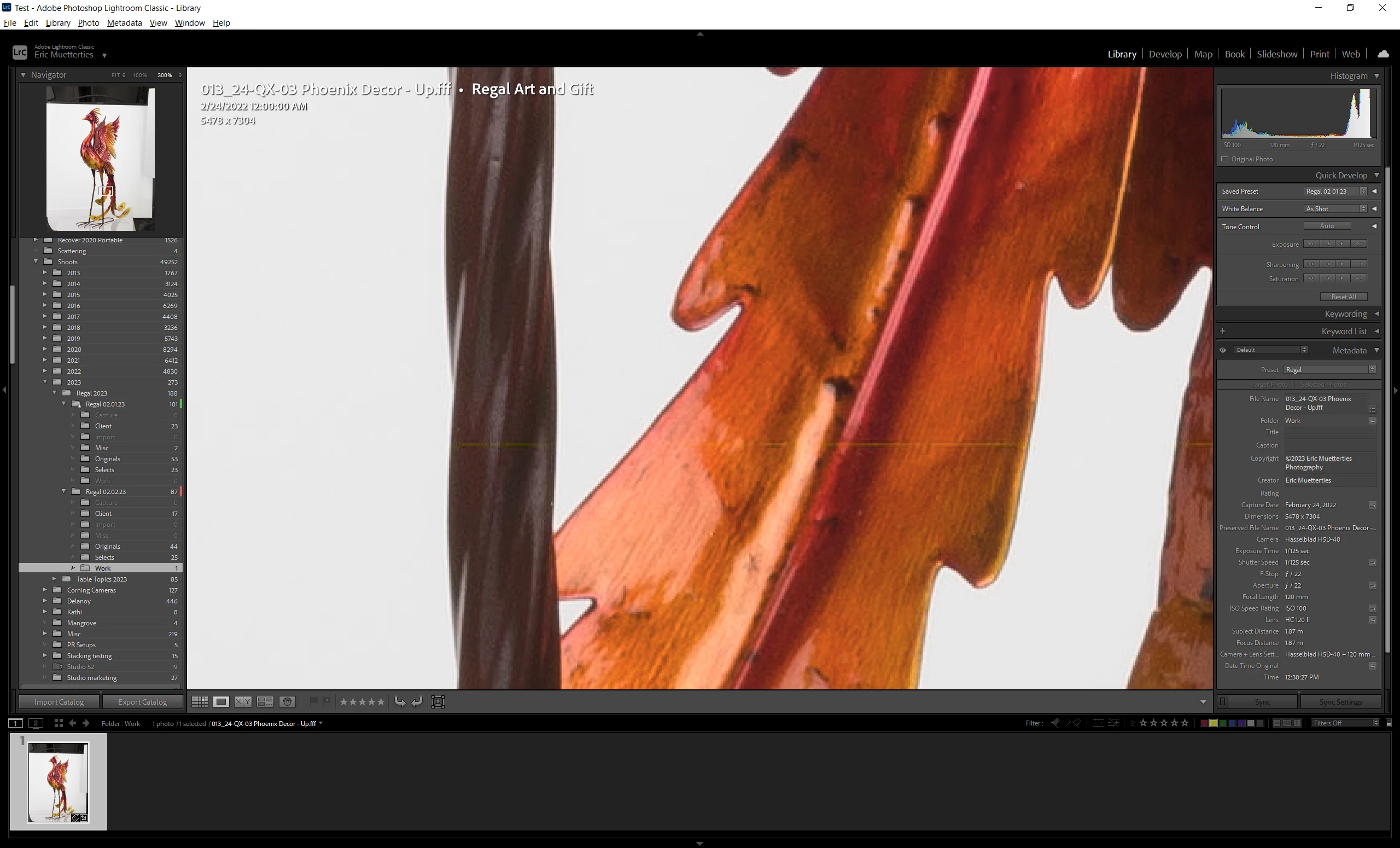
 

I can provide a link to the RAW file:

https://www.dropbox.com/s/afi75nt5824m0ig/013_24-QX-03%20Phoenix%20Decor%20-%20Up.fff?dl=0


can contact me thru ericmuetterties.com

This topic has been closed for replies.
Correct answer ericm1461@yahoo.com

It is the sensor. Thanks for your help!

3 replies

TheDigitalDog
Inspiring
February 5, 2023

The FFF files from an Imacon/Hasselblad scanner use TIFF format with proprietary tags. Because it uses a TIFF format, you can simply rename a file from .fff to .tif and open it in Photoshop. You might want try this with a copy of a 3F file. Here's a link with more details...

https://www.davidebarranca.com/2019-12-07/hasselblad-flextight-flexcolor-3f


RawDeveloper will open this FFF, and it looks fully rendered, but more importantly, no lines are seen. I don't believe this is in your data. And on a Mac, as I outlined, I do not see the line at 1:1 in Develop. Be sure you are viewing this in Develop module, no Library, at 1:1. 


Author “Color Management for Photographers" & "Photoshop CC Color Management/pluralsight"
Inspiring
February 6, 2023

Actually it is there. Apply the profile I loaded above and it will jump out. Even add sharpening. It is there. I renamed it to a .tif and same result.

TheDigitalDog
Inspiring
February 6, 2023

I see it now, and  sorry, its in the raw data. 

Here's RawDigger at 500% zoom, I see this line. It isn't Lightroom Classic or ACR, it's actually in the data. 


Author “Color Management for Photographers" & "Photoshop CC Color Management/pluralsight"
TheDigitalDog
Inspiring
February 5, 2023

Both import fine for me, no lines, and everything looks as it should. 


First, try disabling GPU in the preferences (Performance). Any better?

If turning OFF the GPU works, it's a GPU bug, and you need to contact the manufacturer or find out if there's an updated driver for it. This is why disabling GPU is an option as more and more functionality moves to the GPU in newer versions of many Adobe products. Disable third-party graphics accelerators. Third-party GPU overclocking utilities and haxies aren't supported.

Also see: https://helpx.adobe.com/lightroom-classic/kb/troubleshoot-gpu.html

If the GPU and display profile isn't causing the problem, see:
https://helpx.adobe.com/lightroom-classic/kb/lightroom-gives-error-preview-cache.html

Author “Color Management for Photographers" & "Photoshop CC Color Management/pluralsight"
Inspiring
February 6, 2023

That did not work.

I updated the Nvidea drivers and tried enabling and disabling the GPU. Add sharpening in LR and see if it happens. I have a profile preset I will upload into the Dropbox. Without the profile it is faint. With it it stands out.


https://www.dropbox.com/s/dmwmdnx35di5ygb/Regal%2002%2001%2023.xmp?dl=0

Rikk Flohr_Photography
Community Manager
Community Manager
February 3, 2023

I can see the same artifact on Mac with and without GPU. I've forwarded this post to the Camera Raw team for review. Please leave the image available on your DropBox link. 

Rikk Flohr: Adobe Photography Org
Inspiring
February 3, 2023

Thank you! I am a commerical photographer and this is my lifeblood.


There is something there in the raw, but it is not a colored line. Somehow the converter is thinking it is.


Rikk Flohr_Photography
Community Manager
Community Manager
February 3, 2023

Moving to Camera Raw Forum

Rikk Flohr: Adobe Photography Org