Participant
June 7, 2023
Answered

Problem with DNG from Canon R8 RF 24-50 at 24mm

  • June 7, 2023
  • 4 replies
  • 1070 views

Hello,

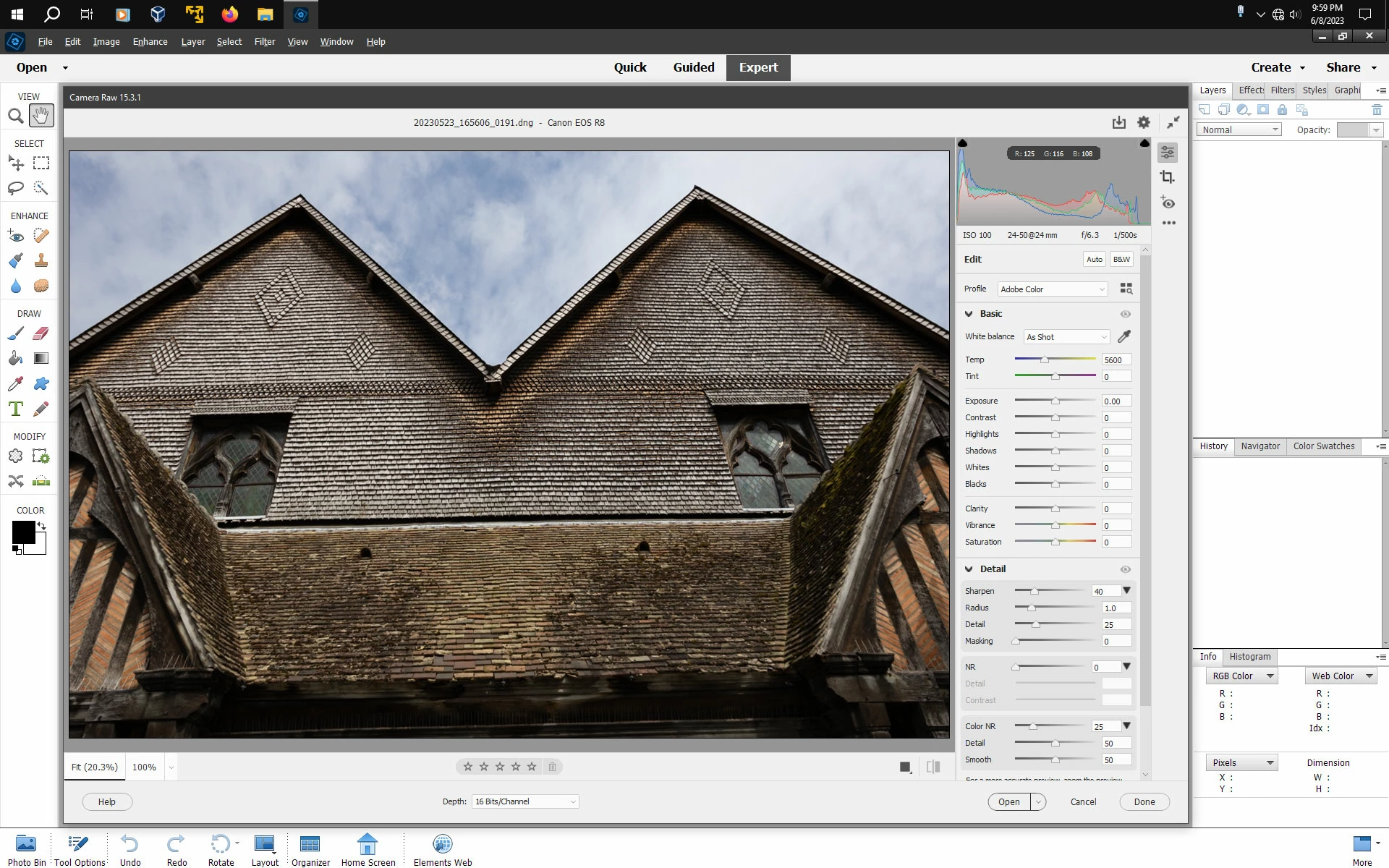
I have problems with DNG from a Canon R8 with RF 25-50 at 24mm. In opening the file in Photoshop Elements 2023 / Camera Raw 14.4 it opens distorted and with extreme vignetting. I enclosed  a screen shot from Camera Raw. 
Does anybody have the same problem (and a potential solution) ?
Thank you
Meinhard
This topic has been closed for replies.
Correct answer Jeff Arola

See if updating to the latest camera raw 15.3.1 by following the below directions makes any difference


Update the Camera Raw version on your Mac or Windows machine


Find out how to update the Camera Raw version on your Mac or Windows machine.

Note:
 

The following is a workaround to update Camera Raw within Elements. It is recommended to wait for Camera Raw updates within the product for issue fixes. 

If you haven't been able to update the Camera Raw plug-in for Elements, follow these steps:

  • Quit all Adobe applications.

    • On macOS, double-click the .dmg file to mount it.
    • On Windows double-click the downloaded .zip file to unzip it. (Windows might unzip the file for you.)
    • On macOS, double-click the .pkg file to start the installer. 
    • On Windows, double-click the resulting .exe file to start the installer.
  • Follow the on-screen instructions.

  • Once installed successfully, close the installer window.

  • Navigate to the following folder:

    • On macOS: /Library/Application Support/Adobe/Plug-ins/CC/File Formats
    • On Windows: C:\Program Files\Common Files\Adobe\Plug-Ins\CC\File Formats
  • Copy the Camera Raw plug-in from the CC > File Formats folder that is mentioned in the above step.

  • Navigate to the following folder: 

    • On macOS: /Library/Application Support/Adobe/Plug-ins/Elements<Version Number>/File Formats
    • On Windows: C:\Program Files\Common Files\Adobe\Plug-Ins\Elements<Version Number>\File Formats
  • Replace the existing Camera Raw plugin in Elements<Version Number> folder with the plug-in that you copied in step 8.


4 replies

Jeff Arola
Community Expert
Jeff ArolaCommunity ExpertCorrect answer
Community Expert
June 8, 2023

See if updating to the latest camera raw 15.3.1 by following the below directions makes any difference


Update the Camera Raw version on your Mac or Windows machine


Find out how to update the Camera Raw version on your Mac or Windows machine.

Note:
 

The following is a workaround to update Camera Raw within Elements. It is recommended to wait for Camera Raw updates within the product for issue fixes. 

If you haven't been able to update the Camera Raw plug-in for Elements, follow these steps:

  • Quit all Adobe applications.

    • On macOS, double-click the .dmg file to mount it.
    • On Windows double-click the downloaded .zip file to unzip it. (Windows might unzip the file for you.)
    • On macOS, double-click the .pkg file to start the installer. 
    • On Windows, double-click the resulting .exe file to start the installer.
  • Follow the on-screen instructions.

  • Once installed successfully, close the installer window.

  • Navigate to the following folder:

    • On macOS: /Library/Application Support/Adobe/Plug-ins/CC/File Formats
    • On Windows: C:\Program Files\Common Files\Adobe\Plug-Ins\CC\File Formats
  • Copy the Camera Raw plug-in from the CC > File Formats folder that is mentioned in the above step.

  • Navigate to the following folder: 

    • On macOS: /Library/Application Support/Adobe/Plug-ins/Elements<Version Number>/File Formats
    • On Windows: C:\Program Files\Common Files\Adobe\Plug-Ins\Elements<Version Number>\File Formats
  • Replace the existing Camera Raw plugin in Elements<Version Number> folder with the plug-in that you copied in step 8.


Participant
June 9, 2023

Thank you Jeff this worked fine !
Strange though, I encountered the problem for only two files out of many, both with the RF 24-50 at 24mm.
Have a nice weekend

Jeff Arola
Community Expert
Community Expert
June 8, 2023

Is that .cr3 file the original from the camera?

I ask because it seems incomplete with no built-in lens correction profile and little to no EXIF data.

Participant
June 8, 2023

yes it is the original .cr3.
In the R8 menu , I can only set vignette correction to "on", for this it objectif, no other aberration correction available

Jeff Arola
Community Expert
Community Expert
June 8, 2023

You need to use a service like Dropbox or something similar

and paste the link here on the forum.

Participant
June 8, 2023
Jeff Arola
Community Expert
Community Expert
June 7, 2023

Does the original camera raw file exhibit the same issue?

What file format is the original file from the camera?


What version of the DNG Converter did you use?


Can you post the original camera raw file and dng file?

Participant
June 8, 2023

Hej Jeff, 
neither the CR3 nor the DNG show the same problem when they are opened with the  Windows 11 Photos App, only when I try to open the DNG in Photoshop Elemnts 2023 with ACR 14.4.
I used the DNG Converter 15.3.0 and 15.3.1.

I tried to enclose the DNG or the CR3, but it gives the following error:


Correct the highlighted errors and try again.
The attachment's 20230523_165606_0191.dng content type (application/octet-stream) does not match its file extension and has been removed.