



Answered
Problem with Transform Tool in Camera Raw
Hi,
I have a problem with r2w files (panasonic) in Camera Raw. I had no such a problem before so I can't tell
why it happens now. I think because of PS update maybe.

Default files' dimention in camera is 4:3 and these files worked fine before and after the problem begun.
Some time ago I changed the ratio in device on 3:2 and these files worked fine for a long time too,
but lately I have a problem with them.

In Transform Tool, when I'm changing scale to smaller or rotating image (situations when blank fill
around the image apears), program automaticaly fit the image to the window without changing
its parameters on the slide bar.
So when I want to undo changes I can do it only by ctrl+z. In example when I'm rotating image
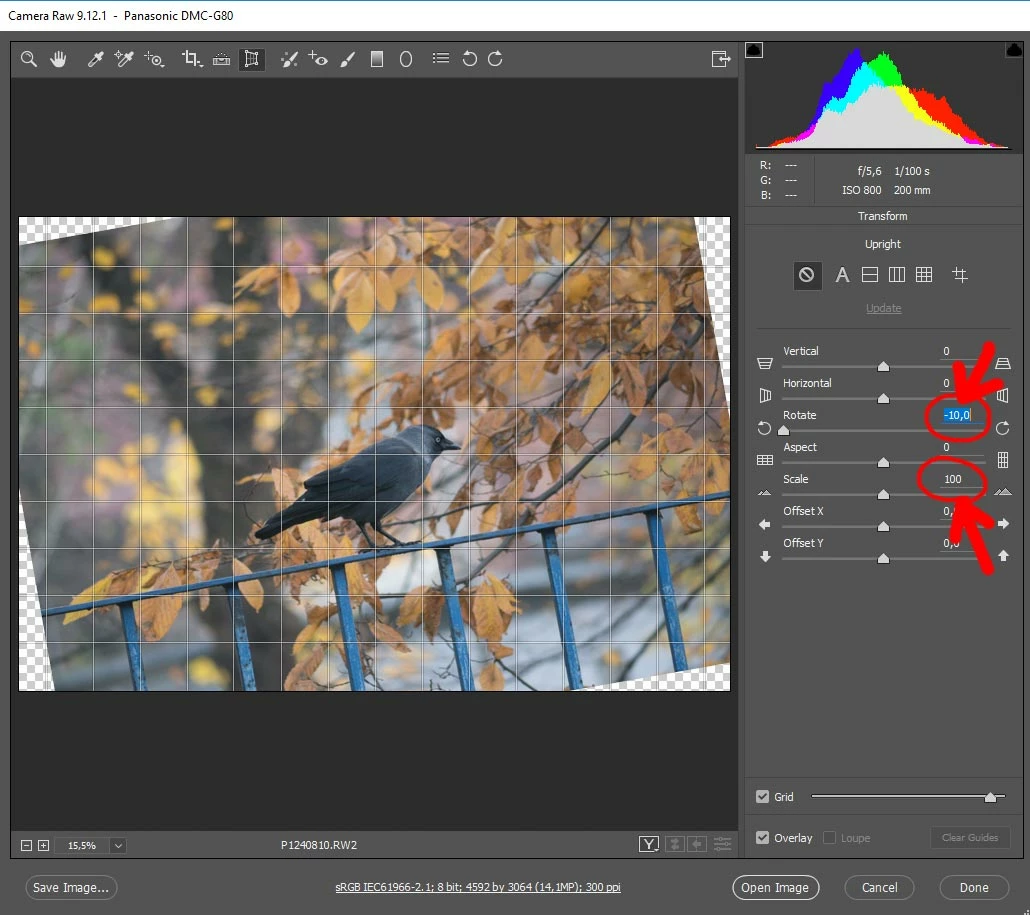
I move a slider left or right and I can see the blank fills on the sides of image apearing and value
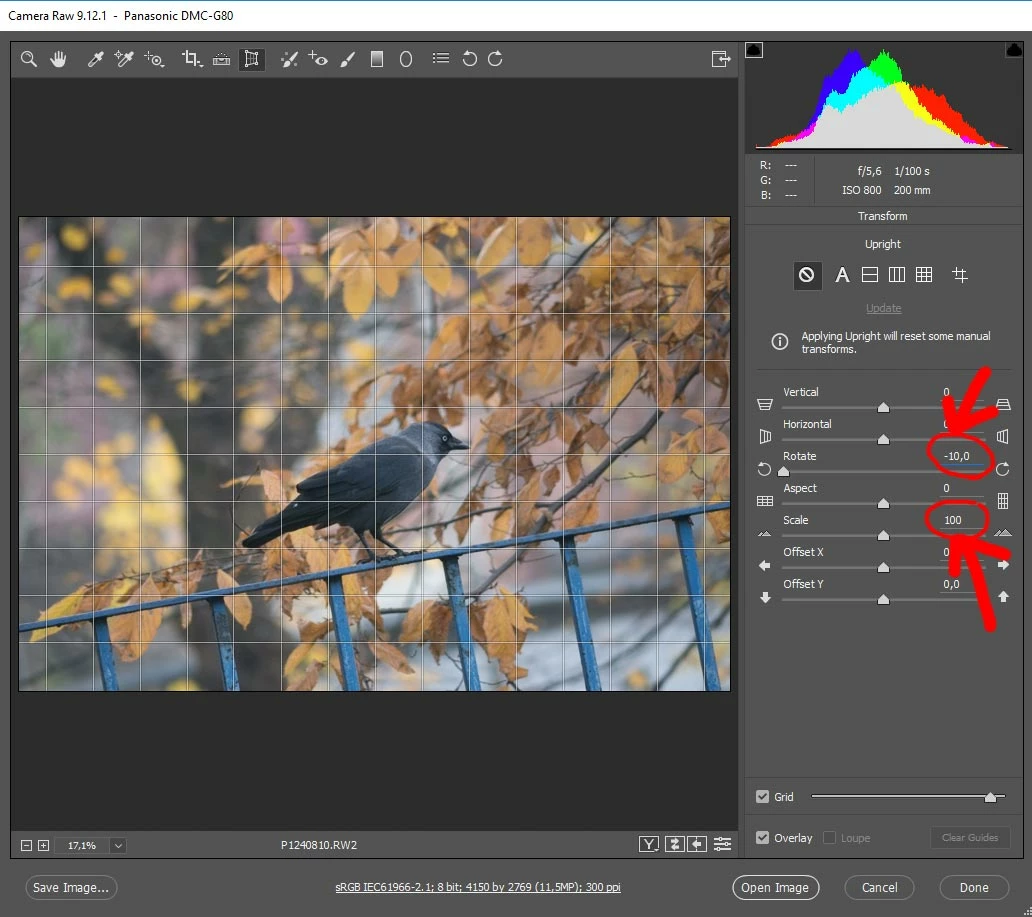
on the slide bar is changing. When I'm releasing a mouse button, rotate slider takes the value I set,
but the program automaticaly makes the image bigger (stretching the new image to fill all window)
but the scale slider stays in '0' position. I have no control of changes because I can redo by sliders
only those ones I made by myself not those made automaticaly by the aplication.

I tried to reset personal settings and change the Camera Raw version to earlier (9.12.1). Problem still exists.

PS 2018
Camera Raw 10.1

Image before changes:
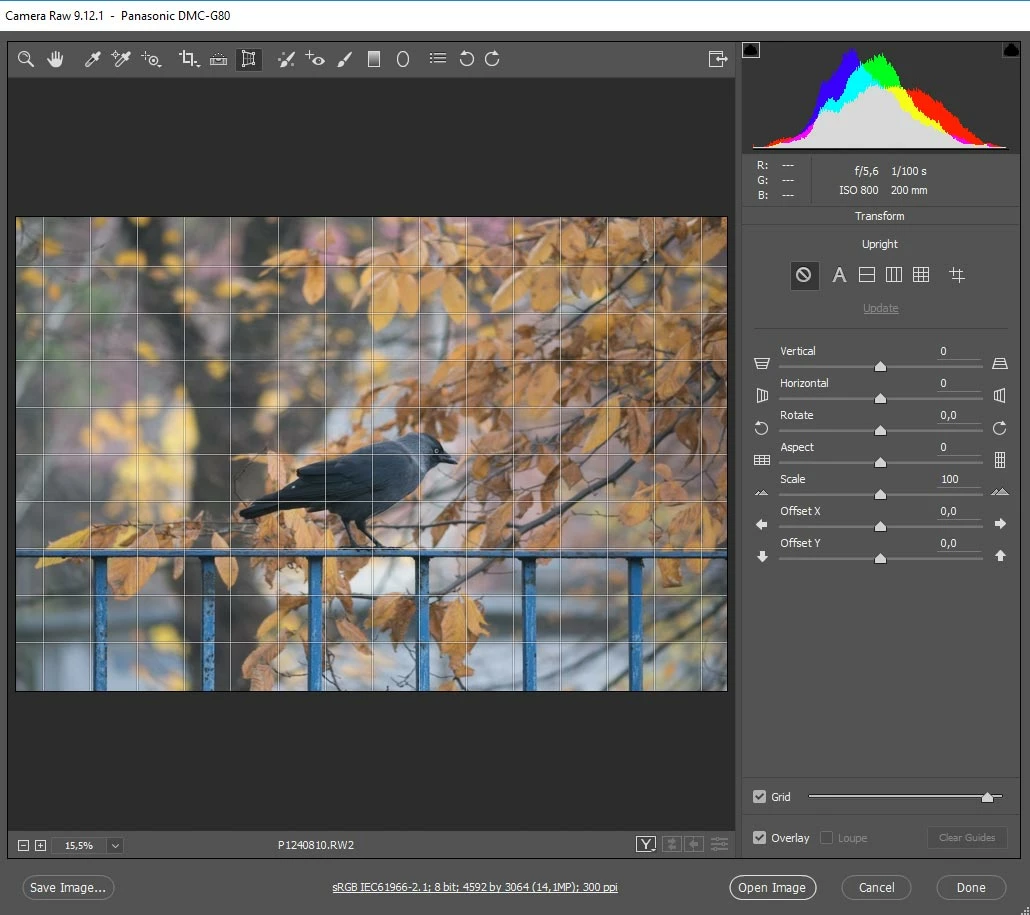
Image with changed rotation and still pushed mouse button:and when I released mouse button:

 AdChoices