


Participating Frequently
April 24, 2023
Answered

Scaling resolution between screens

  • April 24, 2023
  • 1 reply
  • 406 views

Hi community,

This seems to be a recuring problem for Windows users, I am working on a laptop supporting 4K resolution. I am switching between laptop screen and an external monitor (4k). My resolution is set to 150%.

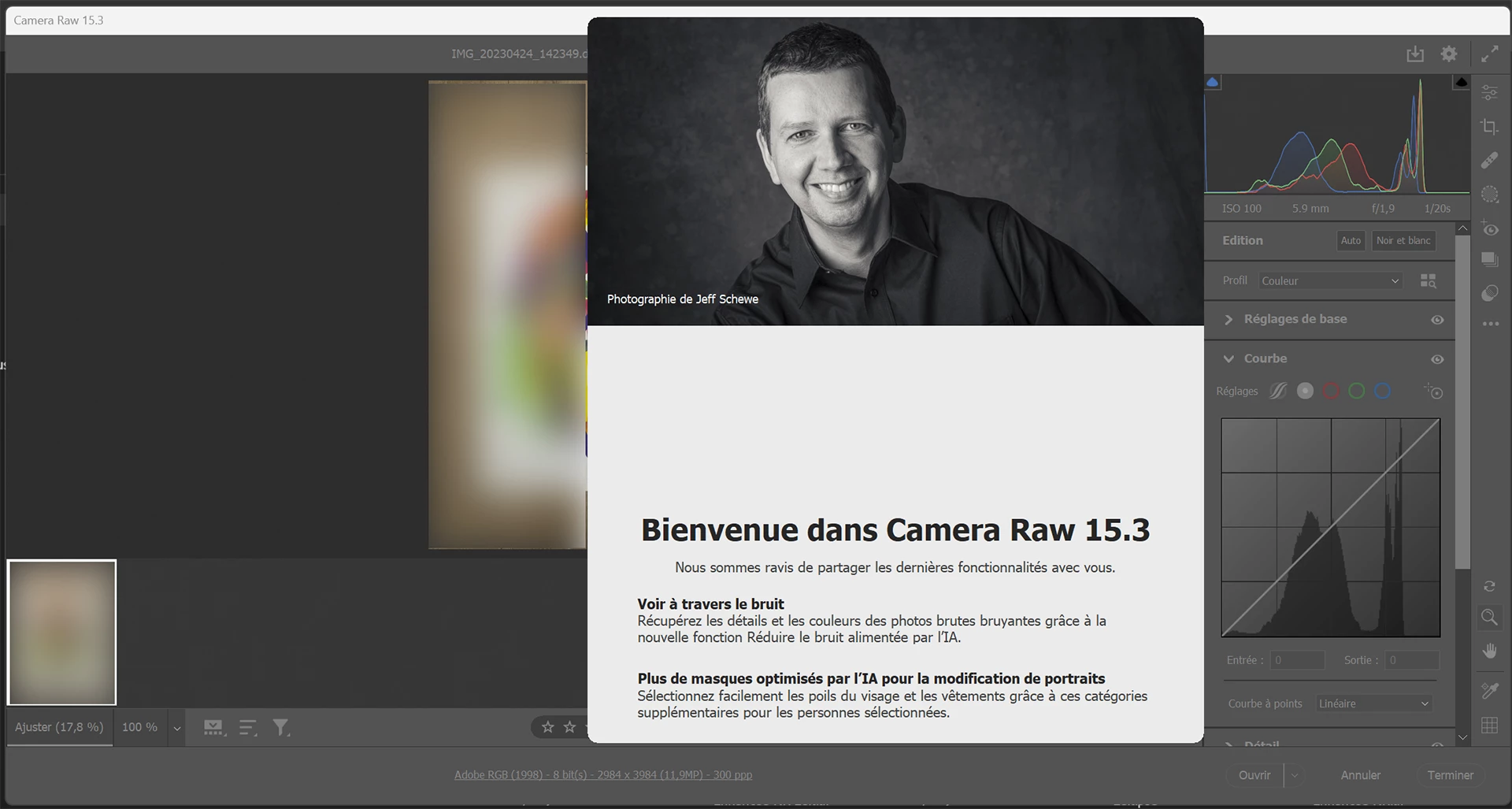
But since one of the recent update (can't remember which one), Camera Raw just does not appear on my laptop anymore, and on my external is appears completly wrong with a stupid, unecessary pop-up window... that I cannot close... Another massive design flaw from Adobe yeah!

Is there a work-around?

Below is the app panel, and the pop up is scaled wrong so I cannot click to close it.
This topic has been closed for replies.
Correct answer TheDigitalDog

Try resetting the Camera Raw preferences:
Hold down the Command key and select Photoshop > Preferences > Camera Raw (macOS*) or hold down the Ctrl key and select Edit > Preferences > Camera Raw (Windows).
Click Yes in the dialog that asks "Delete the Camera Raw Preferences?"
See also:
https://helpx.adobe.com/camera-raw/using/camera-raw-settings.html
*On Ventura, it is now called "Settings". 


1 reply

TheDigitalDog
TheDigitalDogCorrect answer
Inspiring
April 24, 2023

Try resetting the Camera Raw preferences:
Hold down the Command key and select Photoshop > Preferences > Camera Raw (macOS*) or hold down the Ctrl key and select Edit > Preferences > Camera Raw (Windows).
Click Yes in the dialog that asks "Delete the Camera Raw Preferences?"
See also:
https://helpx.adobe.com/camera-raw/using/camera-raw-settings.html
*On Ventura, it is now called "Settings". 


Author “Color Management for Photographers" & "Photoshop CC Color Management/pluralsight"
Participating Frequently
April 26, 2023

Thanks a lot, @TheDigitalDog !

This is indeed the way to go. I did not know that holding down Command or Ctrl+ would allow for resetting preferences. Excellent tip!