


Participant
March 21, 2019
Answered

Unable to load lens profiles?

  • March 21, 2019
  • 3 replies
  • 4231 views

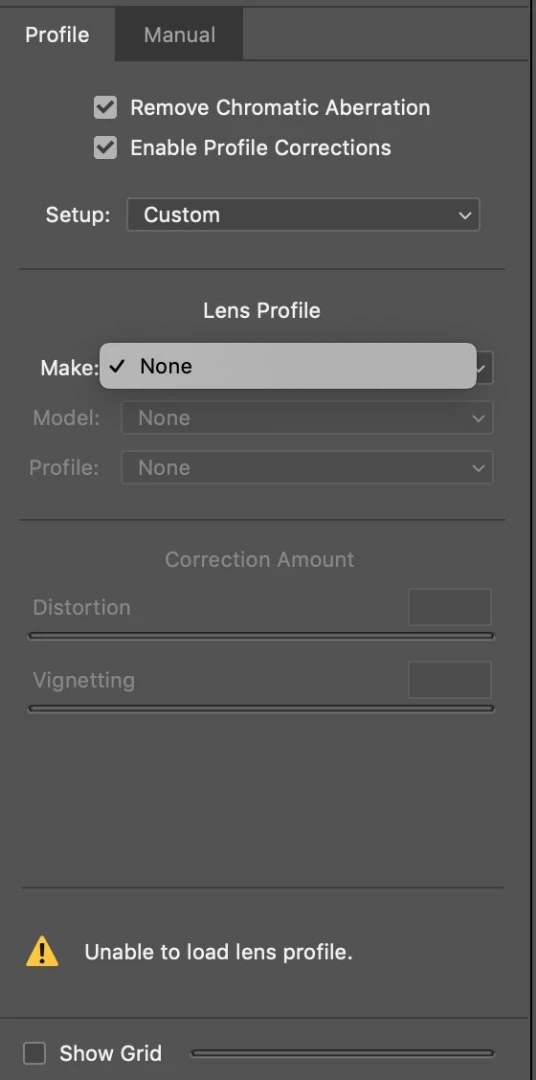
Hi, I've recently installed CC and when I select photos from bridge to bring into photoshop, the camera raw window won't allow me to select a lens profile. Nothing in default, auto or custom. It just says 'unable to load lens profiles' at the bottom of the window. I have no idea what to do to correct this. Can anyone point me in the direction so I can get the lens profiles back?

This topic has been closed for replies.
Correct answer gary_sc

Both the boxes are checked in 'Remove chromatic aberration' and 'enable 'Profile Corrections'. None of the camera profiles to come up at all. When I open the drop down list for 'make:', I get 'none' and the message 'unable to load lens profile' at the bottom.


Hi KJK,

OK, sigh. That means that there's something wrong with your instillation. Please uninstall both Photoshop and Bridge from the ACC application (On the Mac it's a "cloud" icon on the top of the screen, I'm not sure how it presents itself on a PC (sorry). When you uninstall, if it asks to save your preferences, say "no."

Then reinstall both.

I'm very sorry that this is taking so long, I know I'd be very frustrated at this point, but unfortunately we had to go piece by piece to get this far.

Let me know how this works out, thanks for your patience.

3 replies

scottprobst
Participating Frequently
October 18, 2020

I'm wondering if this issue is similar. The lens I have used (Zeiss Pland 100/2 T* ZF.2) seems to load okay in Camera Raw when opening directly into PS, however when I open as Raw from Bridge the only Zeiss available seems to be ZX1. Looking at the file info in Bridge shows the correct lens. (Does it make a difference to this if I am opening the RAW or JPG file?)

kjk413Author
Participant
March 21, 2019

Hi Gary,

Sorry, yes it did load previously in photoshop 6 without issue.

I was able to delete the camera raw preferences as you suggested but there are still no lens profiles coming up. I still get the caution triangle at the bottom saying 'unable to locate a matching lens profile automatically' when it's set to default and auto. When I select custom, 'unable to load lens profile' comes up at the bottom.

gary_sc
Community Expert
Community Expert
March 21, 2019

Wait, one simple thing I often have to do: identify the camera. Did/do you (have) to do that?

When I click on the lens tab and then click on the "Remove Chromatic Aberration" and "Enable Profile Corrections?" I often see nothing.

Then, where it says Make, I select my Canon camera and then everything else pops up.

Do you ever do this? (don't ask me why this work, I do not have a clue)

kjk413Author
Participant
March 22, 2019

Both the boxes are checked in 'Remove chromatic aberration' and 'enable 'Profile Corrections'. None of the camera profiles to come up at all. When I open the drop down list for 'make:', I get 'none' and the message 'unable to load lens profile' at the bottom.

gary_sc
Community Expert
Community Expert
March 21, 2019

Hi kjk413,

Need to know a bit more information please.

What kind of camera and more importantly, what lens (and the manufacturer).

Also, you state you recently installed CC, did you have a previous version of Photoshop, Bridge, and ACR? If so, what release/version was it. With that previous system, were you loading this camera and lens without issue?

Oh, and just to cover bases, what is your OS and version?

Thanks for your help in helping you.

kjk413Author
Participant
March 21, 2019

Hi Gary,

I'm using a canon 7d, sigma 10-20 1:4-5.6 lens. I previously had photoshop 6 (bridge and ACR were 6 too) installed and I'm on mac OS Mojave 10.14.3

Thank you,

K.J.

gary_sc
Community Expert
Community Expert
March 21, 2019

Hi KJ,

I'm assuming that that's a 10-20 F4 – 5.6 lens, at least that's what I see on this page

Supported lenses

If so, that's been supported for a long time.

You didn't answer this question: "With that previous system, were you loading this camera and lens without issue?" but I'm going to assume you did.

I'm going to suggest you rebuild your ACR prefs. It might have not cleaned itself out when you updated your applications.

From Bridge, right-click on an image and get ready to select "Open in Camera Raw." But before you do, with your left hand press the Shift-Alt/Option-Control(Command) keys. If you do not see a popup window asking if you want to delete the Camera Raw preferences you were not fast enough, try again. Once you do get that message, Click "yes."

To see this suggestion in action go to:

How To: Reset Camera Raw Preferences - YouTube

Please let us know if this does the job.