


Participating Frequently
April 30, 2023
Question

Unknown Error when processing Denoise

  • April 30, 2023
  • 6 replies
  • 3528 views

Hi 

I was able to use the denoise AI at first (and it worked great), but now every time I use it, it starts to process and then then about half way it pops up an error message (see screen grab), before it can generate the dng.It has also crashed and restarted my machine a few times. My machine is fairly old, but it does tecnichnically meet the requirements to use this feature. 
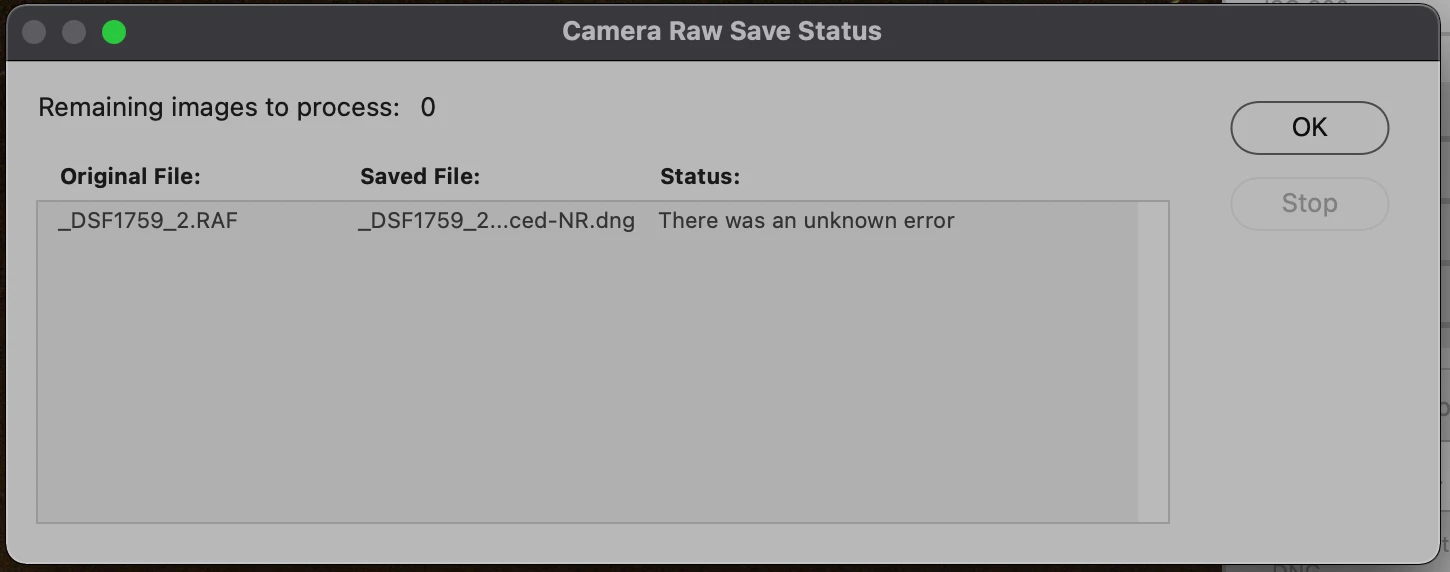
My software is up to date, and therefore my GPU is up to date.  

I have searched formums and found similar, but not exactly same issues (mostly microsoft users). 

Tried: processing an 8 bit file instead of 16 bit. This worked once, but not repeatable. Anyway i woud like to be able to process 16 bit files. 

Updated to latest software etc.

Short of a full full system clean install I'm hoping there may be some solutions here.

Adobe Photoshop Version: 24.4.1 2023

MacBookPro11,1

  Processor Name: Dual-Core Intel Core i5

  Processor Speed: 2,6 GHz

  Number of Processors: 1

  Total Number of Cores: 2

  L2 Cache (per Core): 256 KB

  L3 Cache: 3 MB

  Hyper-Threading Technology: Enabled

  Memory: 8 GB

  System Firmware Version: 478.0.0.0.0


6 replies

ArtWPhoto
Participant
January 25, 2025

This issue just started for me yesterday ... I was using my laptop , ran denoise, and the screensave came on before the process was complete.  It stopped opening the DNG file after that, but not only on my laptop, on my desktop as well. 


Still looking for a fix.  Looks like months have gone by without Adobe addressing it??

Participant
September 16, 2024

Same problem here. I’ve already tried resetting both Camera Raw and Photoshop settings, but the issue persists. Does anyone know how to fix this annoying problem?

Participating Frequently
August 23, 2024

I have this issue also. Im aggrevated to pay and not be able to use this feature especially on my night weddings. When it works its amazing. Which is not often. Adobe fix this please.   

Participant
September 10, 2023

HI, I have the same issue and ive had it for a few months...the only fix i found for it was to email the files to a friend that has a brand new m1 mac and have him do them, then put them in a shared folder. But my mac is 2018 and just like you mine was working fine until an update from adobe...where i also lost the ability to do masking with the "People" feature in camera raw. Honestly it looks like planned obsolescence.


It is quite annoying to pay for adobe's "industry standard' suite and having issues with their software. Please fix this!!


Photoshop v24.7

Camera Raw v15.5.1


 MacOs: Ventura 13.4.1

  Model Name: MacBook Pro

  Model Identifier: MacBookPro15,2

  Processor Name: Quad-Core Intel Core i5

  Processor Speed: 2.3 GHz

  Number of Processors: 1

  Total Number of Cores: 4

  L2 Cache (per Core): 256 KB

  L3 Cache: 6 MB

  Hyper-Threading Technology: Enabled

  Memory: 8 GB

Participant
November 20, 2023

Same here.  I have a 2021 Macbook Pro and 2 days ago, after running Denoise, I can no longer open the image.  Adobe please help?!?!?!?!  This has really put a dent in my usual workflow.  

TheDigitalDog
Inspiring
April 30, 2023

Try logging into another Mac user account (you should make a new one); still crashing? 

Try starting up in Safe mode (hold down Shift Key when booting*), still crashing? 

You might want to try running a free utility like Onyx: still crashing? 

https://www.titanium-software.fr/en/onyx.html

Also view:

https://www.macworld.com/article/352902/onyx-review-macos.html

https://www.macworld.com/article/224955/how-to-reset-a-macs-nvram-pram-and-smc.html

From Adobe:

https://helpx.adobe.com/photoshop/kb/basic-troubleshooting.html


* How to start your M1/M2 Mac in Safe Mode

On your Mac, choose Apple menu () > Shut Down.

After your Mac shuts down, wait 10 seconds.

Press and hold the power button until the startup disks and Options appear.

Press and hold the Shift key, then click Continue in Safe Mode.


Try fixing permissions by running Disk Utility (Disk First Aid) or, again, using Onyx. 


Also see: https://helpx.adobe.com/x-productkb/global/troubleshoot-unexpected-behavior-user-account.html

Author “Color Management for Photographers" & "Photoshop CC Color Management/pluralsight"
Participating Frequently
May 1, 2023

thank you. I will try these basic maintenance things and see if it helps. As I said, it is an older machine, but i do run cleanmymac periodically, and haven't experienced any other issues, photoshop or otherwise - just the denoise AI. Because it is a GPU intensive task running the AI denoise, I just figured my old machine is not able to keep up. But will try see if any of these work, when I get the chance. While its a nice feature, its not a high priority for me at the mo. Thanks for your input. 

TheDigitalDog
Inspiring
April 30, 2023

Can't hurt, try resetting the Adobe Camera Raw preferences.

Try resetting the Camera Raw preferences:
Hold down the Command key and select Photoshop > Preferences > Camera Raw (macOS*) or hold down the Ctrl key and select Edit > Preferences > Camera Raw (Windows).
Click Yes in the dialog that asks "Delete the Camera Raw Preferences?"
See also:
https://helpx.adobe.com/camera-raw/using/camera-raw-settings.html
*On Ventura, it is now called "Settings".  

Author “Color Management for Photographers" & "Photoshop CC Color Management/pluralsight"
Participating Frequently
April 30, 2023

thanks, tried this now. Unfortuneatly did not work. Same error message.