Sawdust2655
Participating Frequently
January 1, 2025
Answered

Unusual shading in mask mode

  • January 1, 2025
  • 2 replies
  • 597 views

I have  PS/Camera Raw on a Mac Studio and a MacBook Pro, all of my software is up to date.  My PS Camera works normally on my MacBook, but I get strange shading / colors on my Mac Studio only when I am in masking mode.  General it is a shade of blue and it is not the masking area color. I’ve also noted that the light controls are affected also, without my input. My Camera setting’s are identical.


I have searched the web for the reason/ correction with no success.  Any thoughts on what the issue is?  Thanks.

Correct answer Conrad_C

Although it might seem the Camera Raw does it “on its own,” what really happens if you haven’t adjusted anything is that Camera Raw is applying the mask defaults that have been set, maybe unintentionally. Because it’s happening on one of your computers, that means that computer is set to different mask defaults than the other.


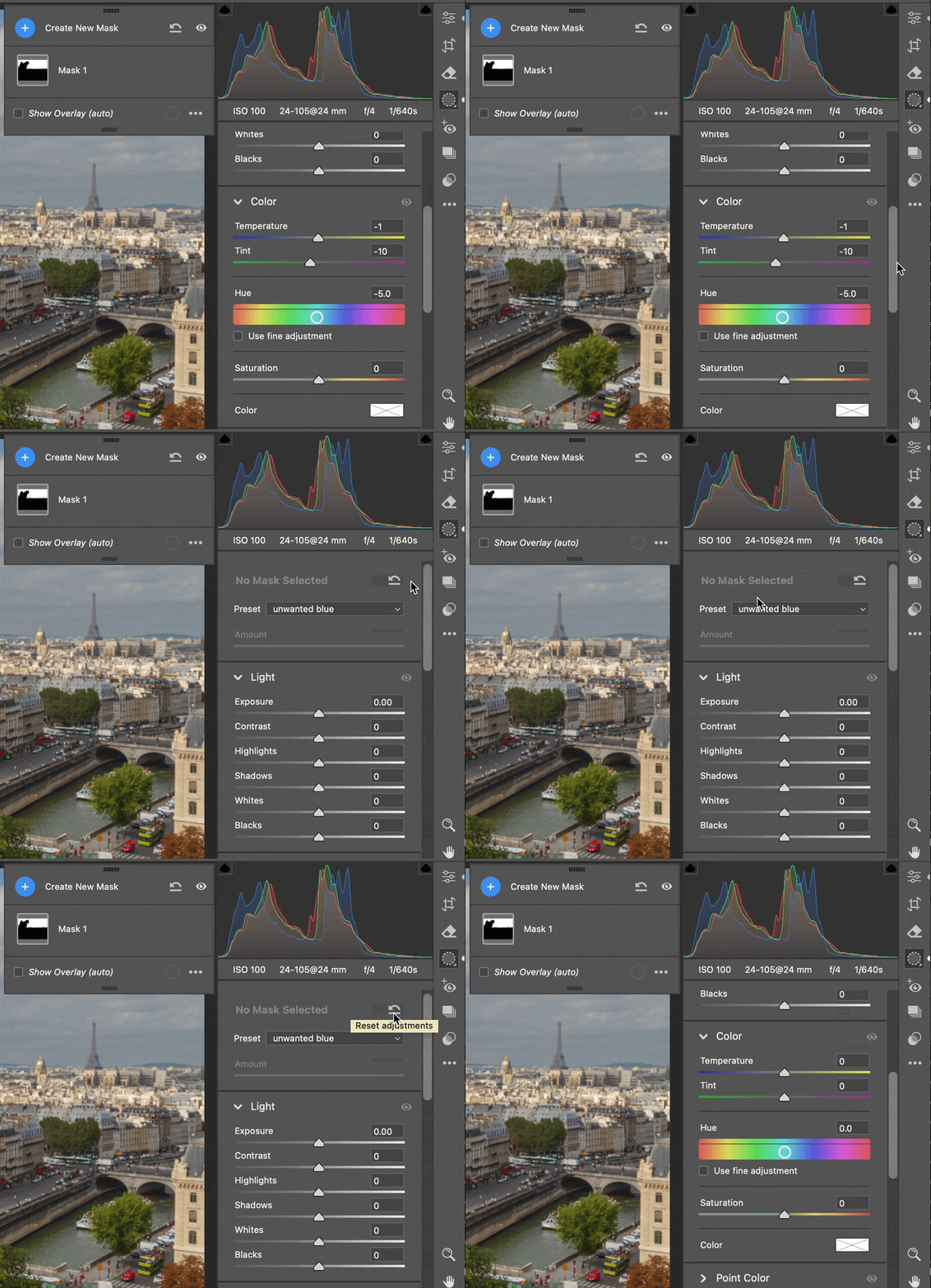
See if it helps to reset the mask defaults as shown in the demo below: 

1. Open the Masks panel and make sure no masks are selected, so that you can see what the default settings are for masks. 

2. Go to the top of the mask options, and look for the Preset menu. 

3. What does the Preset menu say? If it says anything other than None, it is set to use that preset by default. 

4. If you want to remove whatever preset is active, click the Reset Adjustments button. This also sets all values to zero. 


See if it works as expected after that.

You can do the same thing when a mask is selected, in case you want to reset that specific mask.


2 replies

Conrad_C
Community Expert
Conrad_CCommunity ExpertCorrect answer
Community Expert
January 3, 2025

Although it might seem the Camera Raw does it “on its own,” what really happens if you haven’t adjusted anything is that Camera Raw is applying the mask defaults that have been set, maybe unintentionally. Because it’s happening on one of your computers, that means that computer is set to different mask defaults than the other.


See if it helps to reset the mask defaults as shown in the demo below: 

1. Open the Masks panel and make sure no masks are selected, so that you can see what the default settings are for masks. 

2. Go to the top of the mask options, and look for the Preset menu. 

3. What does the Preset menu say? If it says anything other than None, it is set to use that preset by default. 

4. If you want to remove whatever preset is active, click the Reset Adjustments button. This also sets all values to zero. 


See if it works as expected after that.

You can do the same thing when a mask is selected, in case you want to reset that specific mask.


Sawdust2655
Participating Frequently
January 5, 2025

Conrad, I think you solved my problem.  Thank you.  I'll keep an eye out for any reccurence.  You learn something new every day.

Per Berntsen
Community Expert
Community Expert
January 2, 2025

Saturation is set to 55 for the mask, I'm pretty sure that what's causing the the strong blue sky color.

In the future, please use the Insert Photos button in the toolbar to embed images in your post.


Sawdust2655
Participating Frequently
January 2, 2025

Thx for the response.  I did not do that, Camera Raw did that on it's own..  Again, its only doing this on one of my computers.

Per Berntsen
Community Expert
Community Expert
January 3, 2025

Saturation is set to 55 in your other screenshot too.

Did you by mistake use the same screenshot twice?