

Inspiring
April 2, 2021
Question

Where can you locate the Highlight clipping option on the new Camera Raw interface?

  • April 2, 2021
  • 3 replies
  • 3106 views

How do I find this screen I call the main screen in the new Camera Raw?
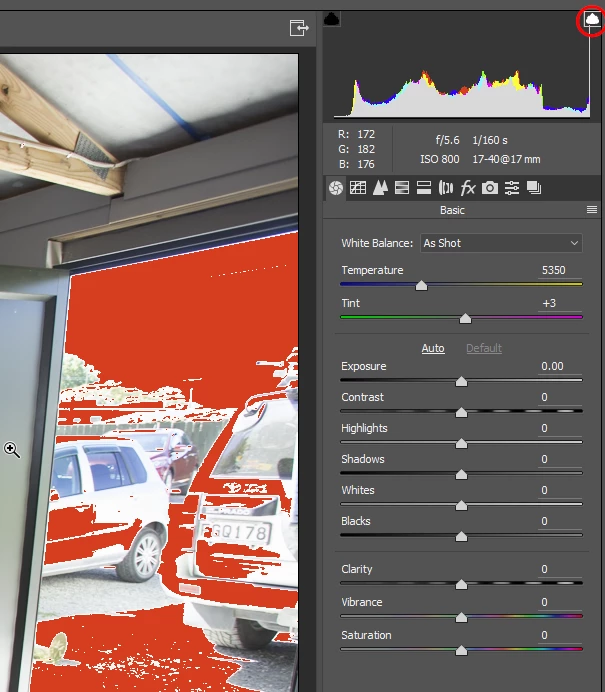


{Thread title edited by moderator}

This topic has been closed for replies.

3 replies

TheDigitalDog
Inspiring
April 4, 2021

https://jkost.com/blog/2020/07/a-complete-guide-to-shortcuts-for-adobe-camera-raw-2.html

The Histogram

  • Control -click (Mac) | Right -click (Win) in the Histogram to enable Lab color readouts.
  • Click -drag within the Histogram to adjust the Blacks, Shadows, Exposure, Highlights, and Whites slider adjustments in the Basic tab.
  • Tap the U key (underexposed) to preview areas in an image that are clipped to pure black by displaying a blue overlay.
  • Tap the O key (overexposed) to preview areas in an image that are clipped to pure white by displaying a red overlay.
    • Note: the Clipping Warning triangles turn different colors to show that different channels are being clipped:
    • If no values are clipped, the triangles are black.
    • If values are clipped in all channels, the triangles are white.
    • If values are clipped in the red channel the triangles are red.
    • If values are clipped in the green channel the triangles are green.
    • If values are clipped in the blue channel the triangles are blue.
    • If values are clipped in the red + green channel the triangles are yellow.
    • If values are clipped in the red + blue channel the triangles are magenta.
    • If values are clipped in the green + blue channel the triangles are cyan.
Author “Color Management for Photographers" & "Photoshop CC Color Management/pluralsight"
Participant
November 3, 2021

For some reason, even when the square clipping warnings are on above the histogram, they don't change colour despite clipping in the image. However, the actual image will show red or blue depending on the clipping. Any way to get those little squares with the bounding boxes to work correctly (I tried using the U and O keys to turn them on and off but they still don't work).

Conrad_C
Community Expert
Community Expert
April 3, 2021

I think we’re confused because we always see the main screen come up in the new Camera Raw, just like in the old Camera Raw. It just looks a little different, but the histogram and panels are still on the right, with the image shown large, as in the past.


What happens if you try to open an image in Camera Raw on your computer now? What do you see instead? You might post a screen shot of that.

nikunj.m
Community Manager
Community Manager
April 2, 2021

Hi,


In the new Camera Raw interface, you should be able to find the Highlight clipping at the top right.


If you're not able to locate the option, you can right click on the Histogram & select the option to Show Highligh Clipping warning.


Hope this helps!

Regards,

Nikunj

i_am_jimAuthor
Inspiring
April 3, 2021

Thanks for the reply


Yes that's what I call the main screen.  I can't seem to find that screen.  I got the screen capture I used in my original post on the web to illustrate the screen I'm looking for.  If you don't get that screen you don't get the histogram.


. Windows 10 -- Premiere Elements 2018 -- Photoshop CC