




Feature Focus: Auto-swapping artwork and Leader/Follower behavior
Auto-swap: Auto-swap is a new way for the Triggers behavior to trigger artwork in a pose-based way. Currently, if you want to switch between different pieces of artwork (for example, to use different arm drawings depending on the pose of the arm), you trigger the switch manually. With Auto-swap, you provide a set of different pieces of artwork for a part of a puppet, and Auto-swap will automatically determine which is best to display at any given time. Auto-swap can be used in conjunction with the Dragger behavior to trigger the artwork based on the best “fit” (lowest warping energy). Depending on the type of art provided to Auto-swap, this can enable several capabilities that were previously difficult to achieve, such as foreshortening, pose-specific deformations, and squash-and-stretch.
There are also non-obvious creative uses of this as well, like the Aha Chicky example puppet. As you drag around and go from one pose to another the egg opens to show the baby chick. Essentially, you specify the key poses in your animation and let the warping do the tweening. You can think of it as an automated way to do traditional tweening.
Leader/Follower: The new Leader/Follower behavior allows handles that move (via Dragger, Dangle, etc.) in one pose to produce the same movement in a corresponding handle in another pose. It can also be used to attach one or more parts of a puppet (as followers) to another part of the puppet (the leader), even at a different level in the puppet layer hierarchy. You can even have different sets of leader/followers.
Auto-swap
Setting up auto-swapping artwork
- In the artwork file, create a group of layers each representing a different pose for the part of the character that you want to swap between.
- Import the artwork file to create a puppet from it.
- Make sure each layer in the group has its Independent option (in the Properties panel) selected – Auto-swap requires all layers to swap between to warp independently.
- Create a swap set for that group of layers that you want to swap between. Simply drag the group onto Create Swap Set drop zone in the Triggers panel, or right-click above the group and then choose Create Swap Set.
- With the swap set selected, enable the Auto-swap option at the bottom of the Triggers panel.
Note: There is no default trigger in an Auto-swap swap set. If the Leader/Follower behavior is used, the default layer that will be shown is the one that has the Leader-tagged handle on it.
Controlling movement
To get the effect to look right, the layers need to move together, even though only one is visible at a time. That allows the Triggers behavior to pick the least deformed one. You can do this using Body behavior tags like Left Wrist and Right Knee on all the layers in the swap set or, if you want to use Draggable handles (with the Dragger behavior), the Leader/Follower behavior is useful for this so that all corresponding handles get moved to the same location.
The deformation of the top-level mesh of each triggered layer is what will control the auto-swap.
Leader/Follower behavior
This behavior can express position constraints between handles. The behavior adds two new handle tags: Leader and Follower. Essentially, handles with the Follower tag will be set to the position of the Leader handle. If there is only one Leader handle, all Follower handles will follow it. If there is more than one Leader handle, then all handles need to be named, and Follower handles will follow the Leader handle with a matching name.
Setup
- Add the Leader/Follower behavior to the puppet.
- Apply the Leader tag (in the Miscellaneous tag category) to the handle that sets the location that Follower-tagged handles will match.
- Apply Follower tags (in the Miscellaneous tag category) to the other handles that you want to move to the location of the Leader-tagged handle.
- If you want to have sets of leaders and followers, such as for separate arms, give each set of leader/follower handles the same name. With a non-origin handle selected, press Return to rename it.
Notes:
- Origin handles cannot be renamed, but you can either name other handles the same name as the origin’s layer or add a named handle near the origin.
- When controlling the leader with the Dragger behavior, the Draggable handle tag should only be necessary on the Leader-tagged handle.
Parameters
- When controls how Leader/Follower operates relative to other behaviors:
-- Off effectively turns off Leader/Follower and can be useful for keyframing its effect on the puppet.
-- Before IK is useful when you want Limb IK to set the final handle positions (e.g., for an Auto-swap setup with Limb IK in which Leader/Follower pulls the arms together before Limb IK constrains the handle positions).
-- After IK is useful when you want Leader/Follower to set or constrain the final handle positions (e.g., arms controlled via Limb IK to pick up another object like a coffee cup).
-- After Physics is useful when you want physics like the Dangle behavior to move handle positions before Follower handles move to the Leader handle.
- Position controls whether the Follower handles match the position of their Leader handle.
- Scale controls whether the Follower handles match the scale of their Leader handle.
- Rotation controls whether the Follower handles match the rotation of their Leader handle.
Example puppets
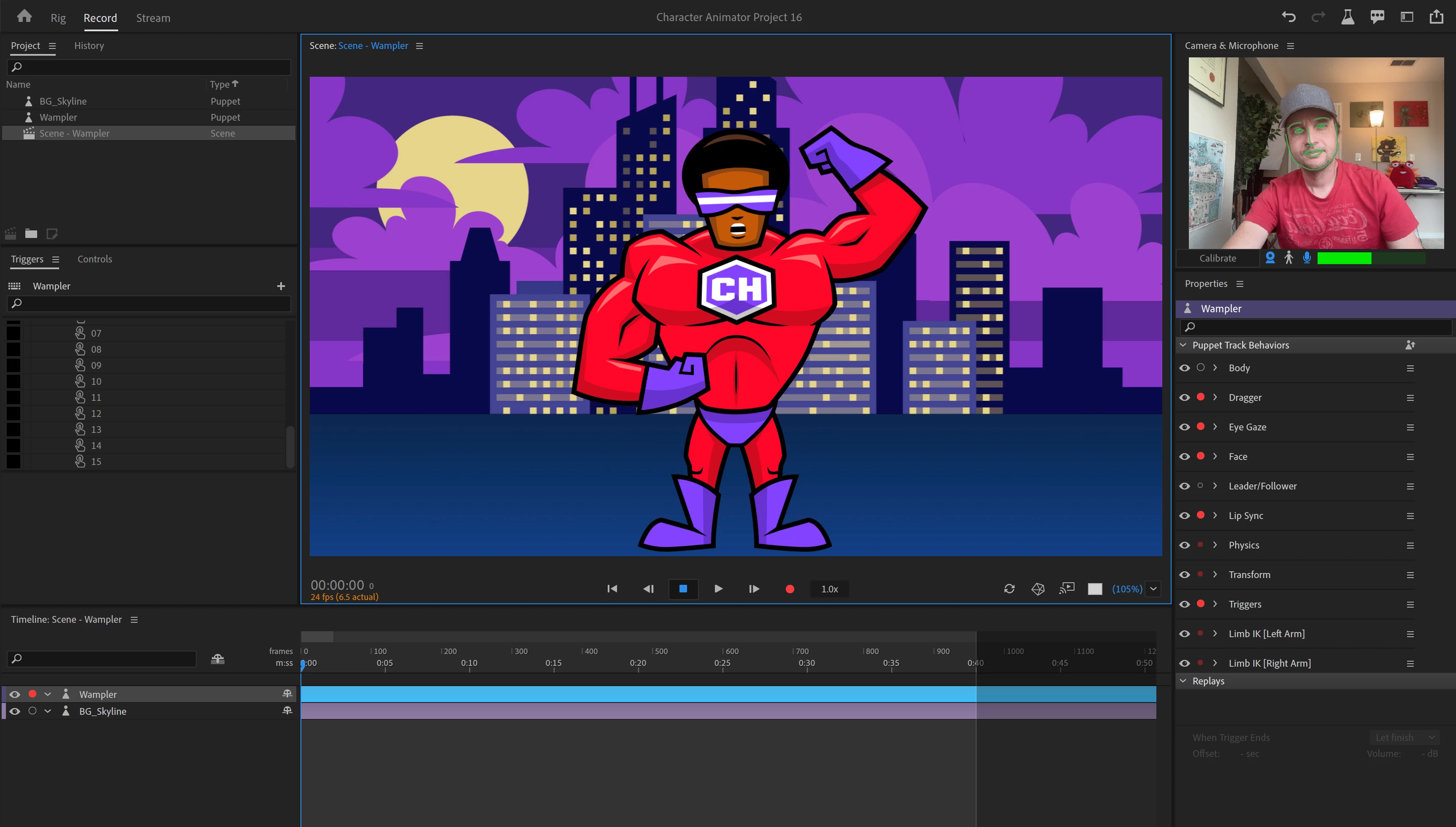
In addition to the Wampler example puppet available on the Home screen, the web site includes additional Auto-swap examples to download and import into your project.
Known issues and limitations
Auto-swap and the Leader/Follower behavior are still in development.
In the first public Beta version (v22.4.0.31), please note the following:
- Auto-swap: Multiple swappable views, especially when used with Body and Limb IK affecting all of them, can reduce the performance of the scene. We are continuing to investigate performance improvements.
- Leader/Follower behavior:
-- Origin handles cannot be renamed, but you can either name follower layers to match the origin’s layer or add a named handle near the origin.
-- If you want Limb IK’s Hand- or Foot-tagged handle to be a follower, be sure to also tag the Wrist or Heel handle.
What we want to know
We want to hear about your experience with Auto-swap and the Leader/Follower behavior:
- What are your overall impressions?
- Are you able to create new and interesting puppets with these new features?
- How will you use Auto-swap and Leader/Follower in your work?
- How can we improve these features?
Also, we’d love to see what you create with Auto-swap and Leader/Follower. Share your animations on social media with the #CharacterAnimator hashtag.
Thank you! We’re looking forward to your feedback.
(Use this Beta forum thread to discuss Auto-swap and the Leader/Follower behavior and share your feedback with the Character Animator team and other Beta users. If you encounter a bug, let us know by posting a reply here or choosing “Report a bug” from the “Provide feedback” icon in the top-right corner of the app.)
 AdChoices