
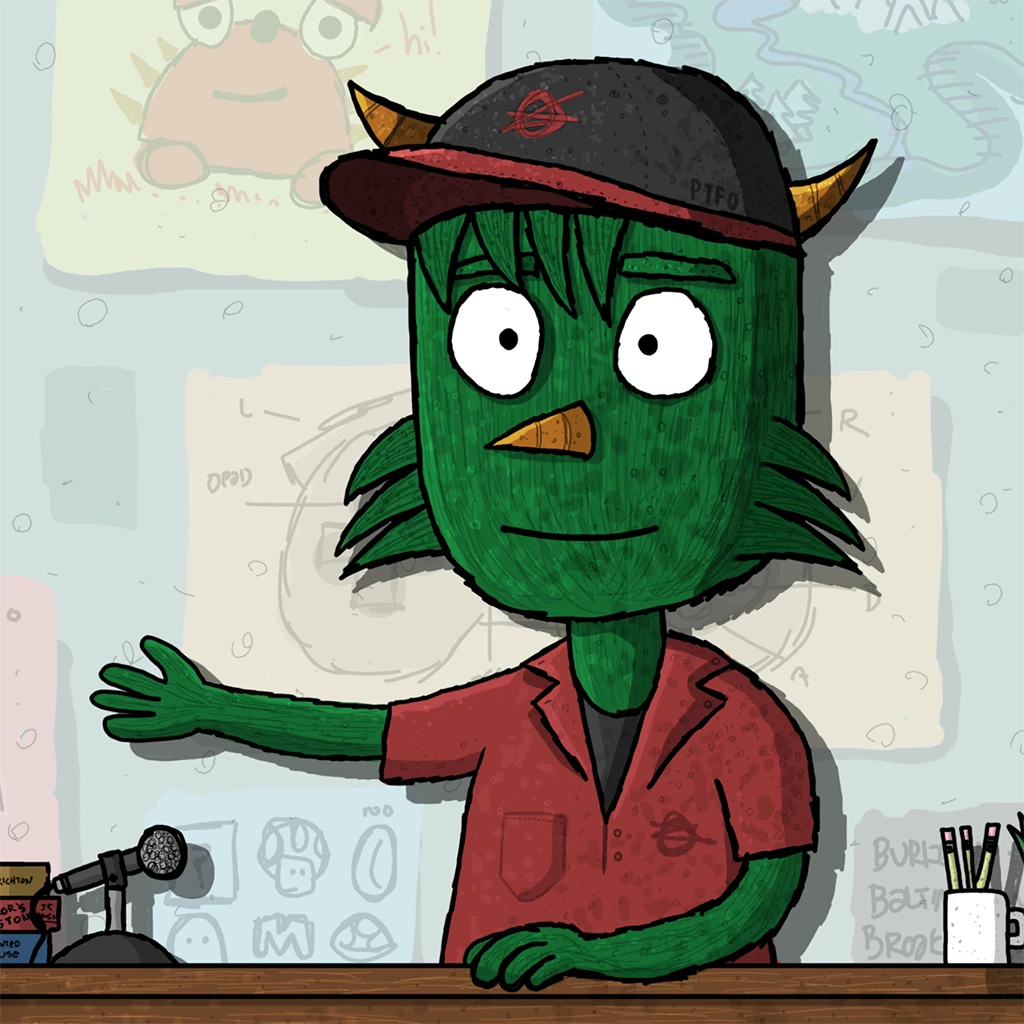

Feature Focus: Puppet Maker
Fun, fast, diverse character creation for everyone. No need to be an expert Photoshop or Illustrator user. And no need for rigging skills. Choose from a variety of character styles. Then with the simple interface start customizing the character by picking hair styles, skin tones, accessories, and much more, and seeing your character react to your movements and voice in real time.
Creating a custom puppet using Puppet Maker
- Open Character Animator (Beta).
- Click the Puppet Maker tile or Make a puppet button on the Home screen or choose File > Open Puppet Maker.
- In the Style section, select the puppet’s base style.
Move the mouse pointer horizontally across the style’s thumbnail (i.e., hover scrub) to view some of the possible looks that you can create. - In the Customize section, choose different looks for the puppet, or click
 Randomize to try a random combination of looks.
 - In the Play section, preview how the puppet moves and changes appearance using its available controls.
These controls will also be available in the generated puppet. - View and interact with the puppet at any time in the preview area.
Move your head and body in front of your webcam, talk into your microphone, and for puppets that support Dragger even drag in the Preview area with your mouse or finger on a touch display. Press trigger keys for available controls in the Play section. - Click Generate.
A puppet with the selected style and customizations is created and added to a new scene ready for you to control and record a performance – no need to rig the puppet at all!
If you want a puppet with a different appearance, just open Puppet Maker again, make new selections, then generate a new puppet.
Refreshing the preview area and controlling camera and microphone
Along the bottom of the Puppet Maker window are controls for refreshing the preview in case you want to reset a character’s swaying hair or other parts controlled by physics, for calibrating the camera to a starting pose for face and body tracking, and for turning on or off the camera or microphone.
Adding new styles (templates) to Puppet Maker
Puppet Maker comes with a small set of built-in styles or templates, but you can add new Puppet Maker templates to add to the available styles for new puppets. These Puppet Maker templates are .maker files on disk. They will be available from Adobe and third-party puppet sellers in the future.
To add Puppet Maker templates, do any of the following:
- Choose File > Import, then select one or more .maker files to add.
- Double-click the .maker file in Finder (macOS) or File Explorer (Windows).
- In a Finder (macOS) or File Explorer (Windows) window, navigate to your user Documents folder, then into the Adobe > Character Animator (Beta) > Puppet Maker subfolder, and then drag one or more .maker files into the Puppet Maker subfolder.
Importing or double-clicking a single .maker file automatically installs the file into the Puppet Maker subfolder, opens Puppet Maker, and selects that .maker file’s style in the Style section.
If you copy .maker files into the Puppet Maker subfolder on disk, the templates will appear in the Style section the next time you open Puppet Maker.
Troubleshooting
- If you have multiple camera sources and the character isn’t responding to your movements, the wrong camera might be selected. Close the Puppet Maker window, then select the preferred camera in the Camera & Microphone panel’s menu. We plan to provide the camera selection menu in the Puppet Maker window’s controls in a future Beta build.
- If the character’s mouth doesn’t change as you talk into your microphone, check that you have the preferred default audio input. Close the Puppet Maker window, open the app preferences (Character (Beta) > Preferences on macOS, Edit > Preferences on Windows), then selected the preferred device for Default Input.
Known issues and limitations
Puppet Maker is still in development.
In this first public Beta version (v22.0.0.7), please note the following:
- Puppet preview updates are slow right now: Changing styles or customize options can take up to a few seconds to update the preview. We’re working to make selection changes more responsive in a future Beta build.
What we want to know
We want to hear about your experience with Puppet Maker:
- What are your overall impressions?
- Are you able to customize and create a puppet that meets your needs?
- How do you think you might use Puppet Maker in your work?
- How can we improve Puppet Maker?
Also, we’d love to see what you create with Puppet Maker. Share your animations on social media with the #CharacterAnimator hashtag.
Thank you! We’re looking forward to your feedback.
(Use this Beta forum thread to discuss Puppet Maker and share your feedback with the Character Animator team and other Beta users. If you encounter a bug, let us know by posting a reply here or choosing Report a bug from the Provide feedback icon in the top-right corner of the app.)


 AdChoices