Inspiring
July 26, 2021
Question

Correct IIS settings for CF 2021?

  • July 26, 2021
  • 1 reply
  • 3710 views

Hello

I updated my install of CF 2018 Dev. Ed. with 2021. Now I can't browse localhost because it's looking for a 2016 install.

Calling LoadLibraryEx on ISAPI filter "C:\ColdFusion2016\config\wsconfig\1\isapi_redirect.dll" failed.

So it's looking in the wrong place- another older 2016 install?

I can resolve HTML sites on localhost:8500/ but not CFM.

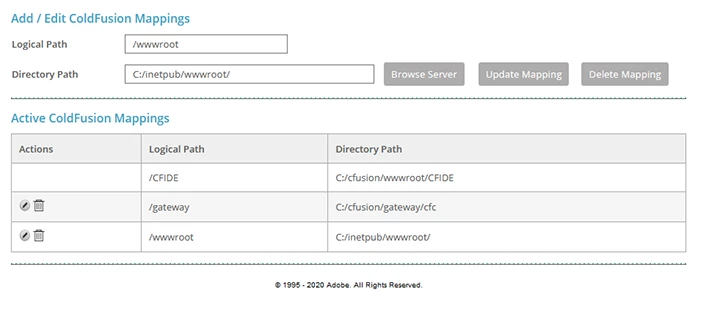
All my websites are in the inetpub/wwwroot directory which

I have not changed the original IIS configuration since even before 2016 I would like to be able to keep working in this directory & resolve both HTML & CFM files form there.
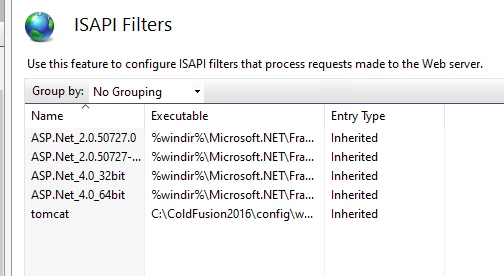
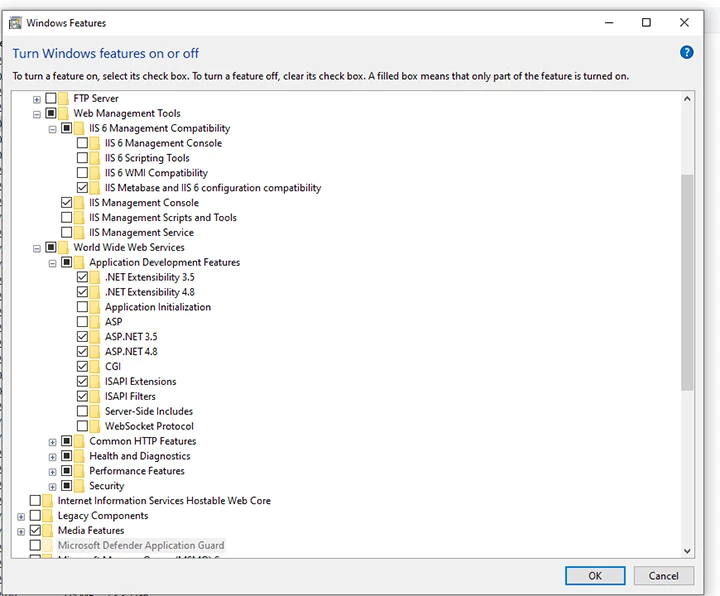
Can someone point me in the right direction?

This topic has been closed for replies.

1 reply

Priyank Shrivastava.
Community Manager
Community Manager
July 26, 2021

Hi,


You don't need any additonal settings for CF2021 in IIS. It will work with same settings. I can see you still have CF2016 ISAPI filter in IIS. First check, if you have removed the CF2016 connector, if not remove it and then create the CF2021 connector.


In case you have removed it and it is still there then you have to manually remove the CF2016 entries from IIS and then create the CF2021 connector. 


Please check this article: https://coldfusion.adobe.com/2016/10/removing-corrupt-connector-dependencies-from-iis/


Thanks, Priyank Shrivastava
Inspiring
July 26, 2021

Priyank: Thank you so much for your fast reply- if you could tell me what the path should be set to?

Priyank Shrivastava.
Community Manager
Community Manager
July 26, 2021

Hi,


We don't need to add anything manually. 

Here are the steps to remove the CF2016 connector. Go to \ColdFusion2016\cfusion\runtime\bin. Run the wsconfig.exe as administrator and remove the entry. If you don't see any entry there. 


Then launch the CF2021 connector utility. Go to \ColdFusion2021\cfusion\runtime\bin and run the wsocnfig.exe as administrator and Click on Add and then press OK. In the screenshot below,  I have highlighted the ALL-Individually, as I have already created connector with other sites. You will ALL, select ALL and then click on OK. It will prompt you for restarting the IIS, click ok and then test your website. 


Thanks, Priyank Shrivastava