Inspiring
January 24, 2013
Answered

Acrobat pdf: Convert to Destination Profile (confused)

  • January 24, 2013
  • 1 reply
  • 20990 views

I'm stumped trying to understand how to use Acrobat's View> Tools> Print Production> Convert Colors settings.

I simply want to Convert all tagged elements to a single Destination profile.

I created this control set of 10 PDI images (in one PDF) of five color spaces (five tagged/untagged pairs):

gballard.net/photoshop/pdi_download/PDI_Color_Profile_Test.pdf

The control file displays as expected: untagged are Assuming sRGB (for lack of a better term) and tagged are being Converted to Monitor RGB.

I made my two most obvious guesses at the settings (see below), but both appear to be wrong (a sucessfull Conversion would at least display all the tagged elements the same, correctly, yes?).

Any idea what I may be missing?

    This topic has been closed for replies.
    Correct answer gator soup

    Andrew Rodney wrote:

    I am able to extract the actual images embedded into your PDF within Acrobat and open them in Photoshop (Edit with), then place them into a new doc ID CS6.

    I tested three tagged images (Wacked, sRGB and Adobe RGB (1998)).

    Each previews differently IN ID CS6 with Wacked looking magenta.

    Preivew is wrong IF one places a Photoshop PDF saved that way from Photoshop (with embedded profile) in ID yet if one saves this instead as a Photoshop TIFF, they all preview the same as expected.

    In Acrobat 11, there is a command Document Processing>Export All Images. I select TIFF and extract all into a folder. Those images placed in ID preview correctly! I suspect the PDF made from them will be OK as well. There is no option to save off a "Photoshop PDF" which is a weird bird anyway. JPEG, TIFF, PNG. So at this point, stay away from saving anything as a Photoshop PDF and try TIFF.


    my original 10 iPhoto .jpg test images i packaged in Photoshop and set them up in InDesign and Export PDF...


    note: my iPhoto set is a different version og the PDI, but otherwised packaged identical to the original Photoshop control set


    i did not include the Apple RGB set in this test

    appears successful (probably the "weird bird" is Photoshop pdf now *highly suspect* format) — thanks to Andrew Rodney www.digitaldog.net

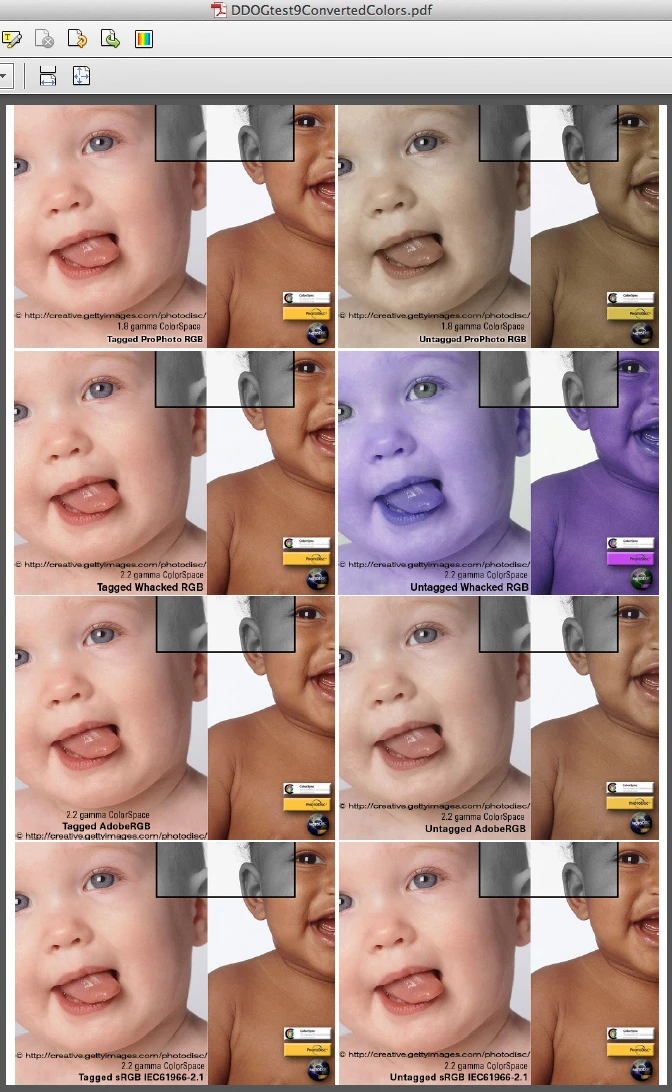
    this is Export PDF from Indesign CS6 — then — Convert Colors in Acrobat to the ProPhoto RGB desitnation profile (just what i expected):
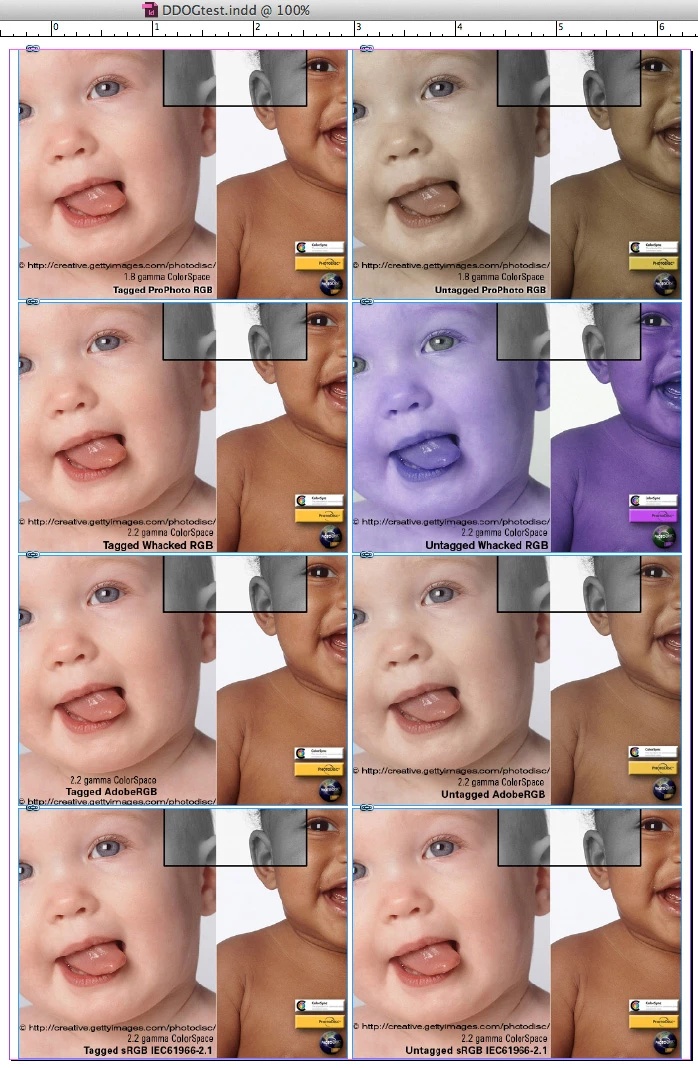
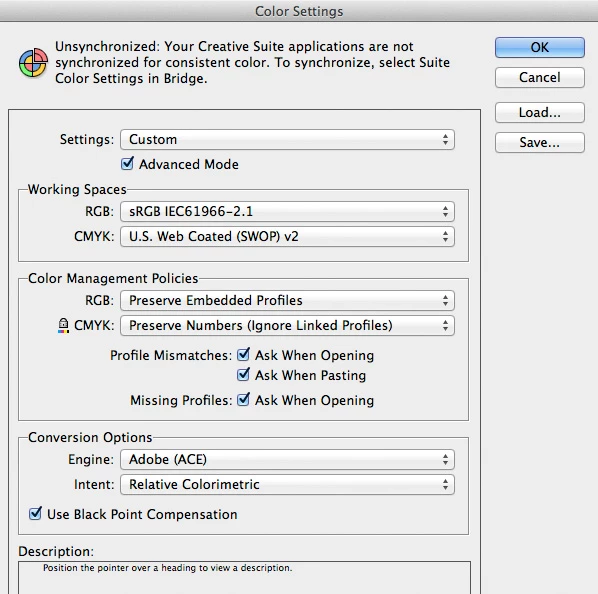
    here is the InDesign build (default Working Space: sRGB):
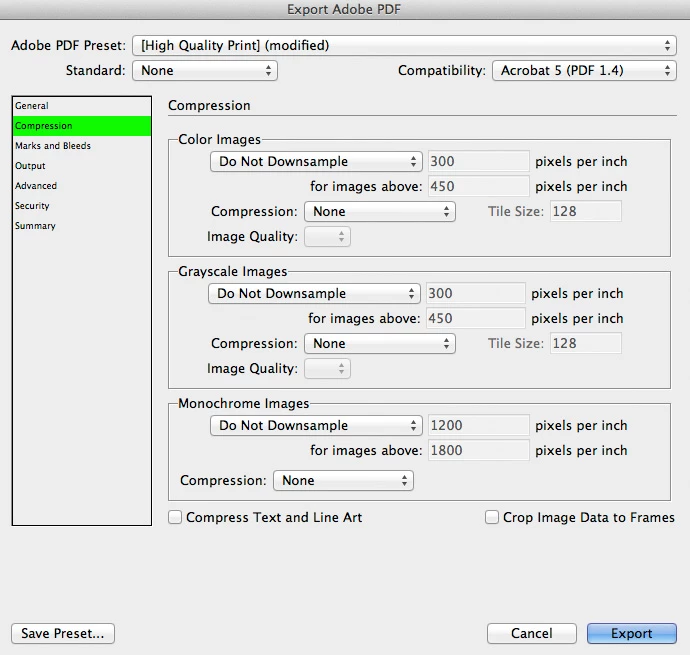
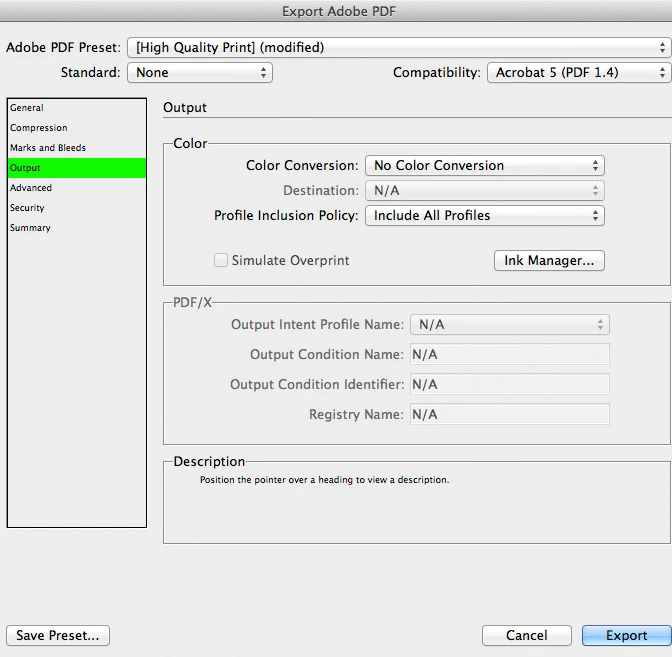
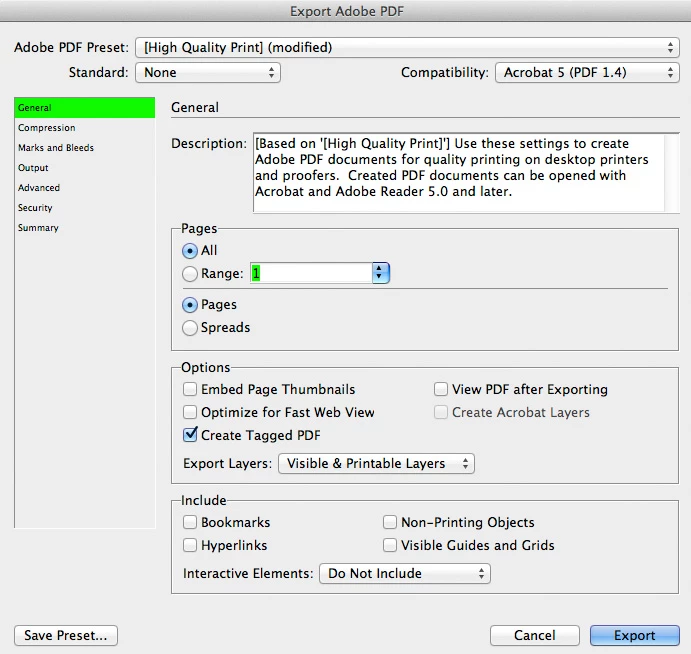
    here are the InDesign Export PDF settings:
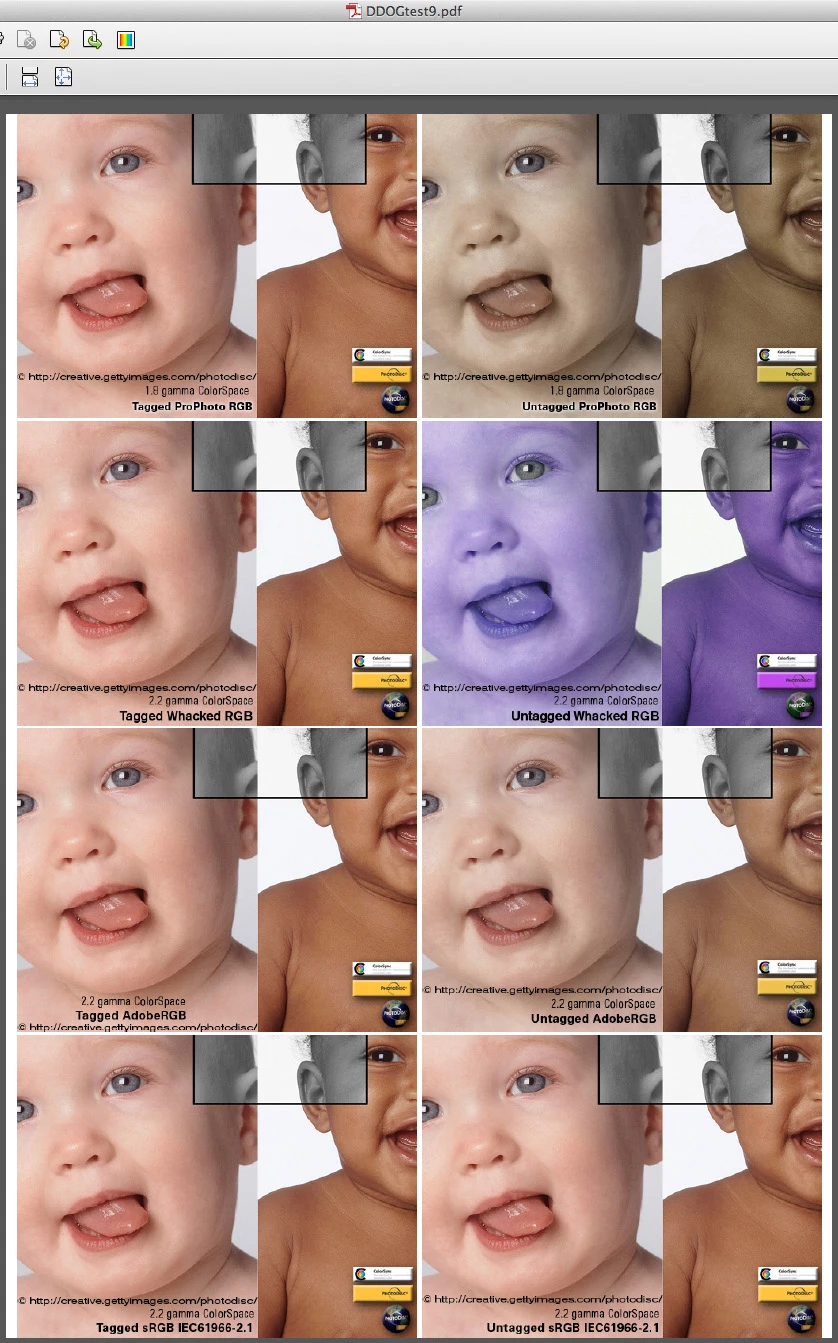
    here is the Exported PDF in Acrobat:
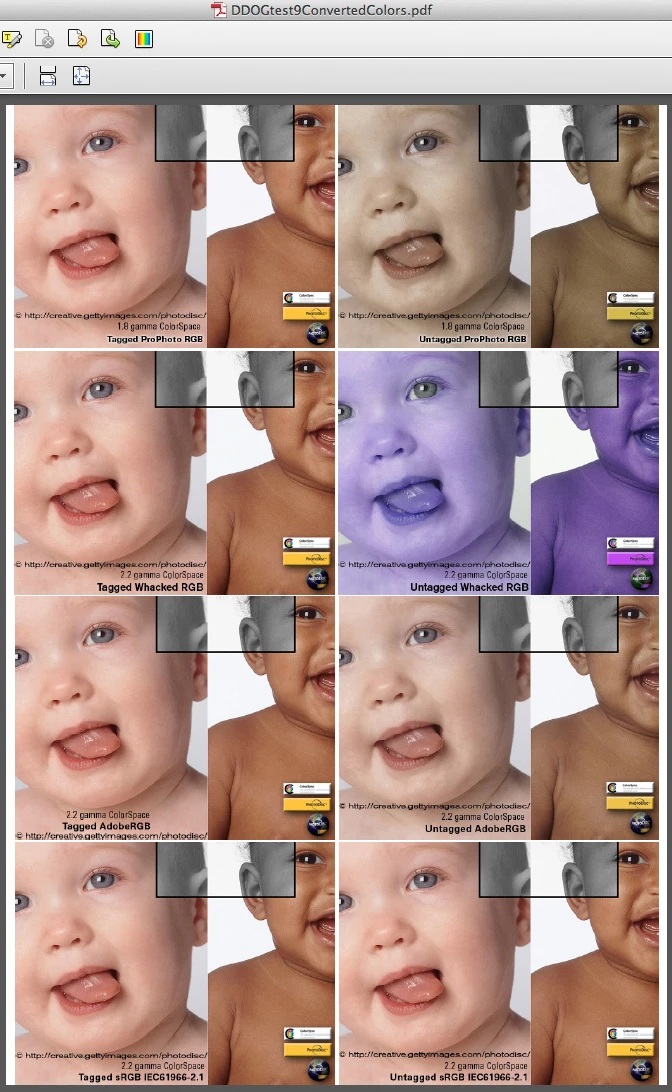
    here is the Exported PDF in Acrobat WITH CONVERTED COLORS to ProPhoto RGB destination profile embedded:


    1 reply

    Inspiring
    January 24, 2013

    This one (open thumbnail below to examine settings)

    CONVERSION OPTIONS

    Convert Command: Convert to Profile

    Conversion Profile: Whacked RGB

    Output Intent (checked): Convert Colors to Output Intent: Profile: WhackedRGB.icc

    NOTE: None of the tagged elements display proper except WhackedRGB pair

    (I think Output Intent is Assigning Whacked RGB before Converting?)

    Inspiring
    January 24, 2013

    This one (open thumbnail below to examine settings)

    CONVERSION OPTIONS

    Convert Command: Convert to Profile

    Conversion Profile: Whacked RGB

    Output Intent (unchecked)

    NOTE: None of the tagged elements display proper except WhackedRGB pair

    (This was my first instinct how to perform the desired transform)...


    Inspiring
    January 24, 2013

    .

    .

    Again, my goal is to SIMPLY Convert all Tagged elements within a .pdf to a single Tagged Destination Profile...