


Participant
October 4, 2017
Answered

ALL RGB files preview as if they were CYMK - why?

  • October 4, 2017
  • 3 replies
  • 823 views

Good day,

A couple of months ago all my RGB images suddenly began to preview in Bridge as if they were CYMK (reduced gamut) - then to make matters worse when those files open in their native application Illustrator, InDesign and Photoshop they continue to look like CYMK images - the actual value of the colors stays RGB - but they display with their closest CYMK substitute. I have spoken with tech support, but they were unable to help - even though they did agree that the preview images had changed color space... anybody have any idea what to try?  I have adjusted the colorspace in Bridge - synced all applications - undone it - rebuilt preference files... I feel like I am not fixing the correct file... any help would be appreciated. It is only Adobe applications that have this issue - other applications are fine..

This topic has been closed for replies.
Correct answer Per Berntsen

This sounds like a broken monitor profile.

Adobe applications use the monitor profile to display images, but most other applications don't, and will be unaffected by a broken profile.

I'm going to guess (although I may be wrong) that you're on Windows 10, which is known to install low quality/defective profiles from monitor manufacturers when doing updates.

As a possible temporary fix, try setting the monitor profile to sRGB (Adobe RGB if you have a wide gamut monitor).

If this fixes the issue, calibrate your monitor with a hardware calibrator as soon as possible.

This will create a profile that accurately describes your monitor.

If you are on Windows, press the Windows key + R, and type colorcpl in the box and press Enter.

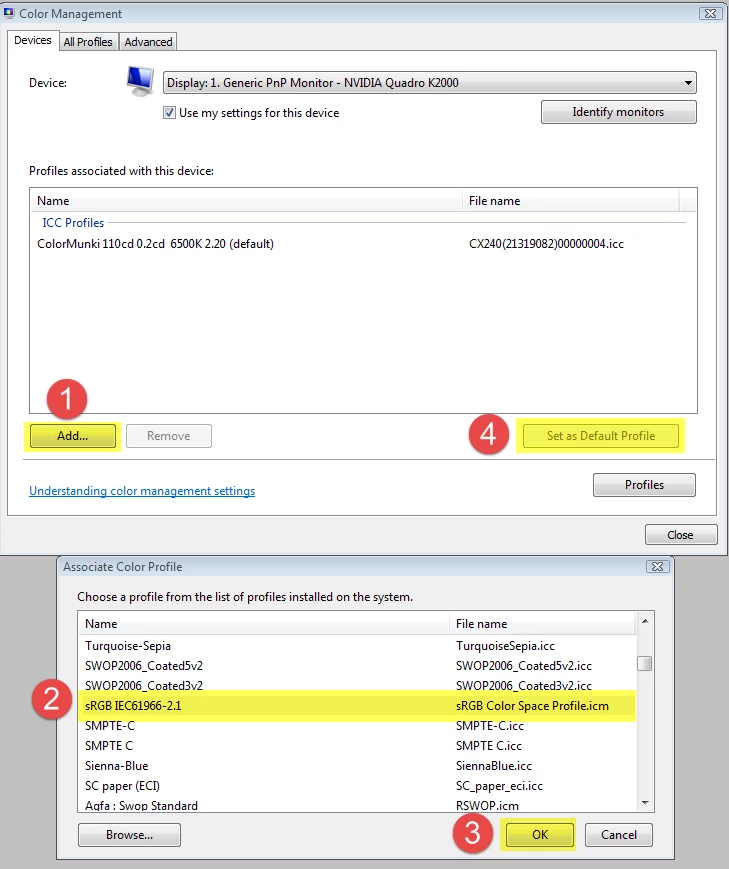
Add the sRGB (or Adobe RGB) profile, then set it as Default profile. See screenshot (from Windows 7) below.

If you have a Mac, follow the instructions here:

http://www.lightroomqueen.com/articles-page/how-do-i-change-my-monitor-profile-to-check-whether-its-corrupted/

3 replies

mtartistAuthor
Participant
October 11, 2017

THANK YOU SO MUCH - It was a busted monitor profile - and yes Windows 10 system... but problem is SOLVED!!!

Nancy OShea
Community Expert
Community Expert
October 4, 2017

Are you using ICC color profiles?  Maybe the one you're using got corrupted in some way.

Nancy

Nancy O'Shea— Product User & Community Expert
Per Berntsen
Community Expert
Per BerntsenCommunity ExpertCorrect answer
Community Expert
October 4, 2017

This sounds like a broken monitor profile.

Adobe applications use the monitor profile to display images, but most other applications don't, and will be unaffected by a broken profile.

I'm going to guess (although I may be wrong) that you're on Windows 10, which is known to install low quality/defective profiles from monitor manufacturers when doing updates.

As a possible temporary fix, try setting the monitor profile to sRGB (Adobe RGB if you have a wide gamut monitor).

If this fixes the issue, calibrate your monitor with a hardware calibrator as soon as possible.

This will create a profile that accurately describes your monitor.

If you are on Windows, press the Windows key + R, and type colorcpl in the box and press Enter.

Add the sRGB (or Adobe RGB) profile, then set it as Default profile. See screenshot (from Windows 7) below.

If you have a Mac, follow the instructions here:

http://www.lightroomqueen.com/articles-page/how-do-i-change-my-monitor-profile-to-check-whether-its-corrupted/