Inspiring
March 26, 2013
Answered

Color Management Discrepencies Between Bridge, ACR & Photoshop

  • March 26, 2013
  • 1 reply
  • 20563 views

Hi - I've had a color management issue I can't wrap my head around which is similar to this infamous thread: http://forums.adobe.com/message/3235601#3235601

I'm hoping with a little more information provided I can get this figured out. The basic problem is that Bridge displays images markedly differently than either ACR or Photoshop. The most common issue is as follows:

With the external monitor as the primary display (and the laptop monitor as a secondary), I start Bridge. Photos will seem to be in the correct gamut for a moment, but it almost immediately desaturates them as if switching gamuts. Opening the image in ACR or Photoshop shows the correct color. See the below:

(Note: on my wide-gamut monitor, there's no clipping on the ACR version - that's how it should look)

There are various permuations to this problem depending on which monitor I have on when I start Bridge, but the above is my general workflow.

Some background:

Lenovo ThinkPad T430s w/ integrated Intel HD4000 graphics

ASUS ProArt Series PA246Q (Wide Gamut)

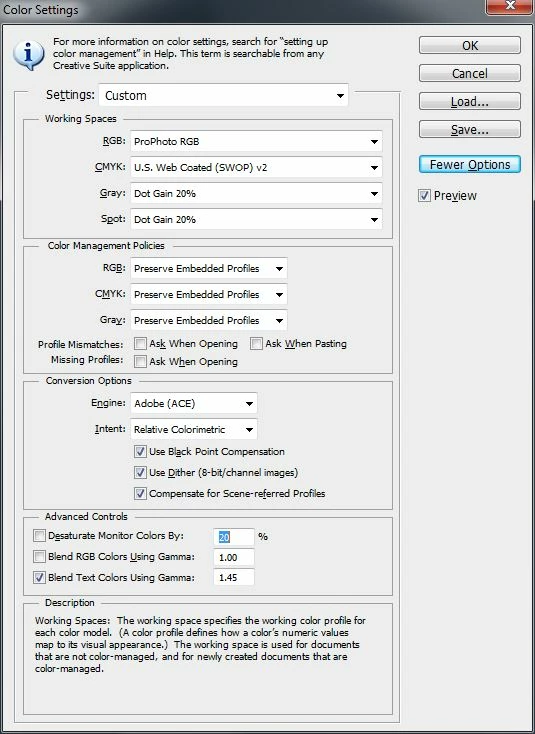
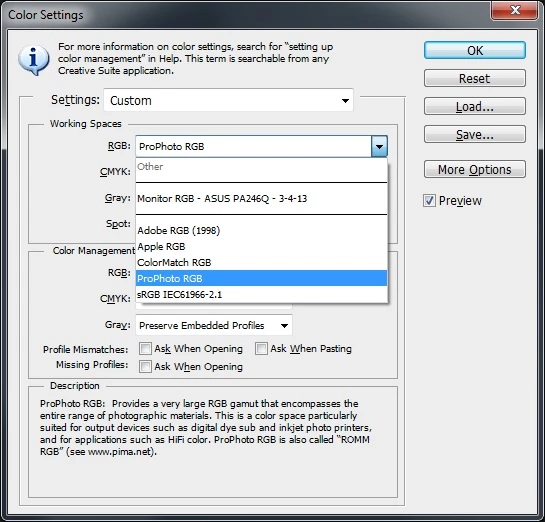
Photoshop CS6 (using 16-bit ProPhotoRGB as the standard workspace)

Datacolor Spyder4 calibrating both monitors

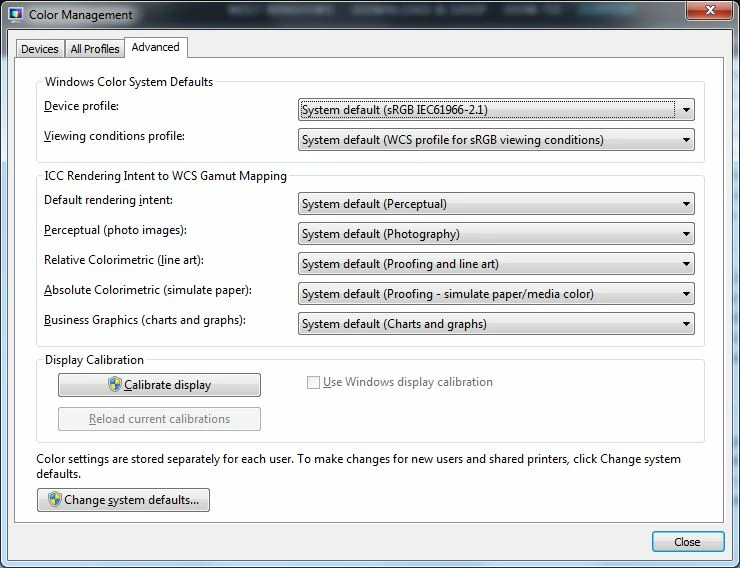
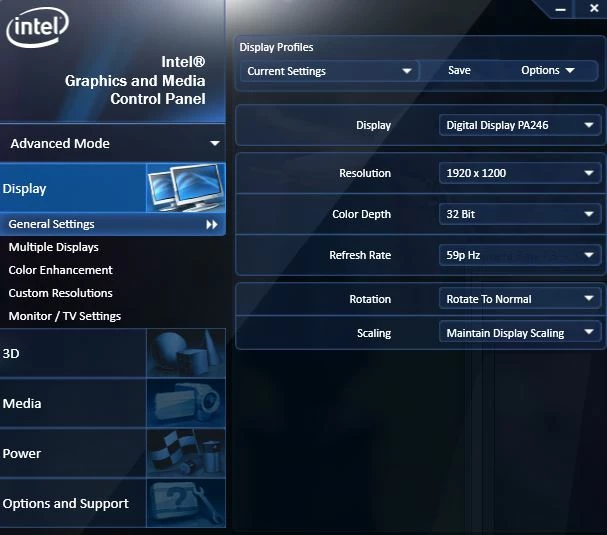
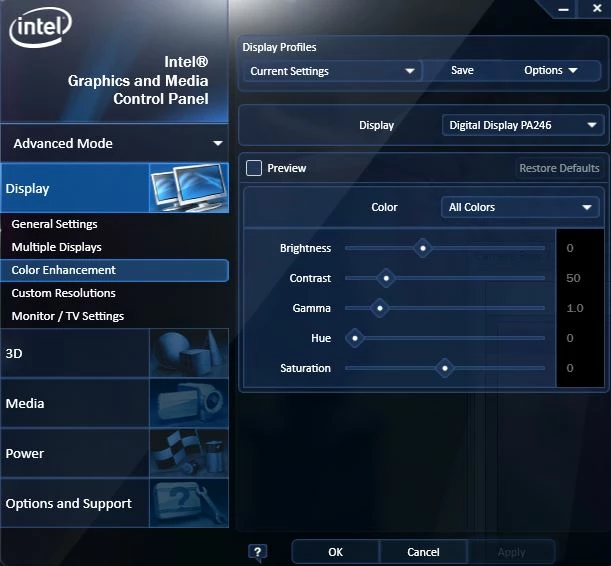
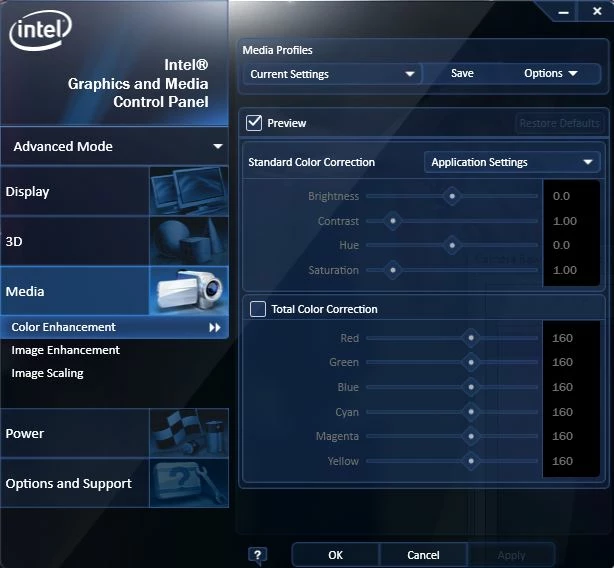
My settings:

I know there are a bunch of variables, but does anybody see any glaring issues which might explain my problem?

Thanks!

This topic has been closed for replies.
Correct answer Nrbelex

>>Bridge generating sRGB previews for AdobeRGB tagged images

maybe you're onto something, i hope you can get it figured out


For anyone following this thread, just a heads-up for future reference. It's been confirmed all previews in Bridge are in fact in sRGB. It's a bit surprising, but apparently true. More details at this thread.

1 reply

Inspiring
March 26, 2013

The basic problem is that Bridge displays images markedly differently than either ACR or Photoshop.

those are all three color-managed application that each transform/convert colors to the monitor profile -- so if they are displaying differently -- i would first verify which source profile each app is using, and second, which monitor profile each app is displaying through on each monitor

external monitor as the primary display (and the laptop monitor as a secondary)

that's probably the debacle as you suspect, success is dependent on any number of factors including OS, video driver and app bugs/behavior

including hardware design limitations...

NrbelexAuthor
Inspiring
March 26, 2013

gator soup wrote:

those are all three color-managed application that each transform/convert colors to the monitor profile -- so if they are displaying differently --

Thanks for the reply. They are definitely displaying differently - to make the point more obvious, here's a TIFF in Bridge and Photoshop:

gator soup wrote:

i would first verify which source profile each app is using, and second, which monitor profile each app is displaying through on each monitor

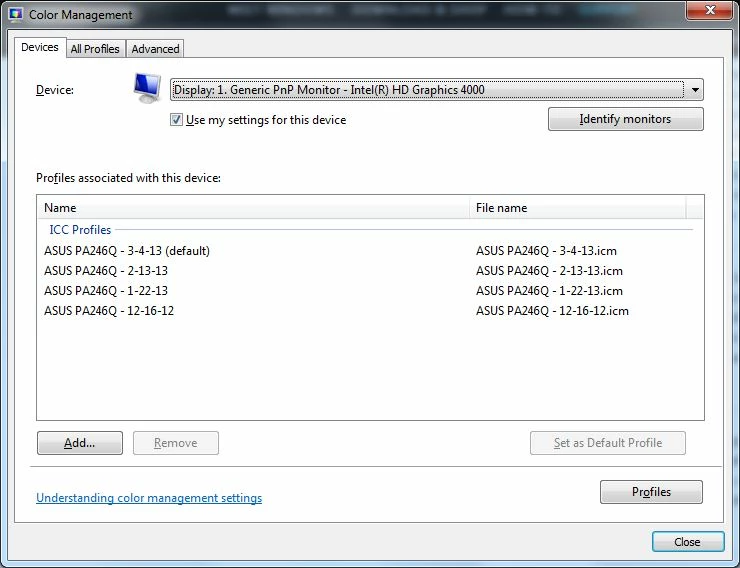
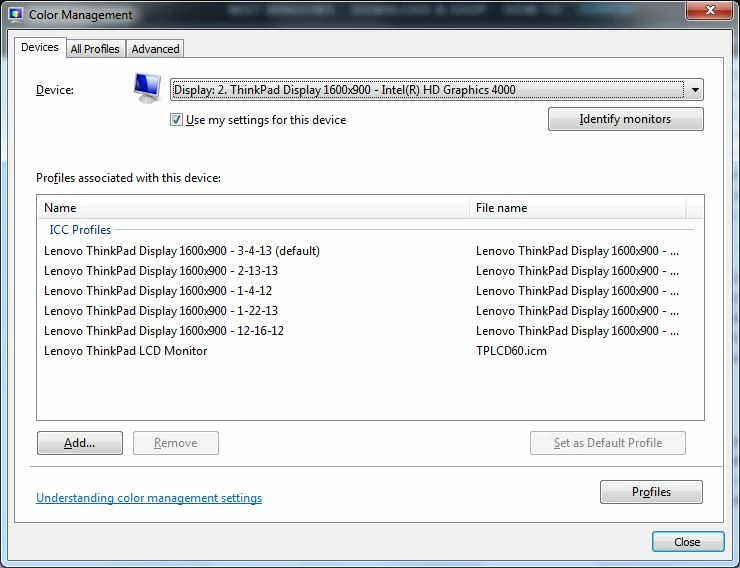
Here's where I'm a little lost. As you can see, the Spyder software appears to have correctly piped the profile into the Windows; wide-gamut images appear correct in color-managed programs [since IE10 appears to be at leat partially color-managed, I don't think I have any non-color-managed programs on this windows 7 machine to test against].

I know Photoshop is using the correct profile - see the screenshots above. I don't know how to change the profile Bridge andACR are using, and I was told they should adopt whatever profile Photoshop is using. Let me know if that's wrong and how I can remedy it.

Thanks!

Inspiring
March 26, 2013

to make the point more obvious, here's a TIFF in Bridge and Photoshop:

try downloading a copy of the tagged WhackedRGB PDI reference image and open it in Br & Ps (use the embedded profile, do not convert colors)

set Br and Ps side-by-side and take one screenshot of the two windows (embed the profile) keep your zoom ratios the same 25% 50%...

Be sure to show the entire Ps window including the top bar with the name and the Document Profile showing in the low/left corner

do this on each monitor

post your results...