


Participant
November 9, 2020
Question

Color picker preview in Illustrator doesn't match color field/document, matches monitor RGB instead

  • November 9, 2020
  • 5 replies
  • 3025 views

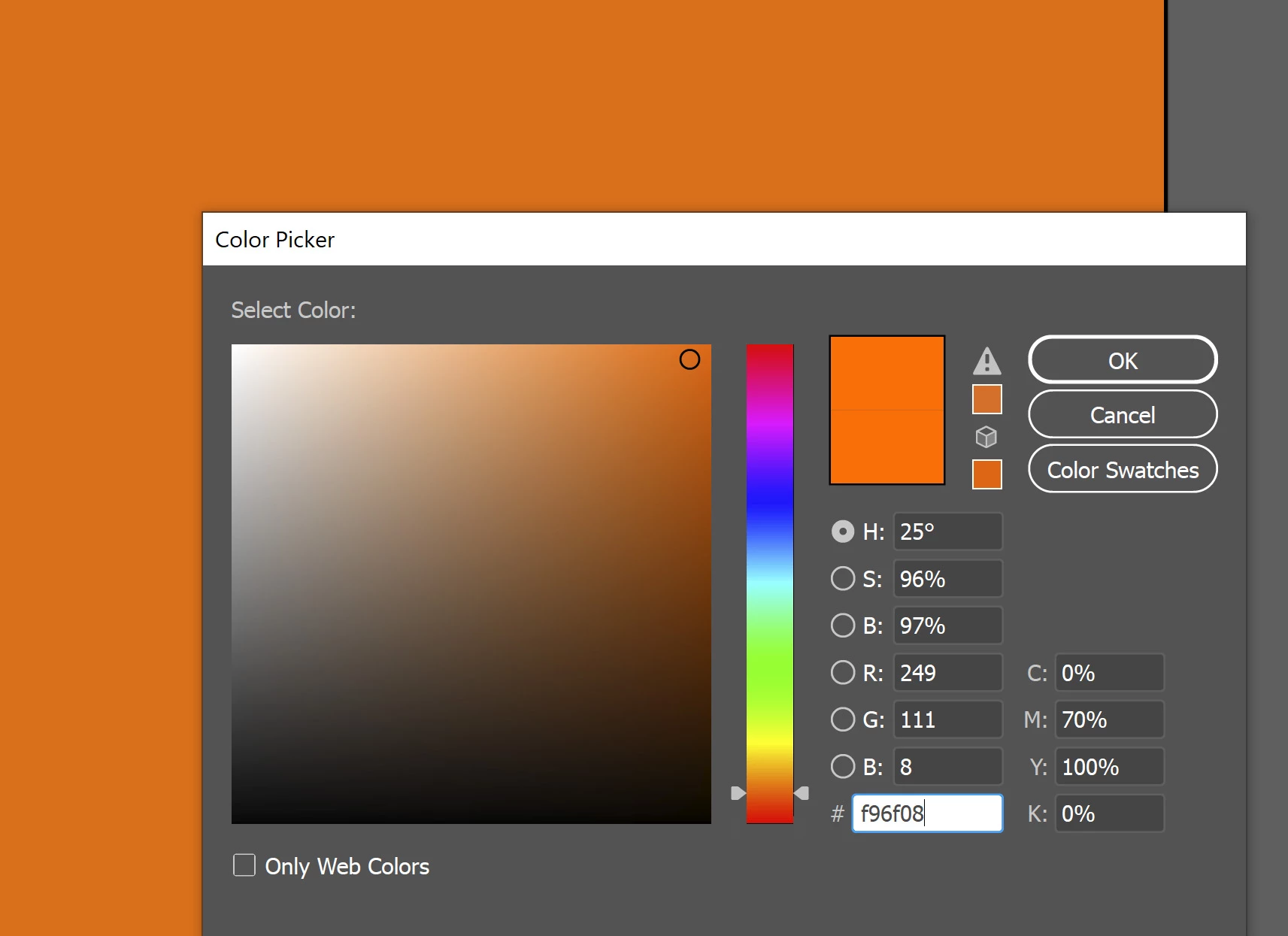
Color picker preview in Illustrator doesn't match the circled color in the color field, and in the document. As you can see below, the selected color in the color field matches the document. But the preview shows it as much brighter. 
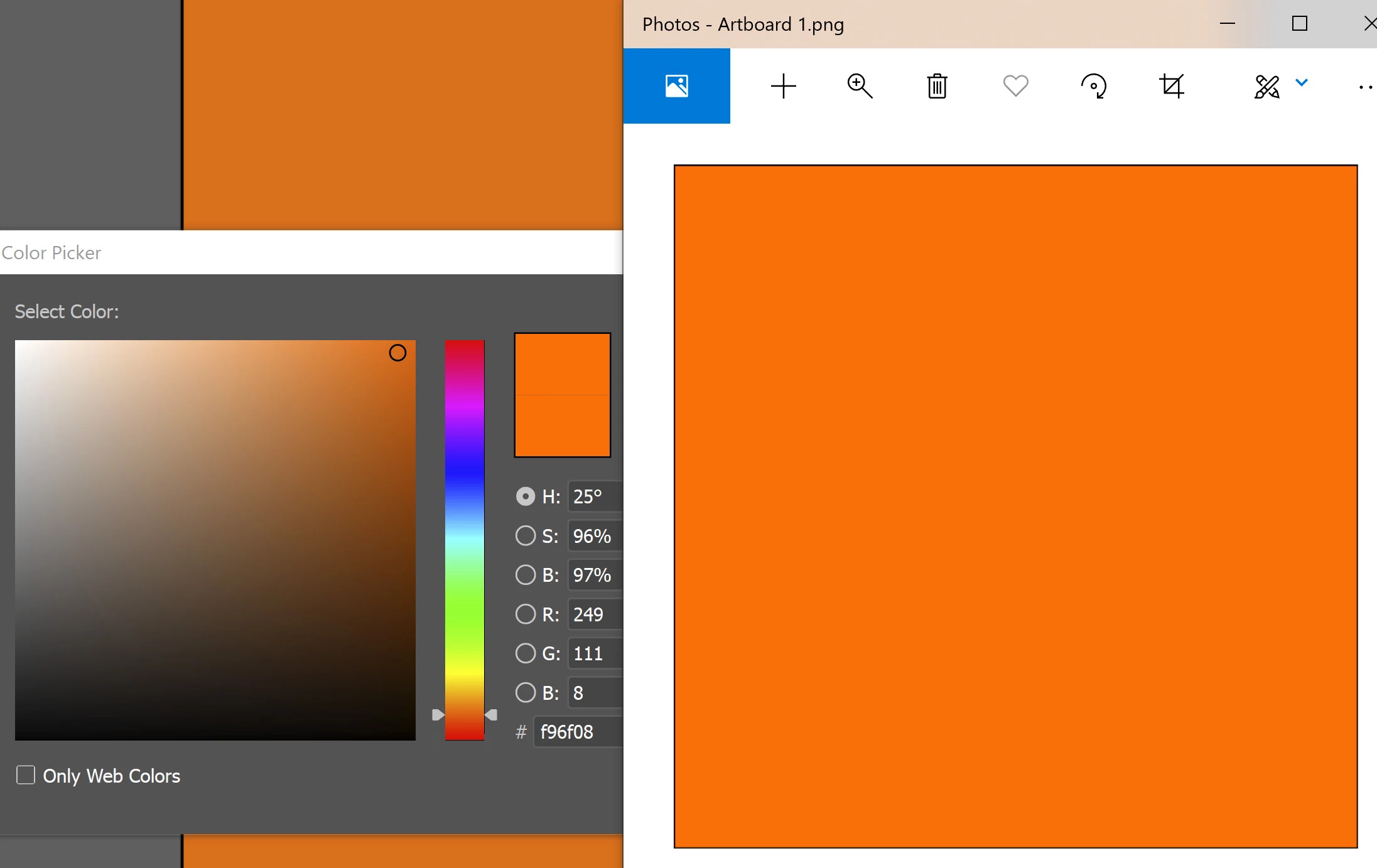
It actually matches my monitor RGB as seen below with it opened in Windows photo viewer.
I don't have this problem in Photoshop. Everything matches, as you can see below.
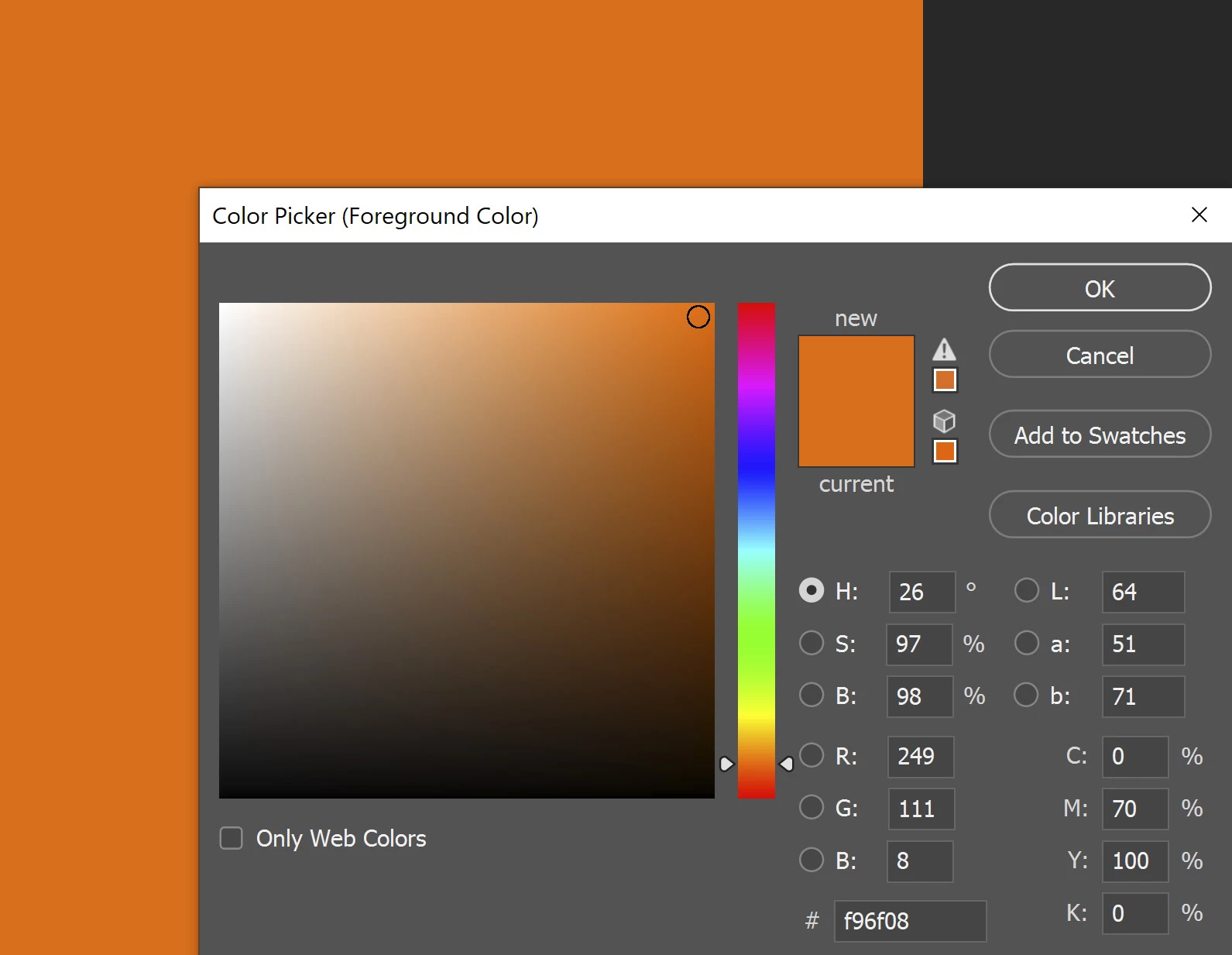
 

Both AI and PS are RGB documents with the sRGB profile applied to it. No color proof option is turned on for either.


Any idea why this is happening? I already posted this in the Illustrator forum but no luck.

Thanks.

    This topic has been closed for replies.

    5 replies

    Bob_Hallam
    Legend
    January 13, 2022

    This is not a bug it's a feature. ;).  Seriously though it is not a problem of performance.  The color picker display is not displayed in the background documents color space.  The reason for that is the picker works in CIELab and uses color settings to convert them to the RGB profile settings and the CMYK.   It works that way all the time, even when you enter CMYK values they are converted into Lab for the swatch in color picker.   

    ICC programmer and developer, Photographer, artist and color management expert, Print standards and process expert.
    TheDigitalDog
    Inspiring
    January 13, 2022

    @Bob_Hallam wrote:

    This is not a bug it's a feature. ;).  Seriously though it is not a problem of performance.  The color picker display is not displayed in the background documents color space.  The reason for that is the picker works in CIELab and uses color settings to convert them to the RGB profile settings and the CMYK.   It works that way all the time, even when you enter CMYK values they are converted into Lab for the swatch in color picker.   


    That conversion of Lab doesn't explain the disconnect and I agree with the others, looks like a bug. The "sample" patch is not previewing correctly and it should no matter the underlying conversions.

    Author “Color Management for Photographers" & "Photoshop CC Color Management/pluralsight"
    Bob_Hallam
    Legend
    January 13, 2022

    Because the swatch is in Lab the sRGB color space is as you know much smaller.  This the reason for the saturation difference from the document to the swatch.  The picker chip must display in the largest color space.   

    Example: any prophoto RGB blue swatch that gets converted to GraCol 2013 CMYK will have a dramatically different appearance.  

    There is no "one size fits all" here and the picker as a tool is doing the job correctly.   Another example is using the picker for Pantone florescent colors.  Certainly no one would assume that the picker, or the display would provide an accurate visual representation.  

    The best practice here is to view the color in the color space and method that will allow the color to be reproduced correctly.  In the case of sRGB that can be a calibrated display. In the case of florescent pigments a press proof is required to show that accurately 

    ICC programmer and developer, Photographer, artist and color management expert, Print standards and process expert.
    Participant
    January 13, 2022

    I'm having the same problem in my Gigabyte AERO, is this error Windows' fault or Adobe's fault?

    NB, colourmanagement
    Community Expert
    Community Expert
    November 15, 2020

    Looks like it’s a bug according to D.Fosse

    you can post that here:

    Adobe Illustrator

    https://illustrator.uservoice.com


    I hope this helps

    thanks
    neil barstow, colourmanagement.net :: adobe forum volunteer
    [please do not use the reply button on a message within the thread, only use the blue reply button at the top of the page, this maintains the original thread title and chronological order of posts]

    D Fosse
    Community Expert
    Community Expert
    November 14, 2020

    It looks like a bug. I get the same here. The main color picker window is correctly color managed, but the "sample" patch is not. It will be very obvious if you have a wide gamut monitor.


    I don't use Ai all that much, so I haven't noticed before.

    NB, colourmanagement
    Community Expert
    Community Expert
    November 11, 2020
    It may seem unlikely, but this could be caused by a defective monitor display profile (that issue can affect different applications differently)
    It's quite easy to check:
     

    Windows display profile

    Display profile issues on Windows

    At least once a week on this forum we read about this, or very similar issues of appearance differing between applications.

    Unfortunately, with Microsoft hardware: Windows updates, Graphics Card updates and Display manufacturers have a frustratingly growing reputation for installing useless (corrupted) monitor display profiles.

    I CAN happen with Macs but with far less likelyhood, it seems.


    The issue can affect different applications in different ways, some not at all, some very badly.


    The poor monitor display profile issue is hidden by some applications, specifically those that do not use colour management, such as Microsoft Windows "Photos".


    Photoshop is correct, it’s the industry standard for viewing images, in my experience it's revealing an issue with the Monitor Display profile rather that causing it. Whatever you do, don't ignore it. As the issue isn’t caused by Photoshop, don’t change your Photoshop ‘color settings’ to try fix it. 


    If you want to rule out pretty much the only issue we ever see with Photoshop, you can reset preferences, I never read of a preferences issue causing this problem though:

    To reset the preferences in Photoshop: 

    https://helpx.adobe.com/photoshop/using/preferences.html


    Note: Make sure that you back up all your custom presets, brushes & actions before restoring Photoshop's preferences. Migrate presets, actions, and settings


    To find out if the monitor display profile is the issue, I recommend you to try setting the monitor profile for your own monitor display under “Device” in your Windows ‘color management’ control panel to sRGB temporarily.

    You can ADD sRGB if its not already listed. 

    And be sure to check “Use my settings for this device”.


    (OR, if you have a wide gamut monitor display (check the spec online) it’s better to try Adobe RGB here instead).

    Quit and relaunch Photoshop after the control panel change, to ensure the new settings are applied.


    If this change fixes the issue, it is recommended that you should now calibrate and profile the monitor properly using a calibration sensor like i1display pro, which will create and install it's own custom monitor profile. The software should install it’s profile correctly so there should be no need to manual set the control panel once you are doing this right. 


    Depending on the characteristics of your monitor display and your requirements, using sRGB or Adobe RGB here may be good enough - but custom calibration is a superior approach.


    I hope this helps


    neil barstow, colourmanagement.net :: adobe forum volunteer

    [please do not use the reply button on a message in the thread, only use the one at the top of the page, to maintain chronological order]