

Answered
Color Space is Wrong !
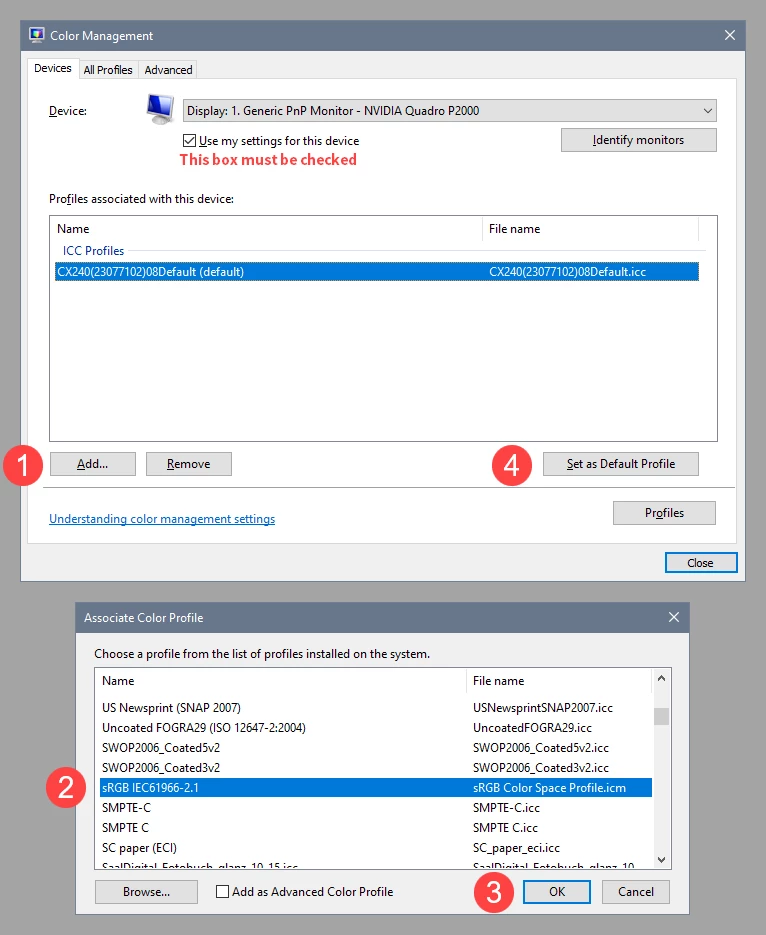
Recently I am having problems with Color Space in Both PS and Bridge. The Meta data on my file shows Color space being sRGB IEC31966-2.1 Yet if I choose the same working color space in PS the colors all come out Wrong ! All other apps show correct colors when I open the same file. Only if I select View-Proof Setup-Monitor, then colors become correct...This is even a problem when Working Color space is the same as what is indicated in the Meta data. I suspect there is a BUG in PS or Bridge or both..?
Can someone verify this ?



 AdChoices