


Convert to Profile preview doesnt follow through
So I have received pictures to use in cards that are handed out for guests of a party. These pictures have Source Space Adobe RGB. Now, as I view them in Photoshop, some colours appear different then what I know them to be. Standard the Working Space is set ro sRGB. Now, I can Preserve Embedded Profiles in Color Management Policies, or even put the Working Space to Adobe RGB, but the colour (I'm going to make it specific, orange pants look like red pants) is still off.
In Assign Profile I can also put Adobe RGB and select it, but at this point it's the same as Working Space.
Now I was already convinced the images are simply this way, the pictures have red pants, be it from the photographer's settings or his alterations on the file afterward.
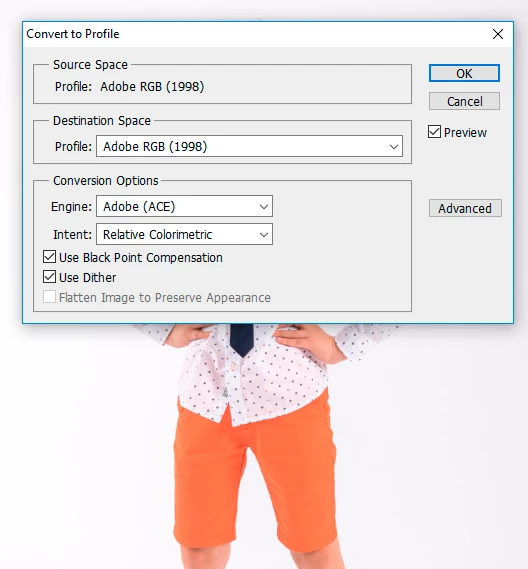
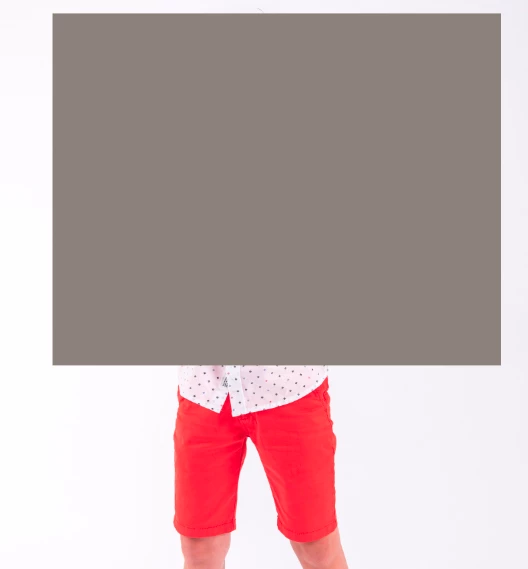
But then I select 'Convert to Profile' and it says Source Space Adobe RGB and I also choose Destination Space: Adobe RGB and then with Preview selected... lo and behold, orange pants. I actually have my orange pants in view in Photoshop. But here's the weird thing. As soon as I click on OK to, you know, give the OK that these settings and this preview is what I want, the image shows red pants again.
Open up Convert to Profile again with Adobe RGB already selected and the pants are orange. Click OK, the pants are red.
What's going on here that I get a preview and upon accepting the preview as I see it, the image returns to something else?
I'll add images, first image is with the preview mode. The second image is once I click OK. I 'simply' want the image to remain orange as the preview promises me.
 AdChoices