


Participating Frequently
February 28, 2018
Answered

Photoshop Colors Are Slightly Yellow Still After Color Management

  • February 28, 2018
  • 5 replies
  • 16142 views

Hello everyone,

I've run into an issue with colors in Photoshop being slightly yellow.  I've tried Photoshop CS4 and downloaded a trial of the current Photoshop CC version, both of which run into this issue.  The same photos opened outside of Photoshop (e.g., in Windows Photos app) do not have the yellow tint.  From searching online, it seems to be an issue with color profiles, but after trying to change the color profiles for my monitor in Color Management settings in Windows and making sure they are updated in Photoshop's color settings options, I still can't get whites to be white; they still have a slight yellow tinge to them.  I've tried two separate computers to see if it was computer related, to no luck.

To be clear, so far I've tried:

- ICC Profiles: sRGB IEC61966-2.1, monitor default profile, Adobe RGB (1998), and settings calibrated through Windows color calibration software

- Within Windows Color Management Settings, I made sure each profile I tried was added and set as the default.  I also ensured I checked the "Use my settings for this device" so that the custom color settings were being used.

- Within Photoshop, I made sure the settings were set properly (screen snippet of my settings within CS4 with the IEC61966-2.1 profile enabled is below) and that the photo was set to the workspace color profile instead of an embedded color profile.

- I tried restarting the computer several times and restarting Photoshop after each ICC profile change.

Photoshop Settings:
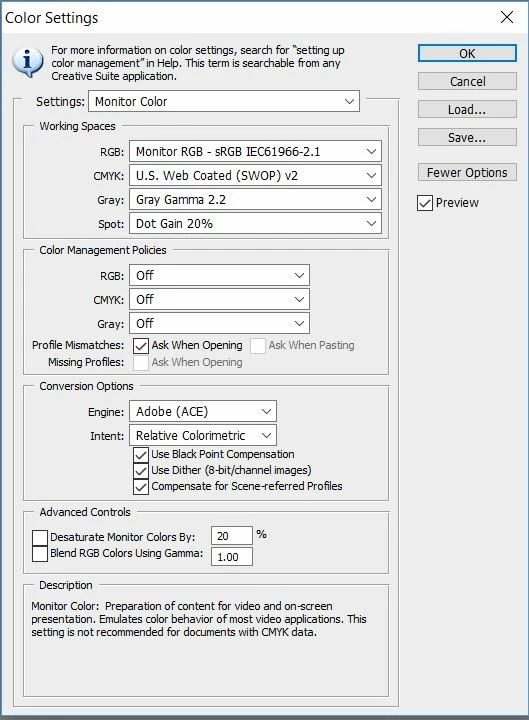
Photoshop Version: CS4 and CC trial (to rule out an issue with the older version of Photoshop)

OS: Windows 10

The photo on the left is the one from Photoshop, while the one on the right is from Windows Photos
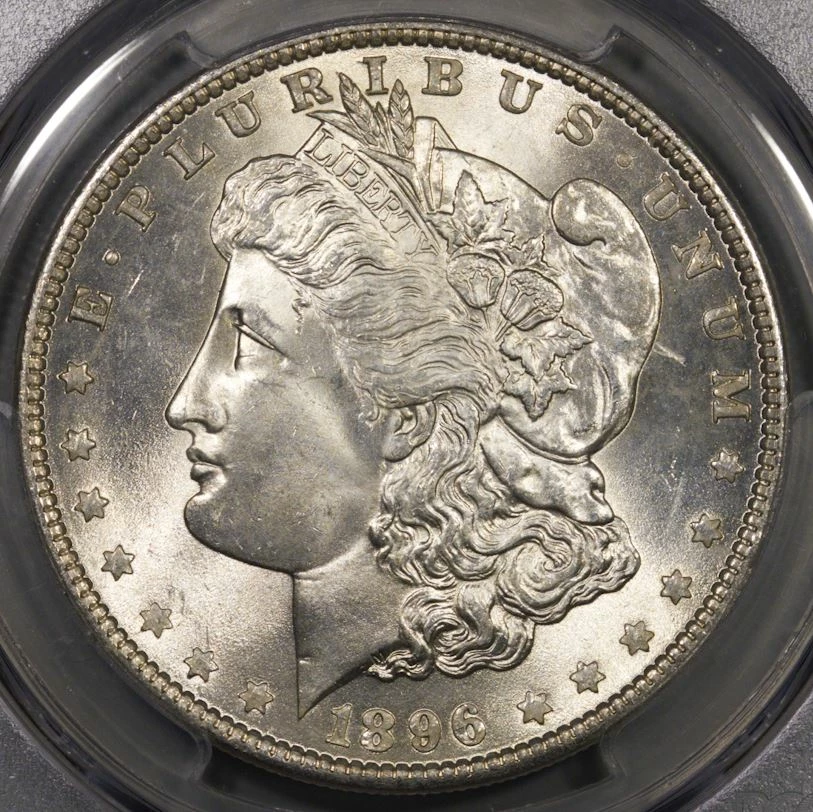
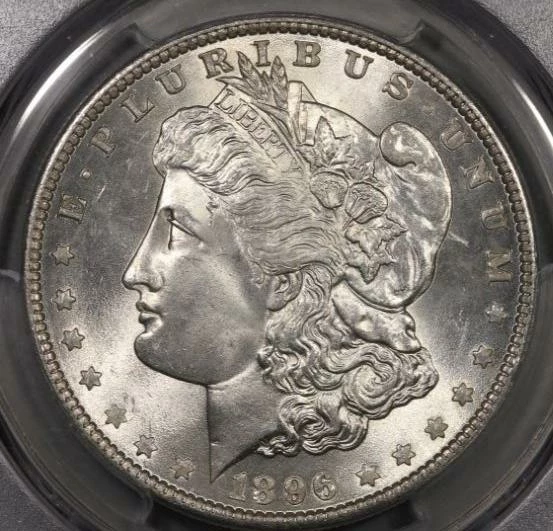
At this point, I'm not sure what else I can try short of purchasing a hardware tool to assist in color calibration.  From reading, however, it seems most people fix this problem simply by changing their color profile to sRGB IEC61966-2.1 in Windows and Photoshop, which hasn't worked for me for some reason.

Any help would be greatly appreciated!

Thanks in advance!

This topic has been closed for replies.
Correct answer D Fosse

Wait a second. Have you been looking at raw files here? You should have said so right away.

In that case the explanation is even simpler: Windows "Photos" displays the camera-processed, embedded jpeg, not the raw data as ACR interprets them.

Those are two really different things that have no relation to each other!

No, changing camera profile doesn't "solve" anything - there's nothing to solve, there is no problem. You have just picked a camera profile in ACR that is specifically intended to mimic the camera manufacturer's processing.

5 replies

D Fosse
Community Expert
Community Expert
April 18, 2018

Oops. This is embarrassing, I really botched this one...

The Dell U2415 is not wide gamut. I confused it with the U2413. The 24-fifteen is a standard gamut model that can be used without any particular considerations.

What can I say? The good news is that you haven't wasted any money after all

Anyway. Everything I wrote is still true, it just has a lot less impact with a normal, standard gamut screen. It's still true that document sRGB > monitor sRGB is a non-color managed "null transform". That is indeed what you get with sRGB as monitor profile - and that's why I said it wouldn't be entirely correct. Because that would assume a perfect reproduction of sRGB on your monitor, and that's something you never get, no matter how much you tweak it.

This is what the monitor profile compensates for - all the small irregularities of the monitor's response, the slightly shifted primaries, the dips and lumps in the tone response curve. It's all corrected in the profile, based on measurements by the sensor.

And it's still true that Dell's canned profiles are notoriously bad and can usually not be trusted. So if you don't have a calibrator, the best bet is to use sRGB. The monitor is close enough to sRGB that it won't be dramatically off, as it would be with a wide gamut unit.

One more thing: Leave the "installation" CD alone, don't run it. All it contains are profiles, which as I said should be avoided. There's no driver there - none is necessary. It's just a small .inf file that displays the unit's model name in the device manager.

Participating Frequently
April 18, 2018

Wow, that is good news! I don't feel so much like a dummy now! But I do have a couple more questions....

You said this:

The message "The monitor profile "Dell S2340M Color Profile, D65" appears to be defective. Please rerun your monitor calibration software" means exactly what it says, to the letter.

I got that message the first time i opened Photoshop after Win10 was installed. Up until then the Dell S2340M monitor color calibration was perfect ~ what I saw on the screen was what I got on the print, despite what you say about Dell's canned profiles being notoriously bad. This morning I found the disc that came with the monitor when i bought it in 2014, and when i open the folder to view the files in File Explorer, among a bunch of other files and folders I find a Dell Application file CDBrowse.

When I open it I find a Dell CD Browser window for Dell S2240M/S2340M Monitor with 3 categories: Product Information, Dell Display Manager Software, and a Driver & Color Profile for S2340M with an Install tab.

There's also a Drivers folder, when I open it I find a Dell S2340M ICC Profile file which is an .icm file, which must be the file that runs when I click the Install tab in the Dell CD Browser.

In the Windows Color Management list, there is already a Dell S2340M Color Profile, D65 ICC Profile (file name DELL S2340M.icm) ~ the one that is now defective??

In your last post you say:

One more thing: Leave the "installation" CD alone, don't run it. All it contains are profiles, which as I said should be avoided. There's no driver there - none is necessary. It's just a small .inf file that displays the unit's model name in the device manager.

But if I hook that monitor up to my computer again as a test, why wouldn't i follow the instructions in the error message and rerun my color calibration software?

The problem being that I got the very same yellowed, slightly desaturated print when I assigned either monitor (the S2340M or the U2415) the sRGB IEC61966-2.1 ICC profile. It doesn't solve the problem. I still wonder if it's a Win10 issue with Photoshop.

Participating Frequently
April 18, 2018

But I'm also wondering...when opening an image file using the S2340M monitor, I got the Photoshop 'defective color profile' error message asking if wanted to 'use anyway' and I chose no. So when I went to print I was printing a file with no ICC profile selected and got the yellow shift. There was no color profile included with the Dell U2415 (because it's supposed to come factory calibrated), and 'use my settings' was not selected in Color Management, so both test prints came out the same.

Then when as suggested I assigned the sRBC profile, it was still, as you say, as if there was no color management.  I want to try hooking the S2340M monitor back up and reinstalling the Driver & Color profile for S2340M. Wouldn't that correct the defective color profile? Isn't that worth a try?

D Fosse
Community Expert
D FosseCommunity ExpertCorrect answer
Community Expert
March 2, 2018

Wait a second. Have you been looking at raw files here? You should have said so right away.

In that case the explanation is even simpler: Windows "Photos" displays the camera-processed, embedded jpeg, not the raw data as ACR interprets them.

Those are two really different things that have no relation to each other!

No, changing camera profile doesn't "solve" anything - there's nothing to solve, there is no problem. You have just picked a camera profile in ACR that is specifically intended to mimic the camera manufacturer's processing.

ArastiirAuthor
Participating Frequently
March 2, 2018

https://forums.adobe.com/people/D+Fosse  wrote

Wait a second. Have you been looking at raw files here? You should have said so right away.

In that case the explanation is even simpler: Windows "Photos" displays the camera-processed, embedded jpeg, not the raw data as ACR interprets them.

Those are two really different things that have no relation to each other!

No, changing camera profile doesn't "solve" anything - there's nothing to solve, there is no problem. You have just picked a camera profile in ACR that is specifically intended to mimic the camera manufacturer's processing.

Yes, understanding it now I recognize how important that seemingly innocuous piece of information was.

While I more or less agree with your statement about it not solving anything, at the end of the day it mostly resolved, to an extent, my issue of the ACR image colors being off.  If there is a better solution to that problem, I'm open and curious, but to my understanding this is the best solution available (changing to a camera profile that closer represents what the camera is "seeing").

D Fosse
Community Expert
Community Expert
March 2, 2018

Well, I would argue that ACR colors are by definition never "off". It's a raw file, it needs to be processed in any case, and there's no reason to just accept the ACR defaults as they are.

In particular, the white balance is always set in the raw converter - whether in-camera raw processing (firmware) or a standalone raw converter like ACR. There is no "inherent" white balance, the sensor just records the photons that happen to hit it. Then a measurement of the image data yields a calculated white balance. This will generally be a bit different in camera vs. ACR because the processing code is very different.

ACR defaults are intentionally conservative. They are not meant to give a "pleasing" image - they are meant to conserve and present as much of the original sensor data as possible. The sliders are there to be used, and that's what Adobe assumes you will do. The rest is up to you.

In short, a raw file isn't even an image without processing. If you could see it, it would be a very dark, very compressed grayscale image. Nikon's or Canon's opinion of how the finished image should look is just that - their opinion.

D Fosse
Community Expert
Community Expert
March 1, 2018

OK, let's run this down. First the basic mechanism:

  • Photoshop's display color management is a straight profile conversion, from document profile into monitor profile. This is just like any other profile conversion.
  • Any color management requires two profiles - a source and a destination.
  • A profile is a description, a map if you like, of a corresponding color space. Only one profile is the correct one.
  • A monitor's native color space - its behavior - is likewise described in a profile. This is optimally made with a calibrator, based on measurement, but for less critical purposes a generic one can be used. Since most monitors are fairly close to sRGB natively, you can use sRGB IEC61966-2.1 as monitor profile.
  • A profile conversion recalculates the numbers to preserve color appearance. This is also known as remapping the numbers.
  • An application without color management ("Photos") does nothing of this - it just sends the original numbers straight through to the display, uncorrected.

So. This has some implications.

  • If the source and destination profiles are the same, obviously nothing is recalculated. This is known as a null transform. IOW, if the document profile is sRGB, and the monitor profile is also sRGB, nothing happens. This is by definition no color management, and in this situation Photoshop in fact mimics any other non-color managed application. They have to display identically, they have no choice.
  • If "Photos" and Photoshop don't display identically with sRGB as monitor profile, that means the document profile is not sRGB, but something else.
D Fosse
Community Expert
Community Expert
March 1, 2018

Oh - one more thing. When you set monitor profile in Windows, you do that in the "Devices" tab - not the "Advanced" tab. A lot of people misunderstand this. You also need to use sRGB IEC61966-2.1 specifically, not any other profile with sRGB in the name, like the sRGB "virtual device" profile which is for different purposes.

It looks like this:

JJMack
Community Expert
Community Expert
February 28, 2018

For windows photo may be managing colors differently the Photoshop particularity for to color intent is for your monitor and Adobe warns that is not good if you intend to do any CMYK color editing.  Try changing your Photoshop color settings to Photoshop default setting North American General purpose 2 see it your colors match between application then.

JJMack
ArastiirAuthor
Participating Frequently
March 1, 2018

JJMack  wrote

For windows photo may be managing colors differently the Photoshop particularity for to color intent is for your monitor and Adobe warns that is not good if you intend to do any CMYK color editing.  Try changing your Photoshop color settings to Photoshop default setting North American General purpose 2 see it your colors match between application then.

Thanks for replying JJMack!

I'm not entirely clear what you're saying in your first sentence, but I am not doing any CMYK color editing (I'm using RGB).  I did try changing my Photoshop color settings to North American General Purpose 2 and, unfortunately, the photo is still yellow tinted.

JJMack
Community Expert
Community Expert
March 1, 2018

I was just pointing out the you may have missed Adobe warning not recommended in the description in you post there are many poor setting you made in your post

JJMack
D Fosse
Community Expert
Community Expert
February 28, 2018

First of all: set everything in Color Settings back to defaults. That's not where the problem is. Color Settings deal exclusively with document profile handling, but this isn't the document profile, this is the monitor profile. Those two should never be confused.

Above all, never set policies to off. It should always be "preserve embedded profiles". The working space should always be a standard profile like sRGB or Adobe RGB.

Windows "Photos" is not color managed and does not use your monitor profile. Photoshop is and does, so there will always be a slight difference. That's normal and expected! With a valid profile, Photoshop is right and "Photos" is wrong.

If the profile is defective, which happens surprisingly often with manufacturer profiles distributed through Windows Update, the usual quick fix is to replace the profile with sRGB IEC61966-2.1 - the proper fix is to use a calibrator. You do this at system level, not in Photoshop. Photoshop uses whatever monitor profile it gets from the OS.

When you change monitor profile, you need to restart Photoshop. It loads the profile at application startup. That's probably what you haven't done here.

ArastiirAuthor
Participating Frequently
March 1, 2018

Thanks for taking the time to reply!

https://forums.adobe.com/people/D+Fosse  wrote

First of all: set everything in Color Settings back to defaults. That's not where the problem is. Color Settings deal exclusively with document profile handling, but this isn't the document profile, this is the monitor profile. Those two should never be confused.

Above all, never set policies to off. It should always be "preserve embedded profiles". The working space should always be a standard profile like sRGB or Adobe RGB.

Thanks for the clarification here.  While I understand there is a difference, I don't think I understand what the Photoshop color settings are exactly.

In regards to setting them back to defaults: I'm not sure what exactly "defaults" are, as I just changed it to the monitor profile at some point while tinkering with trying to get this to work, but I changed it to North American General Purpose 2, as suggested by JJMack.  Unfortunately, that didn't make a difference.

Windows "Photos" is not color managed and does not use your monitor profile. Photoshop is and does, so there will always be a slight difference. That's normal and expected! With a valid profile, Photoshop is right and "Photos" is wrong.

This I am aware of and understand.  I am hoping to get to that stage of Photoshop being right and Photos wrong; I've just got it reversed right now, unfortunately!

If the profile is defective, which happens surprisingly often with manufacturer profiles distributed through Windows Update, the usual quick fix is to replace the profile with sRGB IEC61966-2.1 - the proper fix is to use a calibrator. You do this at system level, not in Photoshop. Photoshop uses whatever monitor profile it gets from the OS.

When you change monitor profile, you need to restart Photoshop. It loads the profile at application startup. That's probably what you haven't done here.

I have tried setting the profile to sRGB IEC61966-2.1 and restarting Photoshop (and rebooting), as I mentioned in the original post.  That is why I'm very stuck and confused.  I'm hoping there is something I'm missing or there is an alternative solution I haven't been able to find.

Thanks again!