ogb1984
Participant
May 2, 2020
Answered

Pictures appear darker (more contrast ? ) after export

  • May 2, 2020
  • 3 replies
  • 2064 views

Hi,


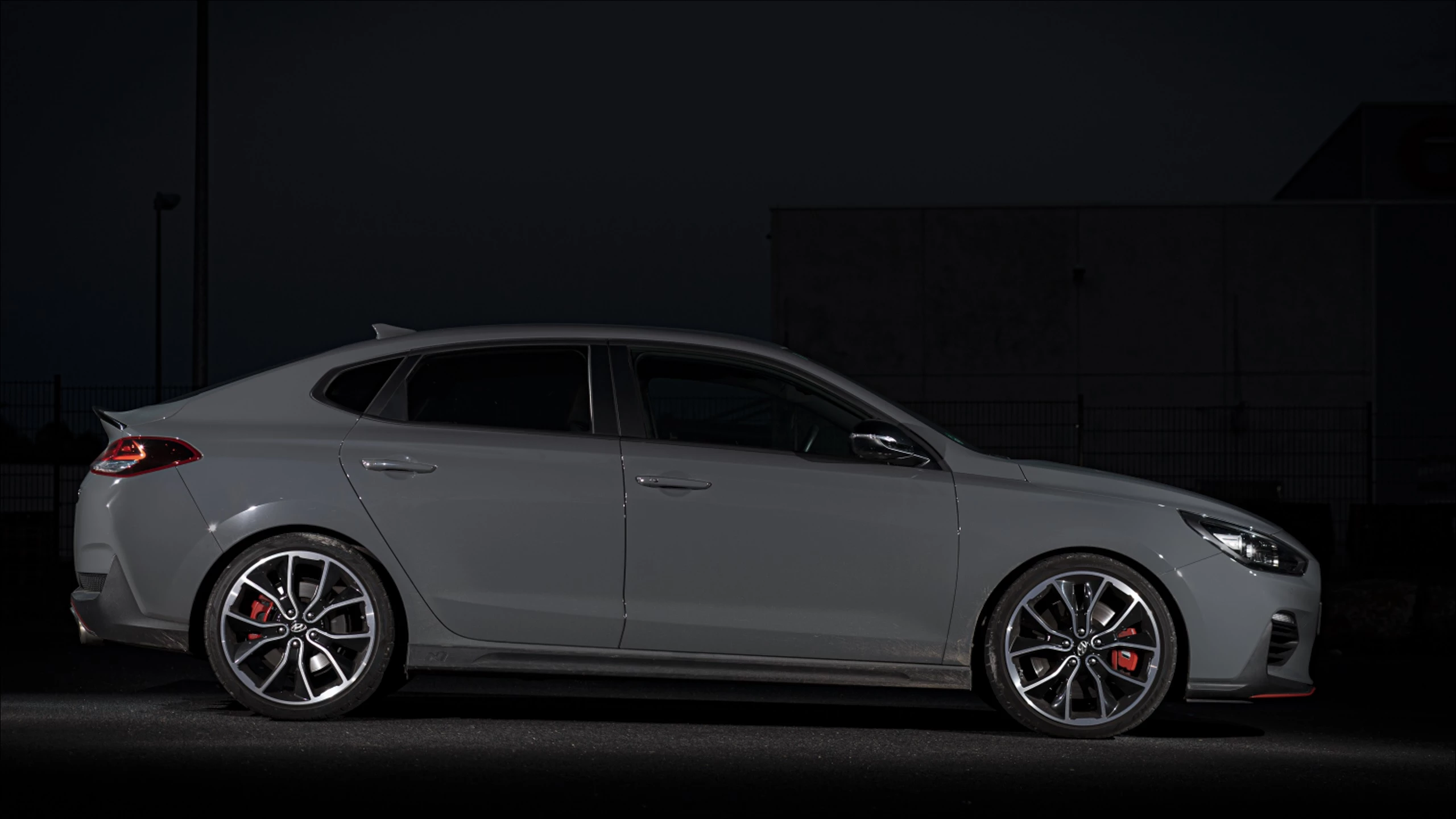
This is what I am working on, as I see it in LR / PS:

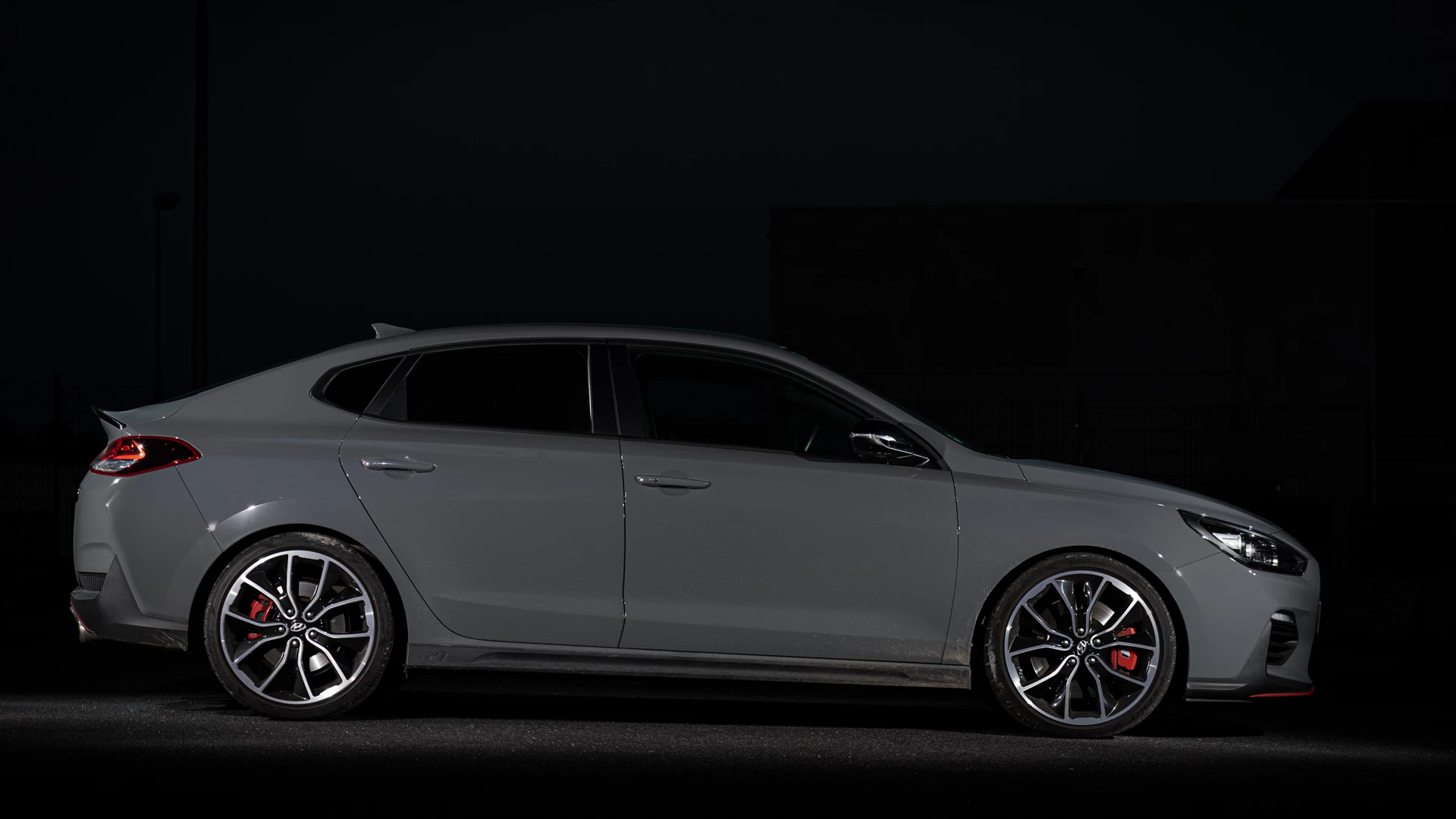
And this is what I get when I export it, without any changes.

If I open the dark photo in any Adobe Programm again, it is correct. But in Paint, and any other programm ( including if I send it per whattsapp and so on) it appears to dark.


Monitor is calibrated. PS / LR / Camera is set to sRGB.


Thanks in advance.

Oliver

This topic has been closed for replies.
Correct answer NB, colourmanagement

Hi


This is likely a colour management issue

Photoshop is all set up to use colour management properly to show you - on screen - the correct visual interpretation of an image's actual colour and tonal values. Many programs do not use colour management at all. I am sure someone here will confirm whether Microsoft Windows Paint is one of those 'no colour management' culprits. 


People work around this well known issue by saving from Photoshop as sRGB (or maybe P3 which suits modern handheld devices better) this helps as it's generally saviunf a file that's closer to "most" screens native condition (not wide gamut screens though).


There is a further possibility,

different programs react in different ways to corrupted display profiles.

Photoshop is pretty sensitive to that issue


- SO here's some info about that


Display profile issues 

At least once a week on this forum we read about this, or very similar issues of appearance differing between applications.

Unfortunately, with Microsoft hardware: Windows updates, Graphics Card updates and Display manufacturers have a frustratingly growing reputation for installing useless (corrupted) monitor display profiles.

I CAN happen with Macs but with far less likelyhood, it seems.


The issue can affect different applications in different ways, some not at all, some very badly.


The poor monitor display profile issue is hidden by some applications, specifically those that do not use colour management, such as Microsoft Windows "Photos".


Photoshop is correct, it’s the industry standard for viewing images, in my experience it's revealing an issue with the Monitor Display profile rather that causing it. Whatever you do, don't ignore it. As the issue isn’t caused by Photoshop, don’t change your Photoshop ‘color settings’ to try fix it. 


If you want to rule out pretty much the only issue we ever see with Photoshop, you can reset preferences, I never read of a preferences issue causing this problem though:

To reset the preferences in Photoshop: 

https://helpx.adobe.com/photoshop/using/preferences.html


Note: Make sure that you back up all your custom presets, brushes & actions before restoring Photoshop's preferences. Migrate presets, actions, and settings


To find out if this is the issue, I recommend you to try setting the monitor profile for your own monitor display under “Device” in your Windows ‘color management’ control panel to sRGB. You can ADD sRGB if its not already listed. 

And be sure to check “Use my settings for this device”.


(OR, if you have a wide gamut monitor display (check the spec online) it’s better to try Adobe RGB instead).

Quit and relaunch Photoshop after the control panel change, to ensure the new settings are applied.
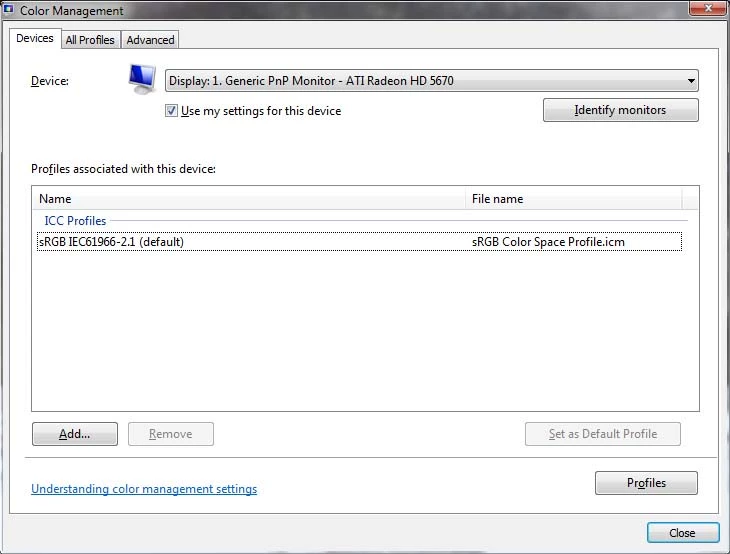


If this change fixes the issue, it is recommended that you should now calibrate and profile the monitor properly using a calibration sensor like i1display pro, which will create and install it's own custom monitor profile. The software should install it’s profile correctly so there should be no need to manual set the control panel once you are doing this right. 


Depending on the characteristics of your monitor display and your requirements, using sRGB or Adobe RGB here may be good enough - but custom calibration is a superior approach.


I hope this helps

if so, please "like" my reply and if you're OK now, please mark it as "correct", so that others who have similar issues can see the solution

thanks

neil barstow, colourmanagement.net :: adobe forum volunteer

[please do not use the reply button on a message in the thread, only use the one at the top of the page, to maintain chronological order]


 

3 replies

ogb1984
ogb1984Author
Participant
May 2, 2020

I have throwen all calibrations and profiles away. reseted win "photos" and changed the monitor to "sRGB" settings (on the monitor itself).

Now the monitor is way brighter then calibrated, but the appeareance of the fotos are the same. Thanks for guiding me.


D Fosse
Community Expert
Community Expert
May 2, 2020

"reseted win "photos" and changed the monitor to "sRGB" settings (on the monitor itself)."


There is no need to do that. Recalibrate your monitor and stay away from the presets, sRGB or otherwise. Your monitor should always be fully calibrated and profiled, in its native state with full capabilities.


You seem to be missing the point, which is that Photoshop is right and Windows Photos/Paint are both wrong. You can never trust Windows Photos/Paint, they will never display correctly under any circumstances. They are not color managed and ignore all icc profiles. They don't know what sRGB is, they just send the numbers straight through. Don't trust them, they cannot be used as reference for anything.


When you have one right and one wrong, you don't make them both wrong.

Per Berntsen
Community Expert
Community Expert
May 2, 2020

Yes, Paint is not color managed.

In fact, no native Windows applications are color managed. (Photos, Edge, File explorer, desktop)

So the solution is to use a third party color managed image viewer, like FastStone, free for personal use.

Color management must be enabled in Settings, and both boxes must be checked in the dialog.

NB, colourmanagement
Community Expert
NB, colourmanagementCommunity ExpertCorrect answer
Community Expert
May 2, 2020

Hi


This is likely a colour management issue

Photoshop is all set up to use colour management properly to show you - on screen - the correct visual interpretation of an image's actual colour and tonal values. Many programs do not use colour management at all. I am sure someone here will confirm whether Microsoft Windows Paint is one of those 'no colour management' culprits. 


People work around this well known issue by saving from Photoshop as sRGB (or maybe P3 which suits modern handheld devices better) this helps as it's generally saviunf a file that's closer to "most" screens native condition (not wide gamut screens though).


There is a further possibility,

different programs react in different ways to corrupted display profiles.

Photoshop is pretty sensitive to that issue


- SO here's some info about that


Display profile issues 

At least once a week on this forum we read about this, or very similar issues of appearance differing between applications.

Unfortunately, with Microsoft hardware: Windows updates, Graphics Card updates and Display manufacturers have a frustratingly growing reputation for installing useless (corrupted) monitor display profiles.

I CAN happen with Macs but with far less likelyhood, it seems.


The issue can affect different applications in different ways, some not at all, some very badly.


The poor monitor display profile issue is hidden by some applications, specifically those that do not use colour management, such as Microsoft Windows "Photos".


Photoshop is correct, it’s the industry standard for viewing images, in my experience it's revealing an issue with the Monitor Display profile rather that causing it. Whatever you do, don't ignore it. As the issue isn’t caused by Photoshop, don’t change your Photoshop ‘color settings’ to try fix it. 


If you want to rule out pretty much the only issue we ever see with Photoshop, you can reset preferences, I never read of a preferences issue causing this problem though:

To reset the preferences in Photoshop: 

https://helpx.adobe.com/photoshop/using/preferences.html


Note: Make sure that you back up all your custom presets, brushes & actions before restoring Photoshop's preferences. Migrate presets, actions, and settings


To find out if this is the issue, I recommend you to try setting the monitor profile for your own monitor display under “Device” in your Windows ‘color management’ control panel to sRGB. You can ADD sRGB if its not already listed. 

And be sure to check “Use my settings for this device”.


(OR, if you have a wide gamut monitor display (check the spec online) it’s better to try Adobe RGB instead).

Quit and relaunch Photoshop after the control panel change, to ensure the new settings are applied.


If this change fixes the issue, it is recommended that you should now calibrate and profile the monitor properly using a calibration sensor like i1display pro, which will create and install it's own custom monitor profile. The software should install it’s profile correctly so there should be no need to manual set the control panel once you are doing this right. 


Depending on the characteristics of your monitor display and your requirements, using sRGB or Adobe RGB here may be good enough - but custom calibration is a superior approach.


I hope this helps

if so, please "like" my reply and if you're OK now, please mark it as "correct", so that others who have similar issues can see the solution

thanks

neil barstow, colourmanagement.net :: adobe forum volunteer

[please do not use the reply button on a message in the thread, only use the one at the top of the page, to maintain chronological order]