October 27, 2010
Question

Tired of color desat when opening in Bridge/Lightroom. HELP!

  • October 27, 2010
  • 4 replies
  • 60287 views

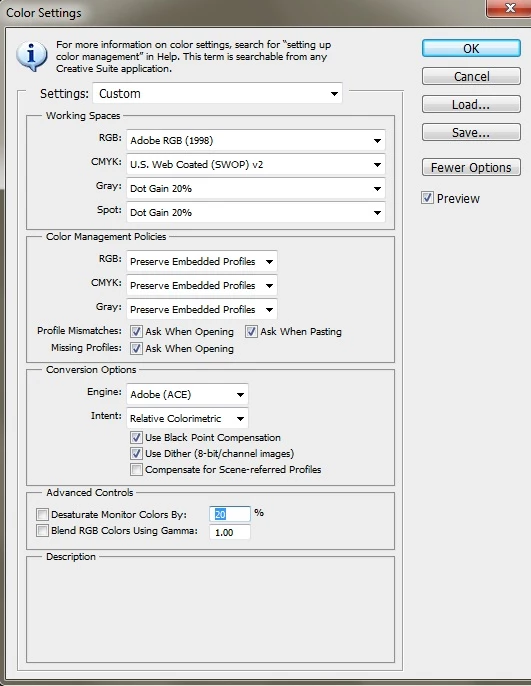
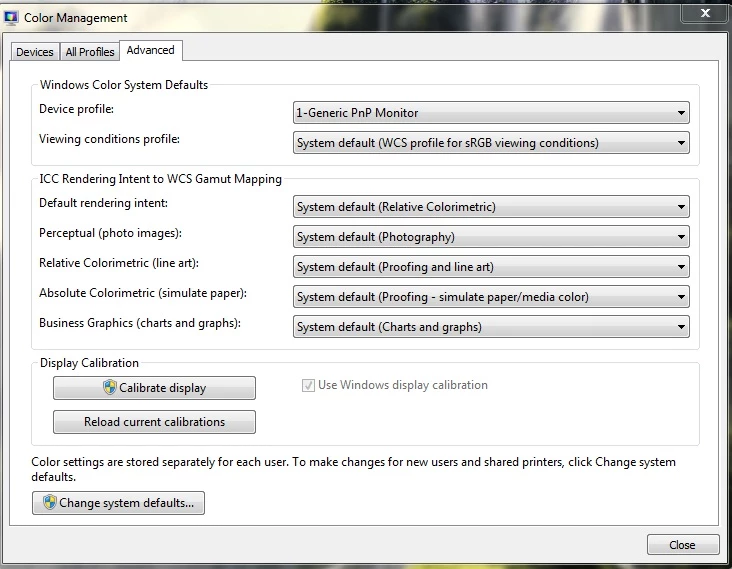
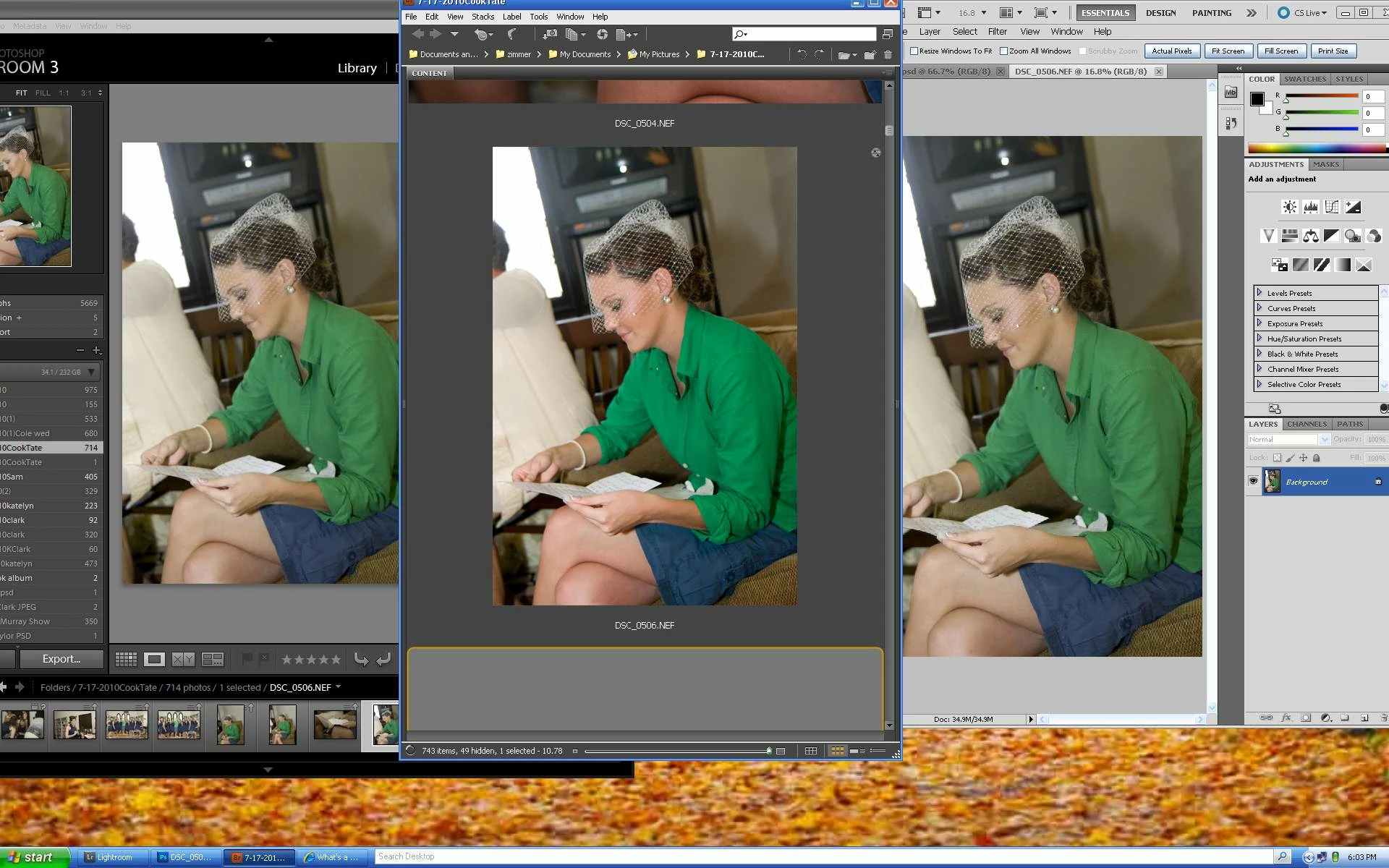
I am going insane in my attempt to keep consistent color management through all areas. Everything was fine, color was great, prints were matched to calbration, monitor calibrated, and then....I rebooted the computer since I hadn't done so for a week, and when I restarted Bridge, and Lightroom (yields same results), the color immediately drains from the photos. Similar to the screenshot, however when I initially created this screenshot, Bridge was still accepting the color. Now, the desaturation exists in all Adobe programs. (PS CS5, camera raw, bridge , lightroom 3.  I feel like I'm going in circles here. I have no clue what could have changed with the reboot. One thing I have noticed is that in Window before a photo image is generated in a folder is shows as a paint pallette. And, when asked in Windows Color Management of the program I would like to use to install a profile, I am give Microsoft Color Management System (which to my understanding is designed for Vista or XP). Tried to delete the program but was denied. Not sure if that has anything to do with it either.

If you have any insight and can help me stop the madness I would be so greatly appreciative!!

Thanks!

Windows7

U2410 Dell Ultra Sharp Monitor

Photoshop CS5 64-bit

Adobe Lightroom 3

Camera RAW

Adobe Bridge

NIVIDIA FX 580
    This topic has been closed for replies.

    4 replies

    Participant
    February 17, 2014

    I had the same problem.

    I used LUT Manager ( http://fotomania.nixz.net/lutmanager/ ) to load .ICC file. It solved my problem finally

    But it does not work after reboot. I saves it as a .LUT file that associated with LUT Manager and I droped it in Statup folder to run it automatically at startup.

    Participant
    May 24, 2012

    The same exact thing is happening to me. The "domino" effect of saturation going out happened.

    I tried the following for troubleshooting:

    I rebooted the computer.

    I unplugged and replugged in the monitor cable.

    I installed adobe updates

    I deleted all the files, and re-downloaded all the image files.

    I went in to the camera raw settings in photoshop and bridge and made sure they were matching

    I looked at the calibration of the monitor, but i know it’s not the monitor because the image looks fine in “windows picture viewer” application.

    If I minimize bridge and then maximize, the image will look correctly saturated, but when I click my mouse, or move the window, it returns to being desaturated and has a color shift.

    It seems like a bug to me because all the profiles match.  I'm really not sure what to do here.

    --Paige

    Participating Frequently
    May 25, 2012

    Paige,

    You apparently didn't go to the link provided above.  It's the Camera Raw Preferences from the Edit menu.  No rebooting necessary, no unplugging, and not a calibration issue.  Here is the dialog box:

    Just make sure you have jpeg and tiff support disabled as shown.

    Participant
    May 25, 2012

    Chris,

    This did not fix the problem.

    Thanks,

    Paige

    Inspiring
    November 27, 2010

    hi, i couldn't follow this thread, but if you want another approach, please go here

    http://www.gballard.net/photoshop/pdi_download/

    and download the ProPhotoRGB test image (it will be in a 15mb .zip)

    open the ProPhotoRGB (ppRGB) file in your apps and let me know which apps have the problem

    tip:

    also drag the ppRGB .jpg icon into your open Web browser windows (in addition to IE, use a color managed Web browser like latest Firefox and/or Apple Safari)

    Inspiring
    November 29, 2010

    Of course (for anyone following this thread), WHACKED RGB is an even more dramatic tool to troubleshoot this type of problem (I just added a Whacked RGB print resolution file to my above download link):

    Tagged with embedded profile WhackedRGB.icc:

    Exact same file except its embedded profile has been stripped:

    If you are using a color-managed Web browser the difference between tagged and untagged should be dramatic (very bluish)...if you are using an unmanaged browser, both files will look exactly the same (because they are both having the same default profile applied).

    My point is: drop these files into your problem apps and see what's going on...

    Participating Frequently
    November 30, 2010

    Yeah, nice play with the cross color space images, but with all respect gator, you should have read the whole thread.

    Connie's problem are not non color managed apps, her problem are color managed apps (especially Adobe apps), respectively those who pretend they are.

    Bridge f.e. is not CMed; not in the sense PS is.

    For the following test you need to have a wide-gamut monitor with a generic or profiled monitor profile loaded.

    You won't see much of a difference on a non wide-gamut monitor when going through this:

    Make yourself a new folder (for example Gator) and put a RAW to it. Open Bridge and develope the RAW as you like. Leave it open in PS. Open MiniBridge and make sure the color management is enabled in its preferences.

    You'll get something similar like this:

    What you se is a NEF (DSC_4051.NEF) with ACRs "vivid" camera preset assigned, developed to the ProPhoto Colorspace. PS/MB/Bridge.

    Now edit the image in PS, resize it to a width with is similar to the width of your monitor. Make it 8 bit or when on CS5 just save it as JPEG. Make sure its name is like that of the full RAW image name, including the suffix (NEF or CR2, etc)  => f.e. imagename.NEF.jpg. For the NEF shown it should be saved as DSC_4051.NEF.JPG

    Find your Bridge cache folder. In there, below \1024, you find a folder which starts with "Gator...." f.e. P:\Bridgecache\1024\GatorCC153054. Copy the saved image to it. Wait a bit or close and restart Bridge, but don't purge cache.

    You'll get something like this:

    What happend? Seems Bridge always assumes that it would be fed with sRGBs. Of course it does so, because an engine (or Bridge itself) in the background interprets the images (NEF, PSD, etc. pp.), means its assigns ACR settings respectively the camera styles, assigning the monitor profile to it and saves all that as a JPEG in sRGB in Bridges cache directory.

    IMHO. I might be wrong here regarding the details - so please understand this and the following statement as assumptions...

    Bridge than is reading its cached sRGB and assigns monitor profile again (?) - I can't tell at the moment and have to think about this - but its obvious that something strange is going on here ....

    Anyway. Per default there are two cached previews for Bridge, a third will be generated when you switch to full screen preview and zoom in.

    Since we only exchanged the 1024px preview, you will see different previews when switching to full screen or, when f.e. in filmstrip, you minimize the previews until those cached images from the /240 folder are used.

    Now assign the monitor profile to the image in PS:

    Close, but the MB preview still looks different. Not sure if this is visible on every monitor: the MB preview in the middle has a "colder" apperance, compared to what is seen in PS and Bridge.

    Now click on the most upper part of the MB window and hold it or move the window a bit and you get this:

    Now the "warmth" is almost the same on all previews. As soon you lift your finger and release the MB window, it is back to the colder appearance.

    So taking all this together, can we tell this is a consistent and reliable color management? So far I believe not - haven't even checked yet, what LR is doing on this...

    What happens to images which previously were processed on a "normal" sRGB and the cache never was rebuild?  And even when the cache was purged after a new monitor come into place and a monitor profile was assigned, what happens to images developed to the ProPhoto color space, but saved without an embedded profile and for a some reason have been tagged as sRGB or aRGB?

    Which can happend, we never know what developers do assign or do forget to remove, right?

    I'm talking about the "InteropIndex" here. When this EXIF tag is set f.e. to sRGB or aRGB (no embedded color profile) but the image was developed f.e. to ProPhoto, Bridges metadata view shows that the image is in sRGB and of course it shows it desaturated as well :-(

    MJOrts
    Participating Frequently
    October 27, 2010

    Hi Connie,

    Could you confirm that the colors in this image only look desaturated in the Adobe applications?  If you open this image in internet explorer, for example, does it appear to have the same appearance as it does inside of the Adobe applications now?

    I notice that "Use Windows display calibration" is checked on in your screenshot.  Are you calibrating your monitor through the OS or using a 3rd party calibration device?  Would you mind confirming that the profile you expect to be applied to the monitor is set as the default in the "Devices" tab of the color management dialog window?  The profile should appear in the device's profile menu with "(default)" tagged to the end of its name.

    Thanks!

    October 29, 2010

    Thanks for your reply, MJorts!

    The issue only occurs in Adobe products and which of course is the worst place for it to occur. I did uncheck the windows calibration box, but it did not make a difference.Yes, my calibrated profile is set to default for the monitor.

    The calibration was fine, I had somehow fixed this issue a few weeks ago, but it returned when I rebooted the computer.

    any ideas??

    MJOrts
    Participating Frequently
    November 4, 2010

    Hi Connie,

    Have you had any luck with this issue yet?

    Could you tell me what type of tools you're using to calibrate your monitor?  I think a user mentioned this on a different thread, but it looks like this might be related to calibration issues with wide gamut monitors, which could have an effect on color managed applications.  Are you calibrating the monitor with a 3rd party calibration tool, or are you using a manufacturer supplied display profile?

    Thanks