Participant
March 4, 2018
Answered

Bad image dimensions in Dreamweaver CS5.5

  • March 4, 2018
  • 1 reply
  • 277 views

Guys and Gals,

I am working in Dreamweaver for CS5.5. Not uncommon when I put an image into my page the dimensions go stupid. This is the text generated by Dreamweaver -

<img src="orange_empire_rwy_museum_photos/1743_oerm_navy_railcars_2015.JPG" width="351076272" height="3216" alt="U.S. Navy rail cars" />

It is for a JPG image with the properties of 2.55 MB (2,679,462 bytes) according to its metadata. When the image is clicked on in Dreamweaver it is a grey panel with a black x. Trying to change its dimensions by dropping the last for first six digits gets nothing but that grey panel with the black x.

The image opens good in Photoshop, copies and pastes from Explorer into Word, and is not a problem in any other application. This type of resizing happens in numerous other images so it is not "this" file alone.

"Hobby and educational user" of CS5.5. Dreamweaver is saying it is up to date. About is saying Version 11.5.

Thanks,

Rex

This topic has been closed for replies.
Correct answer Nancy OShea

You really must optimize your images first in Photoshop or similar graphics app before you insert them into DW.    Ideally, your images should not be bigger in height & width than the space you have allocated for them.

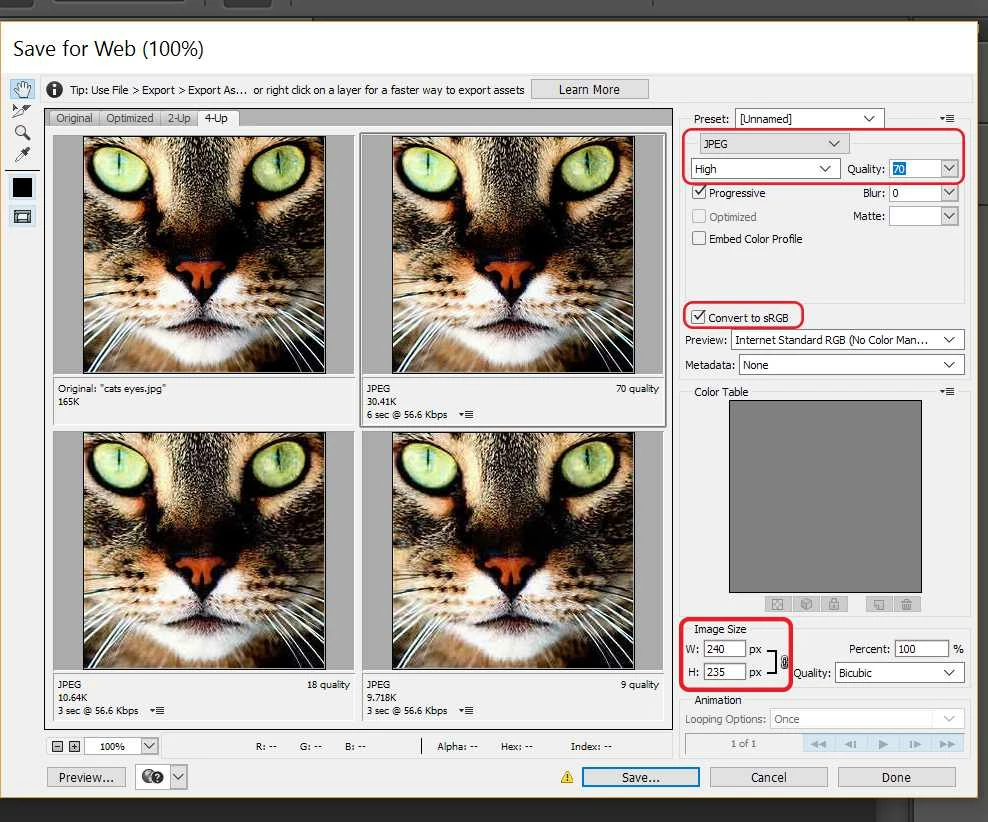
If you're still using legacy CS5, you will need to use Photoshop's  Save for Web feature with the 4-up panel so you can see optimized versions of your image.  With smaller images, I use a slightly better quality setting.  But with large images, you can safely use lesser quality which translates to lower bandwidth.  Always convert your color mode to sRGB for the web.   See screenshot.

With optimized images in your site folder, you can insert them into your layout from the Insert menu.   I don't recommend copy & paste.  It's prone to failures.

1 reply

Nancy OShea
Community Expert
Nancy OSheaCommunity ExpertCorrect answer
Community Expert
March 4, 2018

You really must optimize your images first in Photoshop or similar graphics app before you insert them into DW.    Ideally, your images should not be bigger in height & width than the space you have allocated for them.

If you're still using legacy CS5, you will need to use Photoshop's  Save for Web feature with the 4-up panel so you can see optimized versions of your image.  With smaller images, I use a slightly better quality setting.  But with large images, you can safely use lesser quality which translates to lower bandwidth.  Always convert your color mode to sRGB for the web.   See screenshot.

With optimized images in your site folder, you can insert them into your layout from the Insert menu.   I don't recommend copy & paste.  It's prone to failures.

Nancy O'Shea— Product User & Community Expert
Participant
March 5, 2018

Nancy,

Thank you very much. Played with a few photos and it works great. Sure wish my book on Dreamweaver or my college course on Dreamweaver would have mentioned this.

Thanks,

Rex